移動
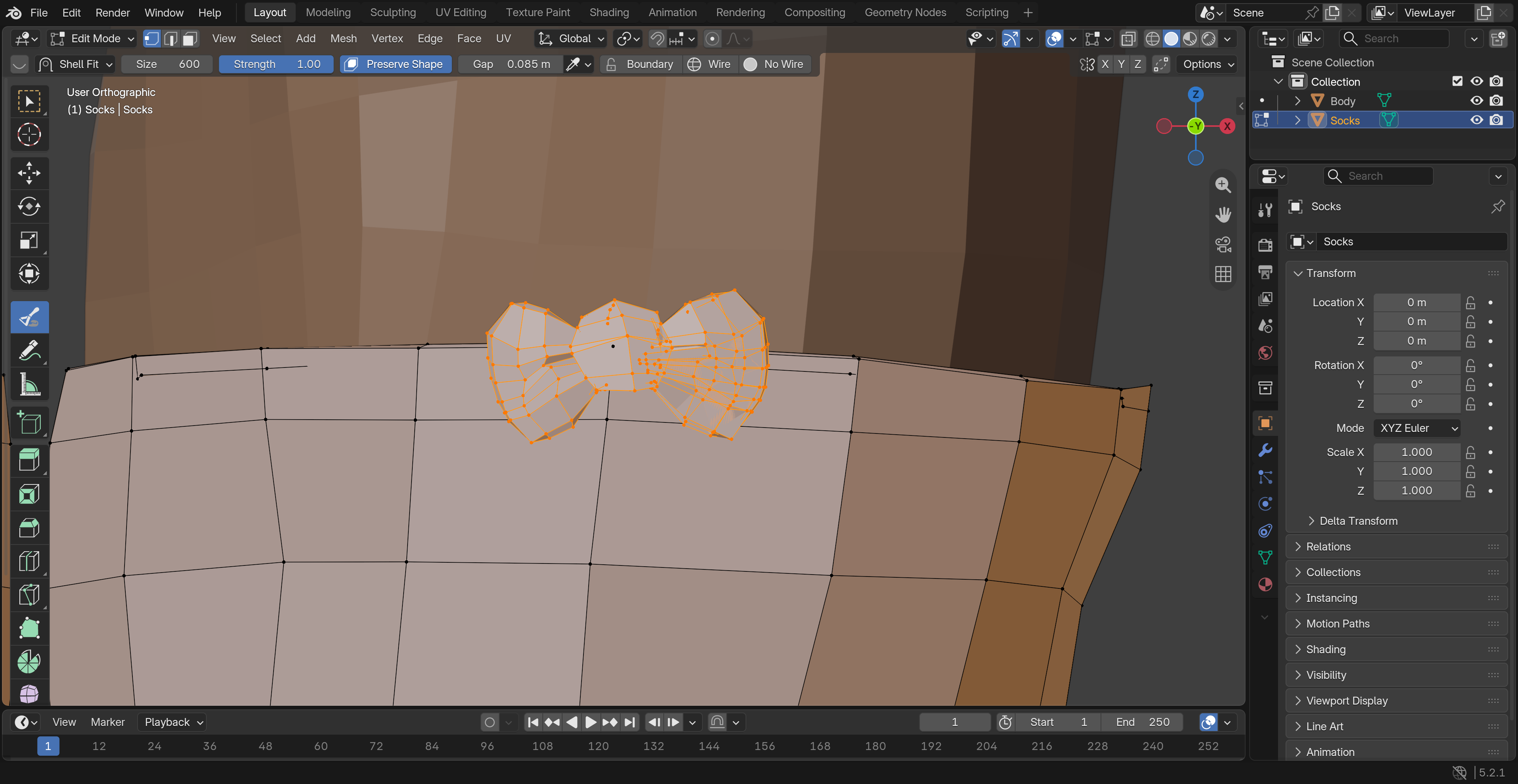
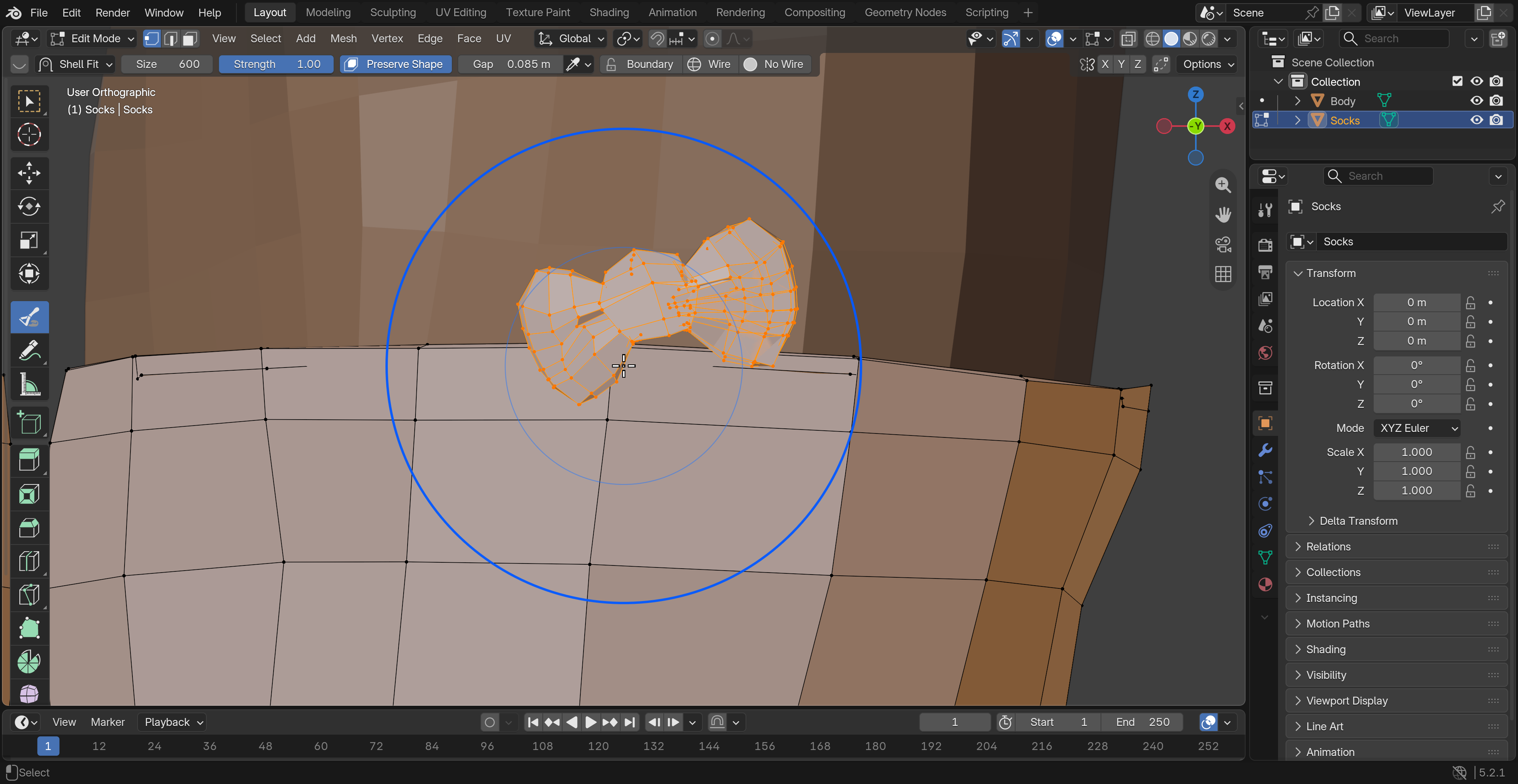
動かす場所で押し、ドラッグして離します。最初のブラシ範囲が移動します。リボンなどの厚い部品では「造形保持」をONにし、部品全体を円に含めます。体との隙間は自動では維持しません。
フィット、スムーズ、形状記憶、選択から局所形状ツールまで。選ぶものと操作の順番を、現在の画面と短い動画で確認できます。
Blender 4.5.0–5.2 · English / 日本語 · Land-Y
衣装メッシュを選び、3Dビューのサイドバー(N)→ cvELD Shell fit Brush → 開始ボタンを押します。オブジェクトモードからは編集モードへ移ります。すでにペイントモードの場合はそのモードで開始します。
初期キーや変更済みの割り当てはヘッダー左のショートカット設定で確認できます。終了は開始ボタンを再度押すか、別のツールへ切り替えます。
一覧は通常のブラシ、シェルフィット、仕上げ、実験的な修復で絞り込めます。サムネイルを選ぶとヘッダーと効果バーが切り替わります。
動かす場所で押し、ドラッグして離します。最初のブラシ範囲が移動します。リボンなどの厚い部品では「造形保持」をONにし、部品全体を円に含めます。体との隙間は自動では維持しません。
強さを低めにし、窮屈な袖や膝を短くなぞります。頂点が法線方向に移動して余裕を作ります。面の向きが反転していると意図と逆に動くため、法線を確認してください。
小さな凹凸を短くなぞります。「体積保持」OFFでは周囲の頂点へ近づけて滑らかにします。重ね塗りすると丸みや厚みが減る場合があります。
スムーズを選び、球+盾の「体積保持」をONにします。表面に沿って頂点を整え、縮みを抑えます。体積を厳密に固定する機能ではないため、輪郭を別の角度から確認します。
体や内側の衣服を表示し、「対象」のスポイトで指定します。浮かしは残す隙間、検索距離は面を探す距離です。小さな浮かしと十分な検索距離を設定し、浮いた布をなぞります。造形保持ONは厚い飾り向け、OFFは面へ沿わせたい薄い布向けです。
ブラシ一覧でシェルフィット移動を選びます。対象と浮かしを設定し、フィットした部品を横へドラッグします。対象に沿って移動します。対象から完全に外れる移動や検索距離を超える移動は止まる場合があります。
対象・浮かし・検索距離を設定し、混み合った頂点を低い強さでなぞります。対象との隙間を保ちながら表面に沿って整えます。普通のスムーズとは対象面による拘束が異なります。
ブラシ設定で面全体か頂点の列方向を選び、凹凸をなぞります。「開始時の平面を保持」はストローク中に同じ平面、「局所平面に追従」は元の局所的な曲率を基準にします。輪郭を動かす場合は境界固定をOFFにします。
並びの読めるメッシュの列で使います。流れ方向または基準の辺を指定し、混み合った列を短くなぞります。必要なら流れ表示で方向を確認します。輪郭が固定なら端は動かず、「輪郭に沿って移動」では保護された角を残して端の間隔を整えます。
形を崩す前にブラシ設定の「形状を記憶」で基準を用意します。ブラシ開始時の自動記憶も使えます。編集後、復元したい折り目だけをなぞります。「元の形状に合わせる」ONで折り目まで戻し、OFFでは現在の大きな形を残して細部を復元します。強く戻す目安は強さ1・現在の形を保持0です。別の元メッシュがある場合は「バックアップオブジェクト」に指定して形状を記憶し、復元先を「記憶した形状」または「バックアップ形状」から選びます。頂点数と接続が一致する基準が必要です。表面越しをONにすると円の裏側も対象になるため、必要な場所を選択マスクで制限します。

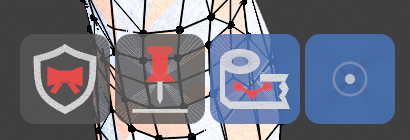
青い背景はONまたは現在の選択を表します。使える機能だけが表示されます。アイコンへマウスを置くと名前や効果のヘルプを確認できます。「?」から現在のブラシの操作ガイドを開けます。
| アイコン/設定 | 使い方 |
|---|---|
| 盾+赤い飾り:造形保持 | 移動・フィットで厚い部品の形を保ちます。部品全体を円へ含めます。 |
| 球+盾:体積保持 | スムーズ・平坦化・等間隔の縮みを抑えます。造形保持とは別の設定です。 |
| 画鋲:境界固定 | 開いた端を固定します。平坦化・等間隔でOFFにすると「輪郭に沿って移動」に変わります。保護された角は残ります。 |
| テープ+頂点:選択をマスク | ストローク開始時の選択だけを動かします。未選択なら警告して停止します。 |
| 目:表示 | ホバーして、選択だけ表示・選択メッシュのワイヤー非表示・選択オブジェクトのワイヤー表示から選びます。ワイヤー非表示はオブジェクトモード用です。編集ケージや全体ワイヤー表示は隠しません。 |
| 対称 | ホバーでX/Y/Zとブラシ範囲の対称を表示します。 |
現在の範囲アイコンをクリックすると3つの候補が縦に開きます。候補をクリックして切り替えます。マウスを置くだけでは範囲候補は開きません。Escで閉じます。ストローク中は開始時の範囲を維持します。
| 範囲 | 対象 |
|---|---|
| 範囲内すべて | 円に近い頂点を、離れたアイランドも含めて対象にします。 |
| 接続のみ | 触れた面から辺のつながりをたどります。距離もメッシュに沿って判断します。隣の独立したアイランドは動きません。 |
| 交差アイランド(初期値) | 触れたアイランドと、開始時に面の交差でつながるアイランドを対象にします。全体ではなくブラシの範囲に作用します。 |
ブラシ設定の「表示面のみ」は遮られた頂点や近くの裏面を除外します。「ブラシ深度を制限」は触れた面から手前・奥の範囲を、半径の倍率で制限します。「鋭角を保護」はシャープ辺・クリース辺を固定し、列の伝播を止めます。
平坦化・等間隔は流れ方向またはスポイトで選んだ基準辺を使い、流れ表示で対象列を確認できます。他オブジェクトへのスナップは頂点/面/辺を選べます。対応ブラシだけに作用し、Fit・平坦化・等間隔・仕上げ・局所形状ツールでは使いません。
Fit → 造形保持ON → 形状保護のWhole Islandで、最初に触れた独立アイランド全体を移動・回転してフィットします。通常の範囲候補は無効になります。別のアイランドへなぞり移っても対象は増えません。開いたリボンでは境界固定をOFFにし、選択マスクを使うなら対象全体を選びます。移動する全頂点(対称側を含む)は1024以下が必要です。
Whole Islandは静止したBasis形状で使用します。動作中の変形モディファイア、非ゼロの変形キー、部分マスク、非表示頂点、前面・深度制限には対応しません。布へ溶接された飾りは布と同じアイランドになります。

編集モードでヘッダー左のジオメトリ選択アイコンを押します。頂点・辺・面の選択モードを選び、なぞって選択します。形状は変形しません。
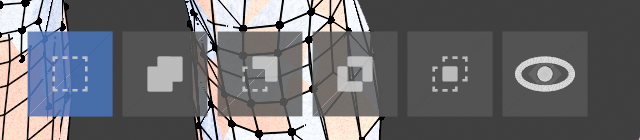
| 操作 | 結果 |
|---|---|
| 置き換え | 今回なぞった要素を選択します。 |
| 追加 | 既存の選択へ加えます。 |
| 減算 | なぞった要素を選択から外します。 |
| 反転 | 要素の選択をストローク中に1回ずつ反転します。 |
| 共通部分 | 元の選択と今回なぞった範囲の両方に含まれる要素を残します。 |
操作バーはホバーで説明、クリックで切り替えます。非表示の要素は変更しません。Escはストローク前の選択へ戻し、確定後はUndoできます。目のアイコンの「選択だけ表示」は選択を見やすくする一時表示です。終了や解除で表示を戻します。
対称アイコンへホバーし、X/Y/ZをONにします。Blenderのメッシュ対称設定と同期し、オブジェクトのローカル軸・原点を基準に動きます。まず原点と軸、対称になる形を確認してください。
通常の対称編集は、確認できた対応頂点へ動きを転送します。詳細設定でブラシ側に追従/正→負/負→正を選びます。独立した部品の対応範囲は、必要な場合だけ既存のINT・頂点属性で明示します。対応がない場所でも、直接なぞった側は操作できます。
「ブラシ範囲の対称」をONにすると、反対側にも同じ実寸の半径で独立したブラシを適用します。頂点数が違っても同じ範囲で処理できますが、結果が完全な鏡像になる保証はありません。到達率・部分適用・中心線の扱いは詳細設定で調整できます。中心をまたぐ大きなブラシでは、保護や深度も確認します。
仕上げの4ブラシと局所形状ツールには、この対称編集やスナップを適用しません。
最後の例はXとブラシ範囲の対称をON、検索上限を1.0にして右耳を動かしています。左側の崩れや穴は残したまま、検索範囲内の左耳も動きます。
ブラシ一覧から4種類の仕上げブラシを選べます。根元と縫い目は編集モードで準備します。選択・ペイントマスク・非表示・境界固定による保護は有効ですが、対称編集とスナップは適用しません。
対象に、法線が揃ったひとつながりの閉じた体を指定します。目標の隙間と検索距離を設定し、体に埋まった場所をなぞります。体の外にある頂点は動かしません。低い強さでは少しずつ近づくので重ね塗りします。
編集モードで根元の途切れない列を選び、ブラシ設定の「根元を保存」を押します。保存後は必要に応じて選択マスクをOFFにし、動かす側をドラッグします。根元と反対側、別の枝を保護します。「保存範囲を選択」で根元を確認できます。
閉じた対象ボディと目標の隙間を指定して塗ります。胸と腰などで値を変えて塗り分け、「保存した隙間を再適用」で再計算できます。隙間と対象は.blendに保存されます。対象やメッシュ構成を変えたら、保存した隙間を解除して塗り直します。
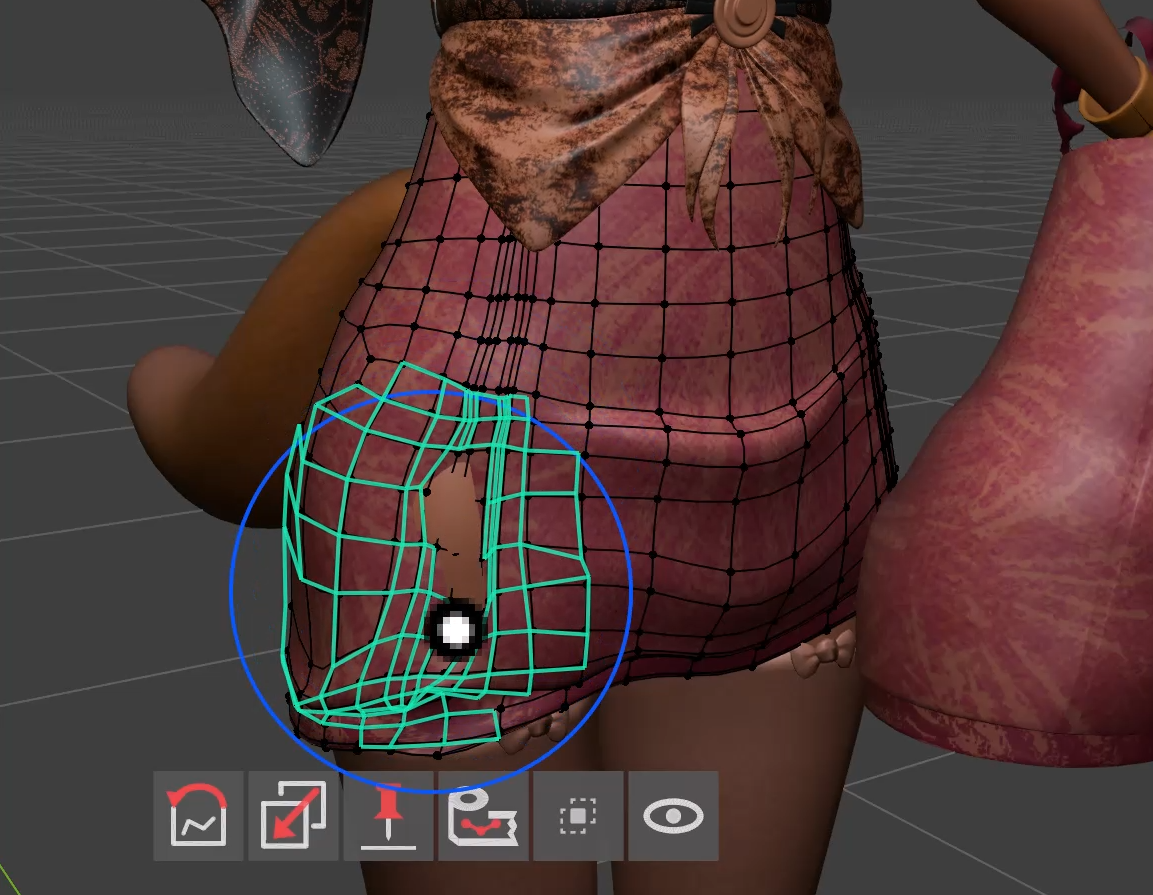
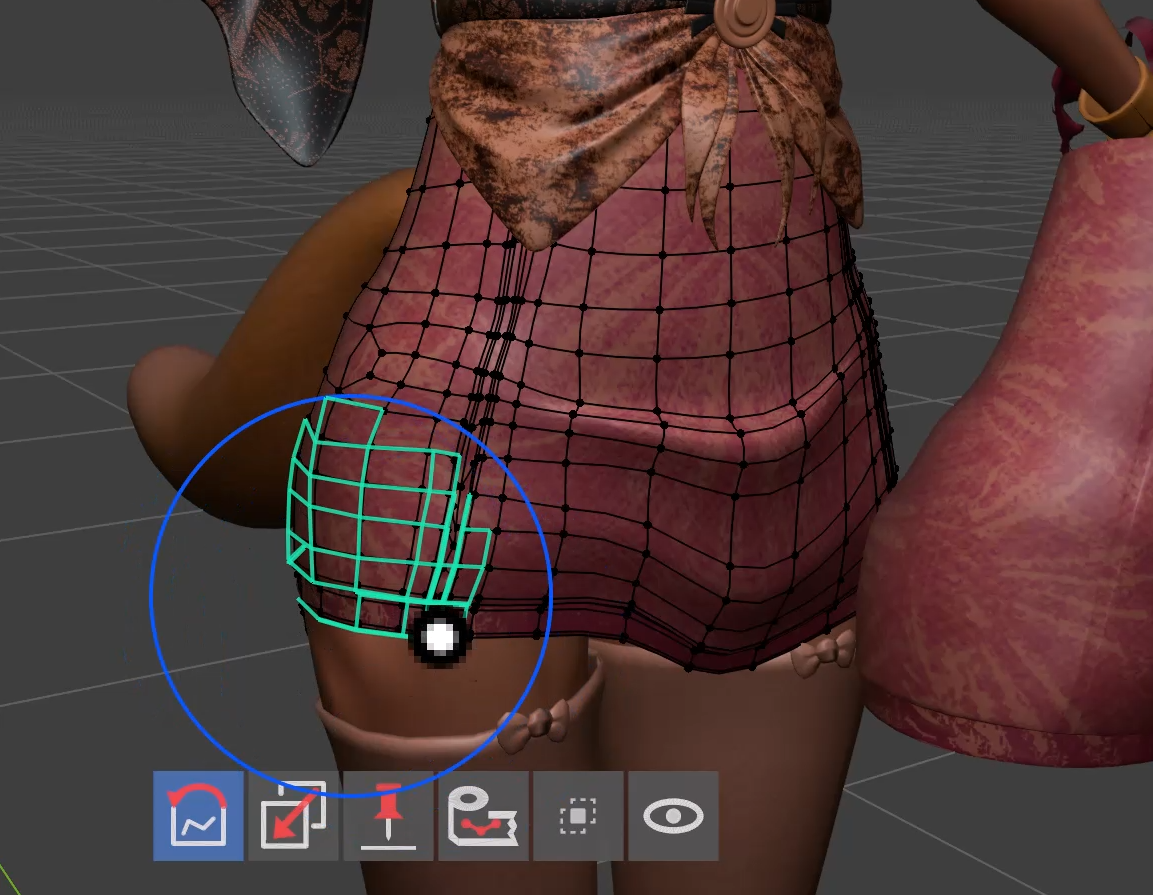
編集モードで枝分かれしない辺の列を選び「縫い目を保存」。追従幅を指定し、帯の幅全体を覆ってなぞります。近くの頂点が断面ごとに追従し、端点・角・保護された断面は残ります。「開いた縁」では保存せずメッシュ境界を使えます。縁を動かす場合は境界固定をOFFにします。動画の上段は操作前の比較用、下段は編集する裾です。赤い辺が保存した縫い目で、エアブラシで重ねて整えています。
確定後にブラシ設定の「直前の修正量を調整」を開き、0~100%で結果を確認します。0%は操作前、100%は確定時の形です。OKで確定、キャンセルでダイアログを開いた時点へ戻します。別の編集・Undo/Redo・ファイル読込後は古い記録を使えません。
貫通修正・隙間の対象は閉じた一体のボディを使います。頂点単位の判定なので、大きな面の途中の交差も目視で確認してください。
ブラシ一覧の実験的な修復グループで種類を選びます。まず周囲の正常な形を残し、小さな範囲で試してUndoと比較します。「周囲の形に合わせる」は近くの健全な列を使います。「保存した形を戻す」には対応する保存基準または元メッシュが必要です。
| 種類 | 使う場所 |
|---|---|
| 幅を整える | リボンや帯の細くなった区間。 |
| 断面を整える | 列と輪の並びが読めるチューブの潰れ。 |
| 縁を整える | 内側の健全な列がある開いた縁。境界固定はOFF。 |
| 飾りを復元 | 保存基準がある飾りの細部。 |
| 頂点の詰まりを解消 | 流れを指定できる帯の混み合った列。 |
不足する基準、曖昧な並び、接触保護により効果が小さい、または停止する場合があります。すべての部品を自動で直す機能ではありません。
オブジェクトモード → サイドバー → cvELD Shell fit Brush → 局所形状ツールを開きます。単独使用の静止メッシュを選び、動作中のモディファイアは無効にします。水色の線が別プレビューです。元の形は確定まで変更しません。
開いた体や重なる二重面など内外が曖昧な入力は停止します。シェイプキーのある入力は使用できません。
硬い連結部品は形を保って移動し、柔らかい区間が伸縮します。硬い部品が収まらない圧縮は停止します。体との隙間は保持しません。
箱型から6枚の曲面を曲げます。再適用は記録した元の形から計算します。収束しない場合は余白や最大積分解像度(初期64)を見直します。
確定は「プレビューを適用」またはEnter、破棄はEsc・右クリック・破棄ボタンです。確定後はUndoできます。相対シェイプキーはBasisを選び、値を0にして静止形状で確認します(局所救出を除く)。絶対キー、共有・リンクメッシュ、動作中のモディファイアは対象外です。
ウェイト・頂点・テクスチャペイントでメッシュを選び、ShellFitBrushを開始します。形状を整えて終了し、元のペイントへ戻れます。ペイント中の色やウェイトを塗り替えるブラシではありません。
UV・ウェイト・頂点色・画像は保持します。形の変更により模様が伸びて見えることはあります。ペイントの頂点/面マスクと非表示を尊重します。相対シェイプキーには同じ変位を加えて差分を保ちます。モディファイアで生成された頂点を個別には編集しません。
標準スカルプトモードと画像エディターでは使用しません。ジオメトリ選択と根元・縫い目・基準形状の準備は編集モードで行います。
ヘッダー左の設定ボタン → ショートカット設定、またはPreferences → ShellFitBrush → ショートカットを開きます。4プリセットはこのアドオンの割り当てで、Blender全体のキーマップを切り替えません。
| プリセット | 初期設定 |
|---|---|
| Blender | 左:選択したブラシ。Shift+左:スムーズ。中:体積保持スムーズ。Ctrl+Shift+左:通常スムーズ。Shift+右:Fit。右:Pie。F:サイズ、Shift+F:強さ。 |
| Industry Standard | ブラシの基本操作は共通。Alt+左/中/右で回転/移動/ズーム。S:サイズ、U:強さ。 |
| Softimage | 従来の割り当てを使い、必要に応じて編集します。 |
| Custom | アドオンの操作を無割当から設定します。 |
表示されたキーをクリックして入力を変更します。プリセットごとの変更は保持されます。変更済みの環境では画面の割り当てが優先です。無割当の項目にはキーを設定してください。
PreferencesのPie Menuでリングの各位置を設定します。「ショートカット+Pieを書き出し」で4プリセットと配置をJSONに保存し、「読み込み」で戻せます。読み込み前に現在の設定を書き出してください。プリセット切替だけでカスタムの配置を作り直す必要はありません。
Preferencesの一般設定でヒント、GPUヘルプカード、効果バーのサイズ・不透明度・パネル上での自動非表示を調整できます。カードが出ない場合はGPUヘルプカードをONにします。ホバー説明は形状を変えません。
半径の初期値は60 px、通常の調整は4~500 px。直接入力では500を超えられます。浮かしのドラッグ上限とパラメータ倍率も一般設定で変更できます。ブラシ中のホイール調整は設定で切り替えます。
筆圧はサイズ・強さへの反映を設定します。4.5では直線的な反映、対応する5.xでは筆圧カーブも使えます。まずマウスで期待する結果を確認してから調整します。
ブラシの設定、根元・縫い目・隙間・記憶形状はそれぞれの保存先に従って保持されます。作業データは.blendを保存してください。直前の修正量と一時表示は作業中の状態です。Preferencesの保存が無効な場合は必要に応じてプリファレンスを保存します。
従来の作品スクリーンショットです。元の画像をそのまま掲載しています。旧UIが写っている場合は、現在の操作説明と効果バーの画像を参照してください。
| 症状 | 確認する順番 |
|---|---|
| 何も動かない | アクティブなメッシュ → ツールが開始中か → 選択マスクの空選択 → 非表示 → 境界固定 → サイズ・強さ。 |
| フィットしない | 対象の指定・表示 → 検索距離 → 近くに複数の対象がないか → 浮かし → 造形保持や保護。 |
| 隣の部品も動く | 範囲を接続のみにする、または選択をマスク。深度制限で裏側を除外します。 |
| 境界固定OFFでも角が残る | 平坦化・等間隔の輪郭移動は角の保護を維持します。鋭角の保護や対象列を確認します。 |
| 復元しない | 対応する記憶形状・バックアップがあるか。頂点数や接続変更後は基準を用意し直します。 |
| 候補やヘルプが出ない | GPUヘルプカード → バー自動非表示 → ストロークや別のダイアログが終了しているか。範囲候補はクリックで開きます。 |
| 局所形状のプレビューが出ない | オブジェクトモード → 静止した単独メッシュ → モディファイア・形状キーの制限 → 計算完了と結果の通知。 |
| キーが効かない | 現在のプリセットと表示された割り当て → 無割当・競合。Object/Editの開始キーはそれぞれ確認します。 |
貫通・隙間の判定は頂点単位で、大きな面の途中の交差まで保証しません。狭い部分・重なった布・厚い飾りは側面から確認します。迷ったらEscまたはUndoで戻して、範囲を小さくして試します。
Blender 4.5.0以上、5.3未満。Windowsの4.5.0・5.2.2で確認しています。他のcvELDアドオンは不要です。
更新前に.blendとカスタムのショートカット+Pieを書き出して保存します。更新後はBlenderを再起動してください。旧版と拡張版を同時に有効にせず、同じ製品を置き換えます。標準スカルプトのブラシとして起動する製品ではありません。
作者:Land-Y。GPL-3.0-or-later。サポートとマニュアルはPreferencesの右上のアイコンから開けます。
Fitting, smoothing, shape memory, selection and local shape tools. Follow the preparation and actions with current UI captures and short operation videos.
Blender 4.5.0–5.2 · English / 日本語 · Land-Y
Select a clothing mesh, then open the 3D View sidebar (N) → cvELD Shell fit Brush and click the start button. Starting in Object Mode enters Edit Mode. Starting in a supported paint mode retains that mode.
Check initial or customized bindings in Shortcut Settings at the left of the header. Click the activation button again or switch to another tool to finish.
Filter the picker by general brushes, fitting, finishing or experimental repair. Choosing a thumbnail updates the header and effect bar.
Press on the region, drag, then release. The initial footprint moves. Enable Preserve Shape and cover the entire detail when moving a thick ribbon or decoration. Grab does not maintain clearance from a body.
Start at low Strength and make short passes over tight sleeves or knees. Vertices move along their normals to add room. Check face normals if movement goes in the wrong direction.
Make short passes over small bumps. With Preserve Volume off, vertices relax toward their neighbors. Repeated passes can reduce roundness or thickness.
Choose Smooth and enable the sphere-and-shield Preserve Volume button. Vertices relax along the surface to reduce shrinkage. This is approximate; inspect the outline from another angle.
Show the body or inner garment and pick Target with the eyedropper. Offset sets the gap to retain; Fit Reach sets the search distance. Use a small offset and enough reach, then brush floating cloth toward the surface. Preserve Shape suits thick details; turn it off for stronger conformance of thin cloth.
Choose Shell Fit Move in the brush picker. Set Target and Offset, then drag a fitted part sideways. It follows the target surface. Movement can stop when the whole patch leaves the target or exceeds reach.
Set Target, Offset and Fit Reach, then brush crowded vertices at low Strength. The patch relaxes along the target while retaining its gap. Unlike ordinary Smooth, it is constrained by a target surface.
In Brush Settings choose the surface or a row direction, then brush uneven regions. Hold Starting Plane uses one plane for the stroke; Follow Local Plane follows the original local curvature. Turn off Pin Boundary when the outline should move.
Use readable mesh rows. Choose a flow direction or reference edge, inspect Show Flow if needed, then brush crowded rows in short passes. A fixed outline stays in place; Slide on Outline redistributes its spacing while retaining protected corners.
Use Remember Shape in Brush Settings before changing the form; an initial reference is also captured automatically when brushing begins. After editing, brush just the fold to restore. Match Original Shape restores folds; turning it off favors detail while retaining the current larger form. For firm restoration, try Strength 1 and Keep Current Form 0. To use another original mesh, set Backup Object and Remember Shape, then choose Remembered Shape or Backup Shape as the restore target. Matching vertex counts and connectivity are required. Restore Through includes the back of the circle; use a selection mask to restrict it when needed.

A blue background marks an enabled option or the current choice. Only supported options appear. Hover for names and effect help; the question mark opens the current brush guide.
| Icon / option | Use |
|---|---|
| Shield + red detail: Preserve Shape | Retains thick parts during Grab and Fit. Cover the whole detail. |
| Sphere + shield: Preserve Volume | Reduces shrinkage in Smooth, Flatten and Space. Separate from Preserve Shape. |
| Pin: Pin Boundary | Fixes open borders. Turning it off in Flatten or Space selects Slide on Outline; protected corners remain fixed. |
| Tape + vertices: Selection Mask | Moves only the selection at stroke start. An empty selection stops with a warning. |
| Eye: display | Hover to choose selected-geometry isolation, hidden selected-mesh wires or selected-object wireframe. Hiding wires is available in Object Mode; it does not hide the edit cage or global wireframe overlay. |
| Symmetry | Hover for X/Y/Z and brush-range symmetry. |
Click the current scope icon to open three vertical choices, then click a choice. Passive hover does not open scope choices. Esc closes them. Each stroke keeps the scope it started with.
| Scope | Affected geometry |
|---|---|
| All Within Radius | Nearby vertices, including separate islands. |
| Connected Only | Follows mesh edges from the touched surface; distance follows the mesh. Neighboring disconnected islands stay still. |
| Intersecting Islands (default) | The touched island and islands linked by surface intersections at stroke start. The brush still affects a local footprint. |
Visible Surface Only excludes occluded vertices and nearby back surfaces. Limit Brush Depth restricts the footprint in front of and behind the touched surface, measured as a multiple of the radius. Protect Sharp Edges fixes sharp and creased edges and stops row propagation there.
Flatten and Space use a flow direction or an eyedropper-picked reference edge; Show Flow helps inspect the rows. Snap to Other Objects offers Vertex, Surface and Edge targets on supported brushes. Fit, Flatten, Space, finishing brushes and Local Shape Tools do not use this snapping.
Fit → Preserve Shape → Whole Island fits the entire first touched component by rotation and translation. Ordinary scope choices are disabled. Crossing another island does not add it. Turn off Pin Boundary on open ribbons and fully select the component when using a mask. The complete moving set, including symmetry partners, must contain at most 1024 vertices.
Use an undeformed Basis rest mesh. Active deformation modifiers, nonzero deformed keys, partial masks, hidden vertices, front-only and depth restrictions are unsupported. A decoration welded to cloth belongs to the same island as the cloth.

In Edit Mode click Geometry Selection at the left of the header. Choose vertex, edge or face mode and brush to select. Geometry is not deformed.
| Operation | Result |
|---|---|
| Set | Replace with the elements touched by this stroke. |
| Extend | Add to the existing selection. |
| Subtract | Remove touched elements. |
| Invert | Toggle each touched element once per stroke. |
| Intersect | Keep elements in both the original selection and this stroke. |
Hover over operation buttons for help; click to change. Hidden elements stay unchanged. Esc restores the selection from before the stroke; completed strokes support Undo. Show Selected Geometry Only under the eye is temporary isolation; release it or finish the tool to restore visibility.
Hover over Symmetry and enable X/Y/Z. These sync with Blender mesh symmetry and use the object’s local axes and origin. Check the origin, axes and symmetric form first.
Ordinary symmetry transfers motion to verified counterparts. Advanced options choose Follow Brush, Positive to Negative or Negative to Positive. Where needed, approve disconnected domains with an existing INT point attribute. Directly touched geometry remains editable even without a counterpart.
Enable Brush Range Symmetry to apply an independent brush of the same world-space radius on the opposite side. Different vertex counts are supported, but identical mirrored results are not guaranteed. Advanced options control reach coverage, partial application and the center. Check masks and depth when a large brush crosses the center.
The four finishing brushes and Local Shape Tools do not apply this symmetry or snapping.
The last example enables X and Brush Range Symmetry with Mirror Search Limit 1.0. Dragging the right ear also moves the left ear within reach, retaining the randomized shape and cheek opening.
Choose four finishing brushes from the picker. Prepare roots and seams in Edit Mode. Selection and paint masks, hidden vertices and boundary pinning remain protective; symmetry and snapping are not applied.
Pick one connected, closed body with consistent normals. Set Target Gap and Fit Reach, then brush the embedded cloth. Vertices outside the body stay in place. At low strength, repeat passes to approach the target gradually.
In Edit Mode select a complete root row and click Save Roots in Brush Settings. Turn off the selection mask if needed, then drag the free side. Roots, the opposite side and other branches remain protected. Select Saved shows the stored roots.
Choose a closed body and paint Target Gap. Use different values for areas such as the chest and waist. Apply Saved Gaps recalculates the stored regions. Gap values and body identity persist in the .blend. Clear and repaint after changing the body or topology.
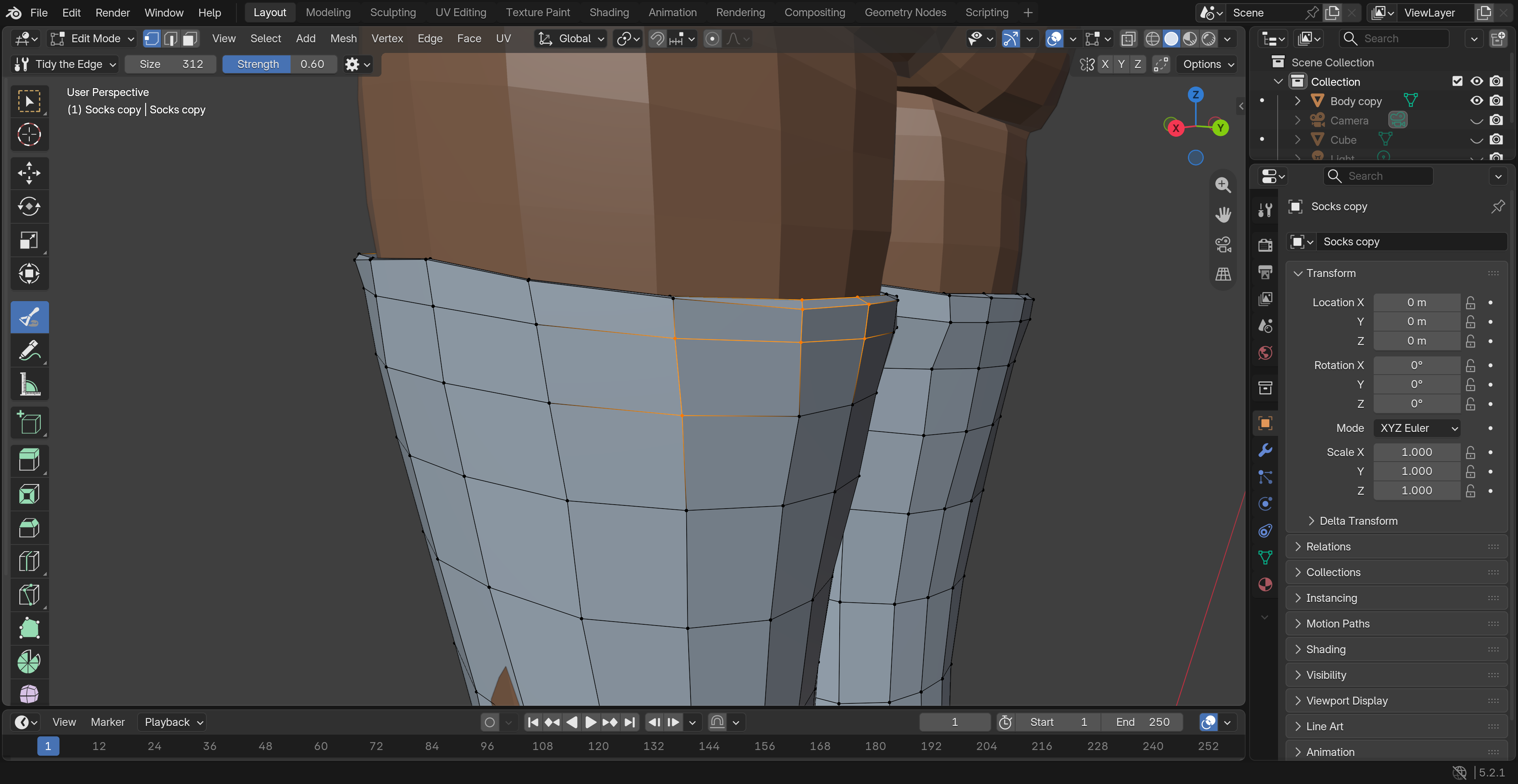
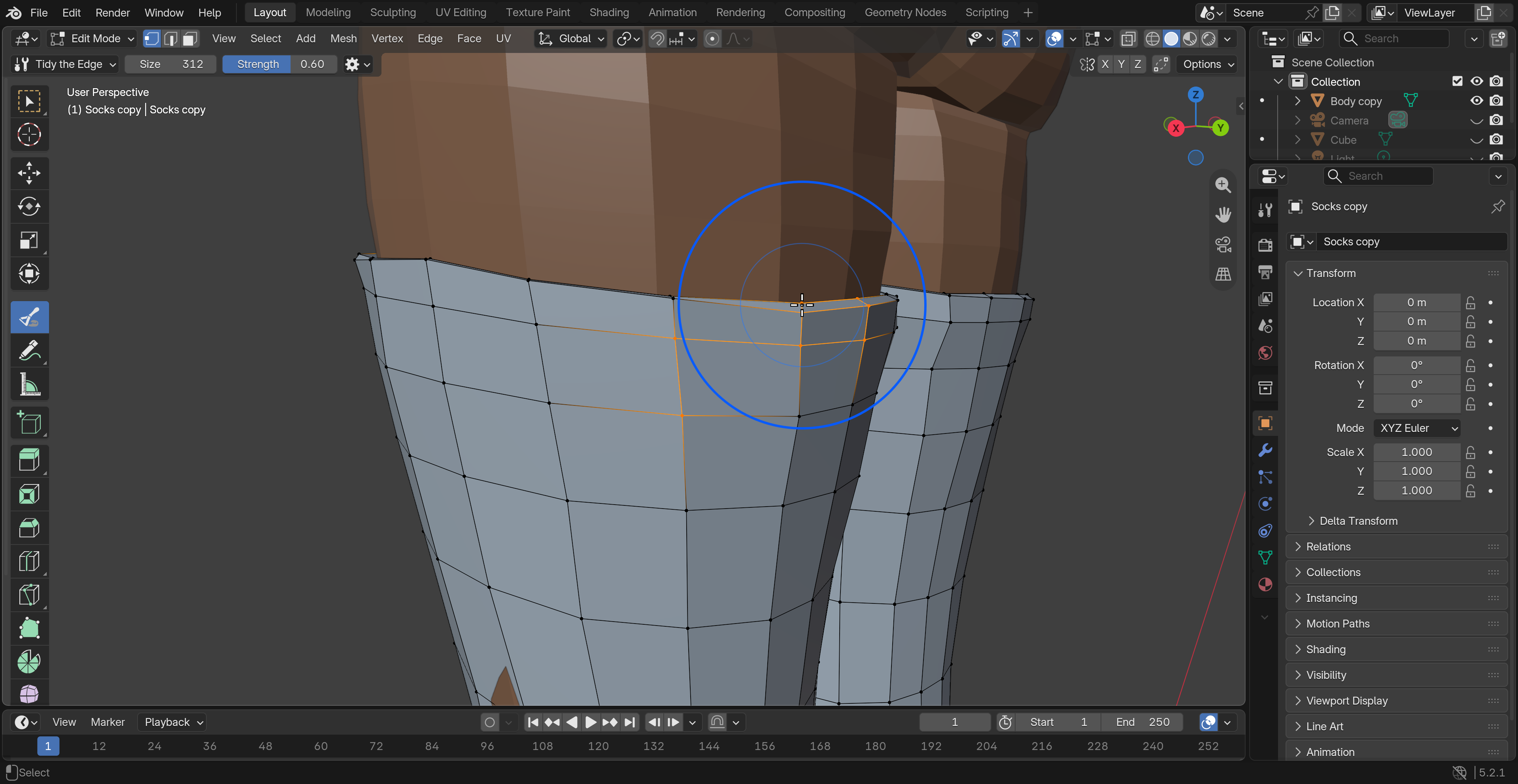
In Edit Mode select an unbranched edge chain and Save Seam. Set Band Width and brush across the entire band. Nearby vertices follow by section; endpoints, corners and protected sections stay. Open Boundary uses mesh borders without saving a seam. Turn off Pin Boundary when moving a hem. In the video, the top strip is an unchanged reference and the bottom strip is the edited hem. Red edges mark the saved seam; held Airbrush passes soften the waves.
After a completed stroke, open Adjust Last Stroke in Brush Settings. Preview 0–100%: zero is the pre-stroke form and 100 is the completed result. OK commits; Cancel restores the amount at dialog opening. Unrelated edits, Undo/Redo or file loading invalidate the old record.
Use one closed connected body for penetration and gap brushes. Classification is per vertex; inspect crossings through large face interiors too.
Choose a type in the experimental repair group. Keep intact surrounding geometry and test a small patch, comparing with Undo. Match Nearby Shape uses healthy nearby rows. Restore Saved Shape needs a compatible stored reference or original mesh.
| Type | Use |
|---|---|
| Even Out Width | A narrowed section of ribbon or strip. |
| Tidy Tube Shape | A squashed tube with readable rings and rows. |
| Tidy the Edge | An open edge with healthy inner rows. Turn Pin Boundary off. |
| Restore Decoration | Detail with an available saved reference. |
| Unbunch Vertices | Crowded strip rows with a usable flow direction. |
Missing references, ambiguous flow or contact protection can limit or block the result. This is not automatic repair for every part.
Open Object Mode → Sidebar → cvELD Shell fit Brush → Local Shape Tools. Use a single-user rest mesh with active viewport modifiers disabled. Cyan lines show a separate preview; the source stays unchanged until application.
Ambiguous inside/outside input, such as an open body or overlapping double surface, is refused. Input with shape keys is unsupported.
Connected hard parts translate without reshaping; flexible intervals absorb the resize. Infeasible compression is refused. Body clearance is not maintained.
A box-shaped rest cage bends six curved patches. Reapplication uses the recorded original binding. If calculation does not converge, review padding or maximum integration resolution (initially 64).
Apply Preview or Enter commits; Esc, right-click or Discard Preview cancels. Completed interactions support Undo. For relative shape keys, select Basis and set values to zero to inspect the rest form (except Local Rescue, which refuses shape keys). Absolute keys, shared or linked meshes and active viewport modifiers are unsupported.
Select a mesh in Weight, Vertex or Texture Paint and start ShellFitBrush. Refine its geometry, then finish to return to painting. These brushes change shape rather than painting weights or colors.
UVs, weights, vertex colors and images are retained, although deformation can stretch the appearance of patterns. Paint vertex/face masks and hidden geometry are respected. Relative shape keys receive the same displacement to retain their offsets. Modifier-generated vertices are not independently editable.
Native Sculpt Mode and the Image Editor are unsupported. Prepare geometry selection, roots, seams and shape references in Edit Mode.
Open the leftmost header settings button → Shortcut Settings, or Preferences → ShellFitBrush → Shortcuts. The four presets configure this add-on, not Blender’s global keymap.
| Preset | Initial bindings |
|---|---|
| Blender | Left: selected brush. Shift+Left: Smooth. Middle: volume Smooth. Ctrl+Shift+Left: ordinary Smooth. Shift+Right: Fit. Right: Pie. F: size; Shift+F: strength. |
| Industry Standard | Shared brush actions. Alt+Left/Middle/Right rotate, pan and zoom. S: size; U: strength. |
| Softimage | Retains the legacy bindings for further customization. |
| Custom | Start with add-on actions unassigned. |
Click a displayed binding and enter a new input. Each preset retains its edits. In a customized setup, the displayed bindings take precedence. Assign inputs to unassigned actions.
Set each ring position under Preferences → Pie Menu. Export Shortcuts + Pie saves all four presets and ring assignments to JSON; Import restores them. Export the current setup before importing. Switching presets does not require rebuilding your custom ring.
Preferences → General controls hints, GPU Help Cards, icon-bar size and opacity, and auto-hide over panels. Enable GPU Help Cards if hover explanations are missing. Passive help does not change geometry.
The initial radius is 60 px; normal adjustment spans 4–500 px, with larger typed values supported. General also sets the offset drag limit and parameter scale. Wheel adjustment during strokes is configurable.
Configure pressure influence on size and strength. Blender 4.5 uses linear pressure; supported 5.x versions also provide a pressure curve. Check the expected mouse result before tuning pressure.
Brush settings, roots, seams, gaps and remembered shapes follow their respective storage. Save the .blend to retain working mesh data. Latest-stroke amount and temporary display are session state. Save Preferences as needed when automatic preference saving is disabled.
Existing artwork screenshots, retained as supplied. If an older UI is visible, use the current instructions and effect-bar captures for controls.
| Symptom | Check in this order |
|---|---|
| Nothing moves | Active mesh → tool active → empty selection mask → hidden geometry → Pin Boundary → Size and Strength. |
| No fitting | Target and visibility → Fit Reach → ambiguous nearby targets → Offset → shape preservation and protections. |
| Another part moves too | Choose Connected Only or a selection mask. Use depth limits to exclude layers behind the hit. |
| Corners stay after unpinning | Flatten and Space outline sliding retains corner protection. Check sharp-edge protection and row selection. |
| Restore has no effect | Check remembered/backup shape compatibility. Reprepare references after vertex-count or connectivity changes. |
| No choices or hover help | GPU Help Cards → auto-hide → active strokes or other dialogs. Scope choices open on click. |
| No local shape preview | Object Mode → single-user rest mesh → modifier/key restrictions → completed calculation and result notice. |
| A shortcut does not work | Current preset and displayed binding → unassigned actions or conflicts. Check Object/Edit activation bindings separately. |
Penetration and gap classification is per vertex; crossings through large face interiors are not guaranteed to be removed. Inspect narrow gaps, layered cloth and thick details from the side. Use Esc or Undo and try a smaller region when needed.
Blender 4.5.0 or newer, below 5.3. Checked on Windows with 4.5.0 and 5.2.2. Other cvELD add-ons are not required.
Before updating, save the .blend and export customized Shortcuts + Pie. Restart Blender after the update. Replace the same product rather than enabling a legacy and extension copy together. This product is not started as a native Sculpt brush.
Author: Land-Y. GPL-3.0-or-later. Open support and the manual from the icons at the top right of Preferences.