cvELD SHELLFITBRUSH / 1.1.2
Fit the cloth.
Keep the details.
Bring floating fabric closer to the body. Move a ribbon. Refine a rough edge. Shape clothing right where you see it, with a brush.
BLENDER 4.5–5.2 / EDIT + PAINT MODES / STANDALONE ADD-ON
1.1.2 / PERFORMANCE UPDATE
Less waiting while shaping.
This release focuses on speed while retaining existing shape protection. A copied garment fitting test improved from 12.39 ms to 7.51 ms (1.65×). All 36 regression suites passed across Blender 4.5.0 and 5.2.1.
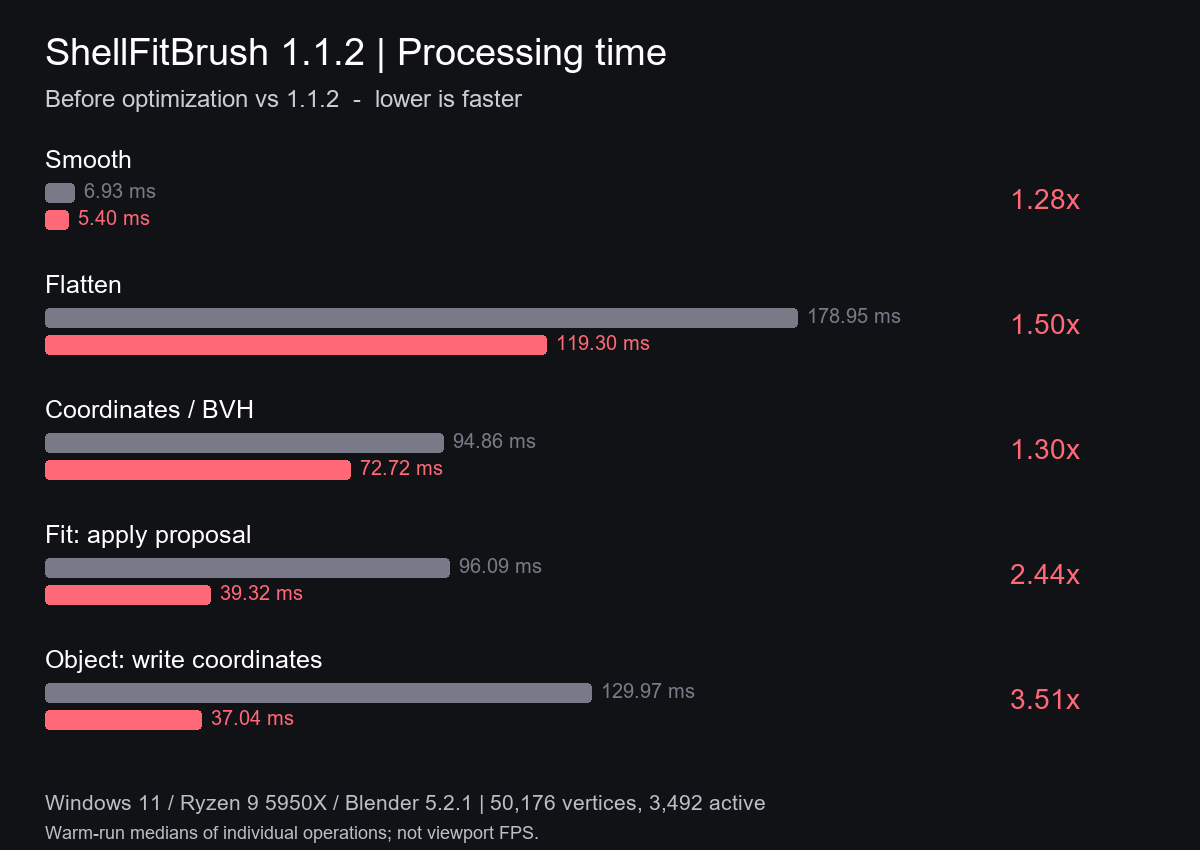
Warm-run medians on Windows 11 / Ryzen 9 5950X / Blender 5.2.1; chart uses 50,176 vertices with 3,492 active. Individual processing timings, not viewport FPS. Results depend on the mesh and settings; initial preparation can take longer. Bundled acceleration: Windows AMD64. Python/NumPy fallback elsewhere; Linux/macOS untested. Restart Blender after updating.
SHELL FIT + SMOOTH
Fit the surface.
Keep the volume.
Fit clothing to the target with Shell Fit, then soften uneven areas with volume-preserving Smooth. Preserve Volume helps reduce shrinkage; it is not an exact volume lock.
SHAPE-MEMORY BRUSH
Brush back to a saved shape.
Save a shape reference, then use Restore Shape to bring the brushed region back toward it. A compatible saved reference is required; this brush does not enforce body clearance.
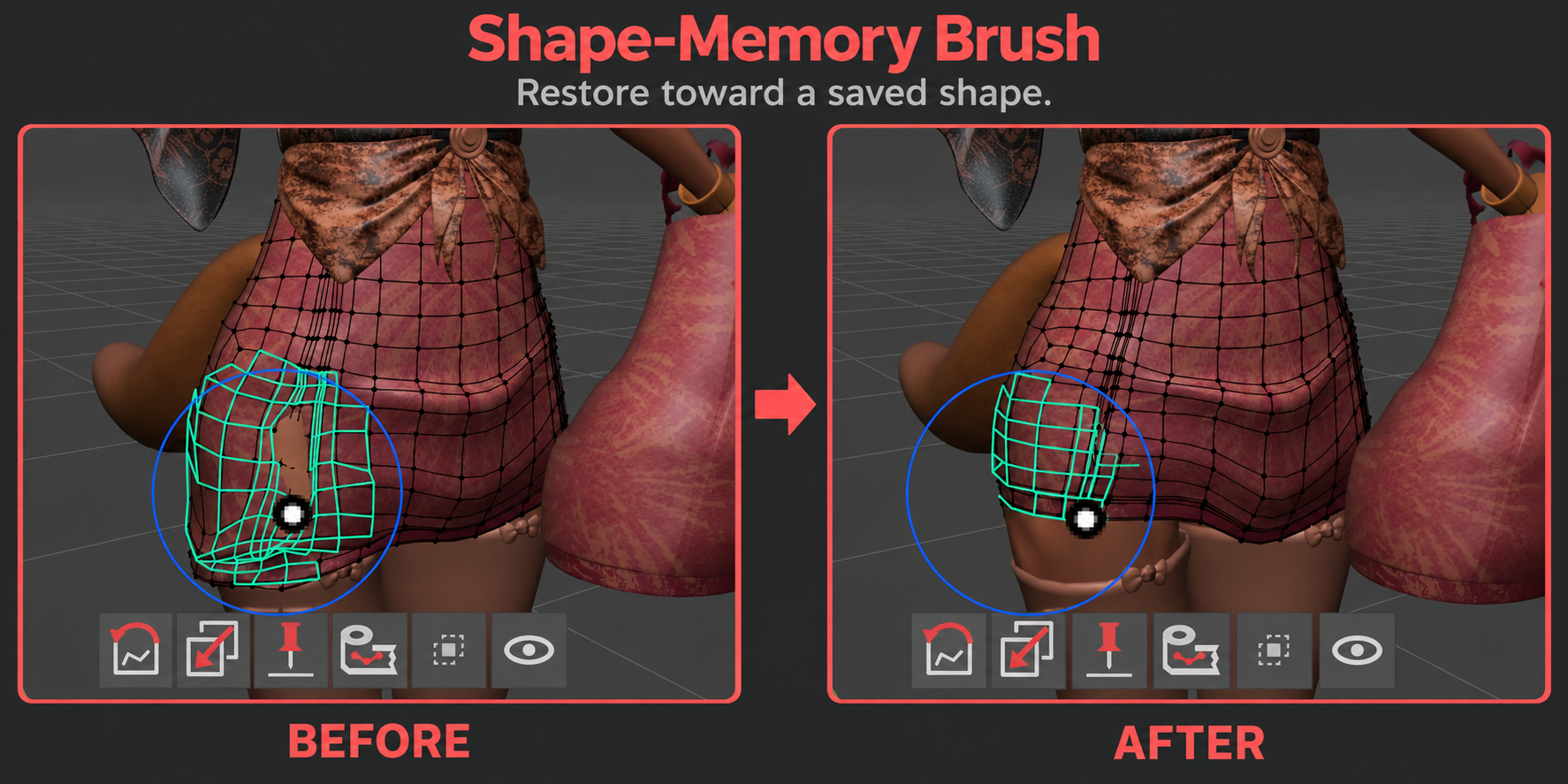
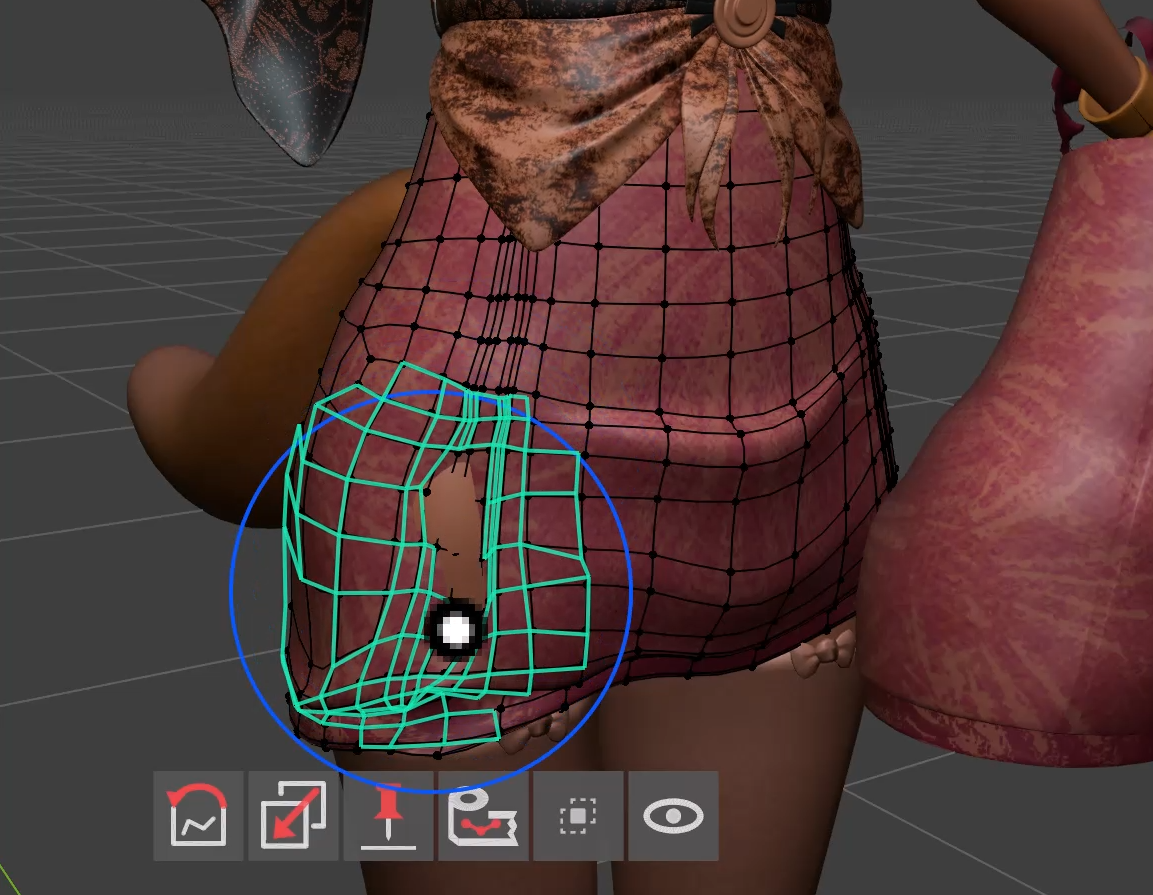
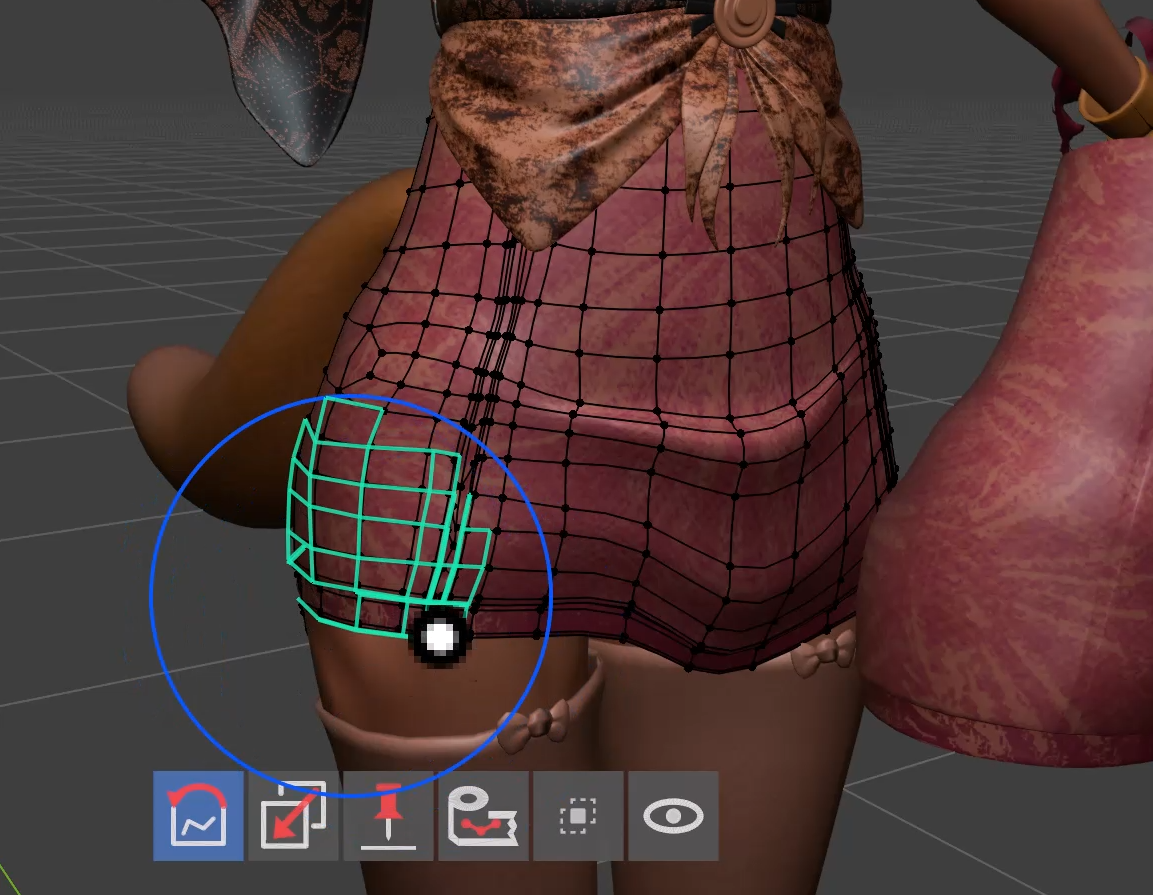
Before → After: remember a shape, then brush the region you want to restore. Illustrated comparison based on supplied screenshots. Before original · After original
01 / FIT & SHAPE
A better fit.
A little more control.
Use Shell Fit to bring clothing or decorations onto a body or inner garment. Choose the target and the gap. Enable Preserve Shape when a thick detail needs to retain its depth.
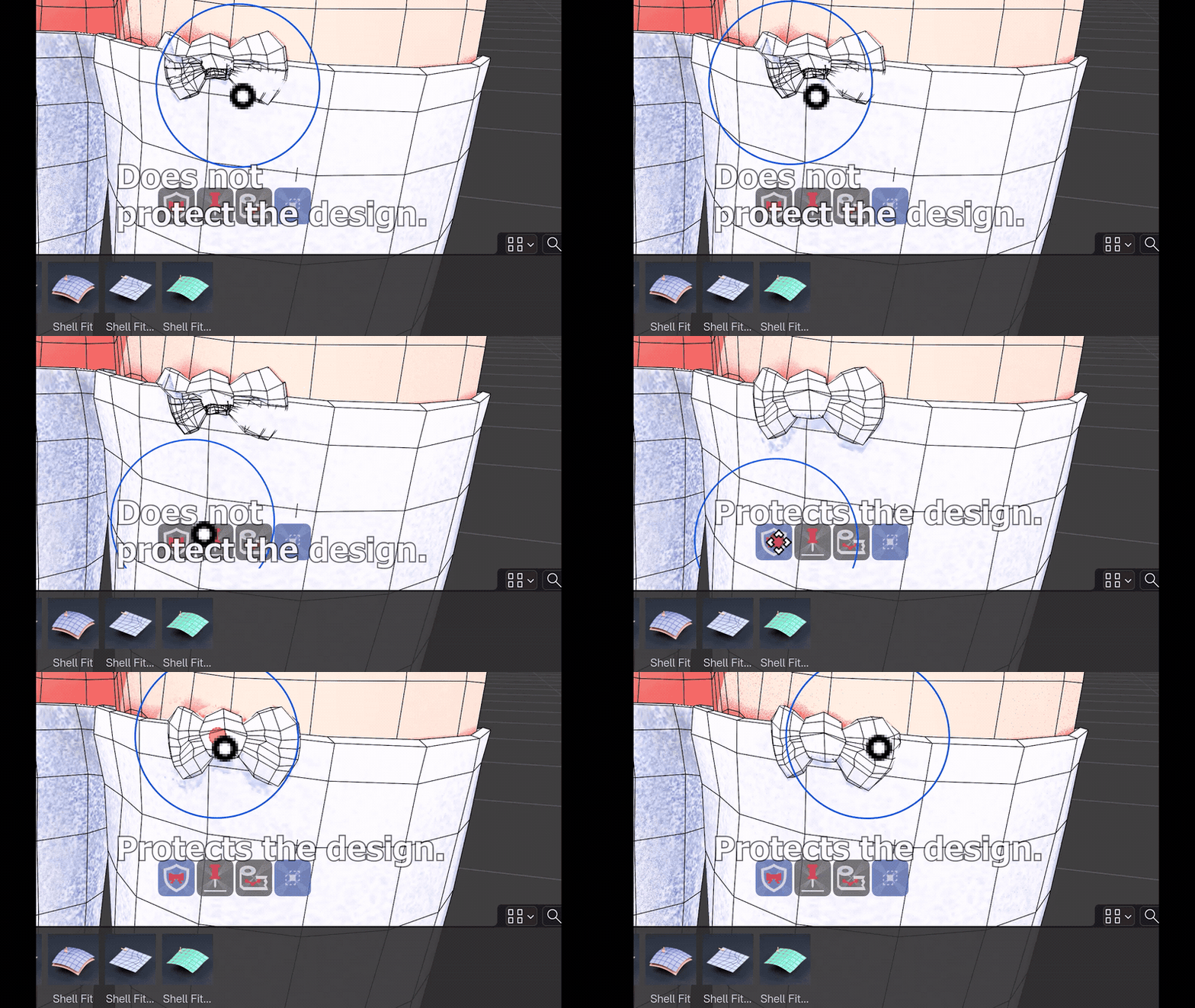
4.2-second viewport clip · Preserve Shape off/on comparison. Preservation is approximate, not a rigid lock.
02 / KEEP THE TRIM
Keep the trim in shape.
A raised band needs a different touch from thin fabric. Enable Preserve Shape to help keep its form while fitting. For open mesh borders that must stay put, use the separate Pin Boundary control.
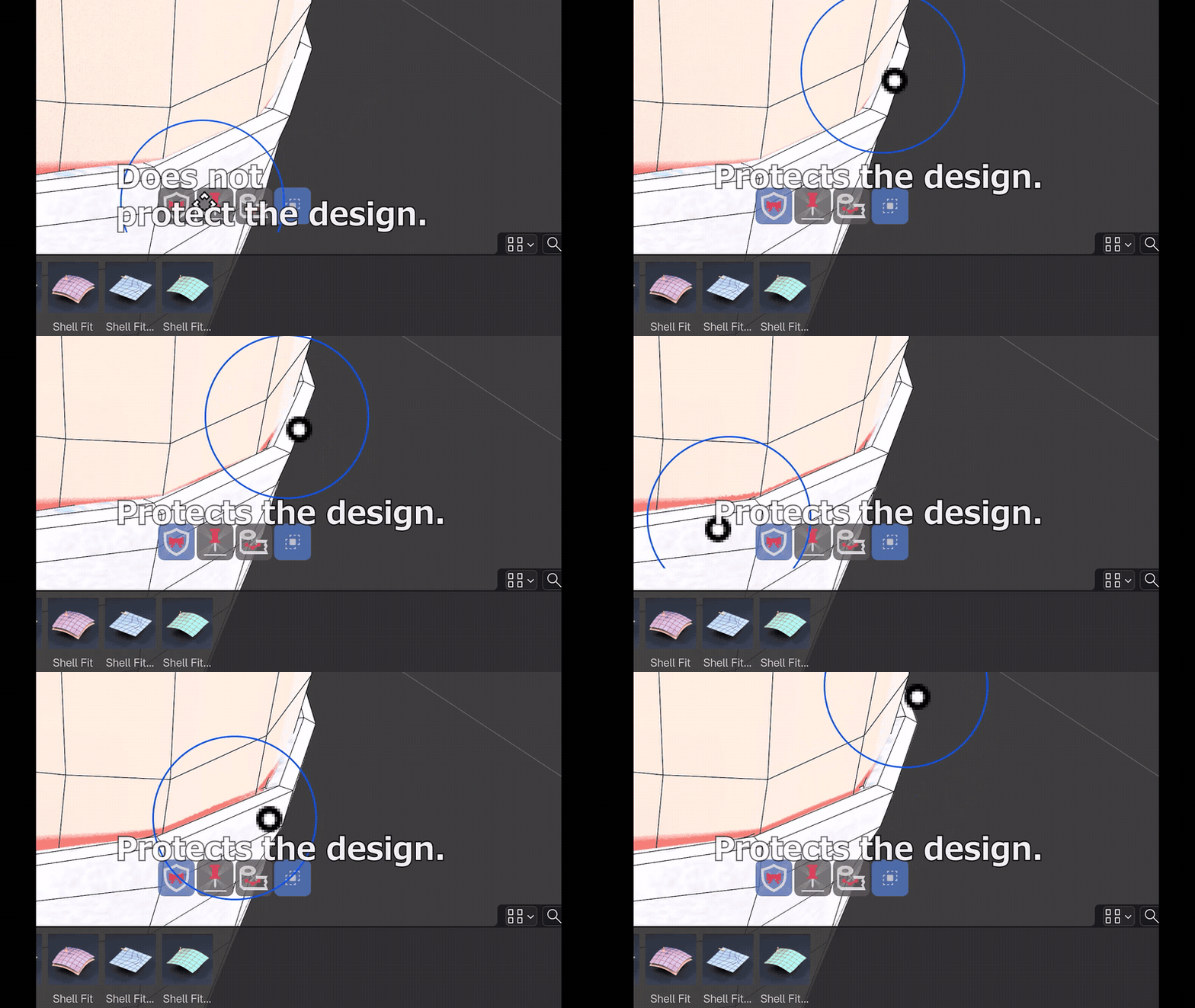
4.2-second viewport clip · Preserve Shape on a raised band.
03 / WORK LOCALLY
Only the part you choose.
Select the geometry, then enable Use Selection as Mask. Shape the selected region while surrounding unselected vertices stay in place. Connected Only and Intersecting Islands give you further scope control.
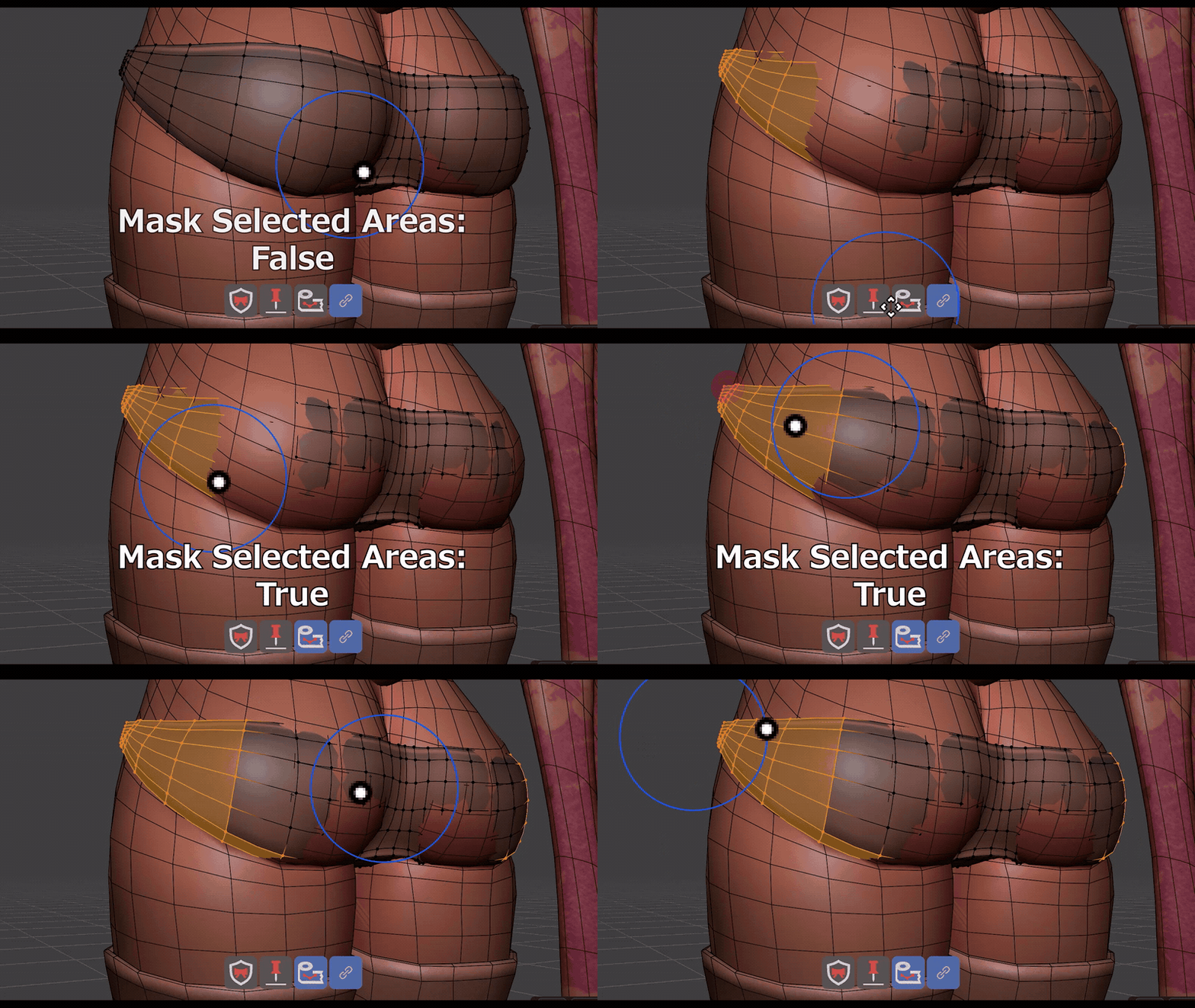
4.2-second viewport clip · Mask comparison. Radius, falloff, other masks and symmetry settings still apply.
04 / CLEAN UP THE FLOW
Give vertices room to breathe.
Space evens out crowded rows. Choose a direction or reference edge to follow your mesh flow. Use Flatten for uneven panels and Smooth for smaller bumps.
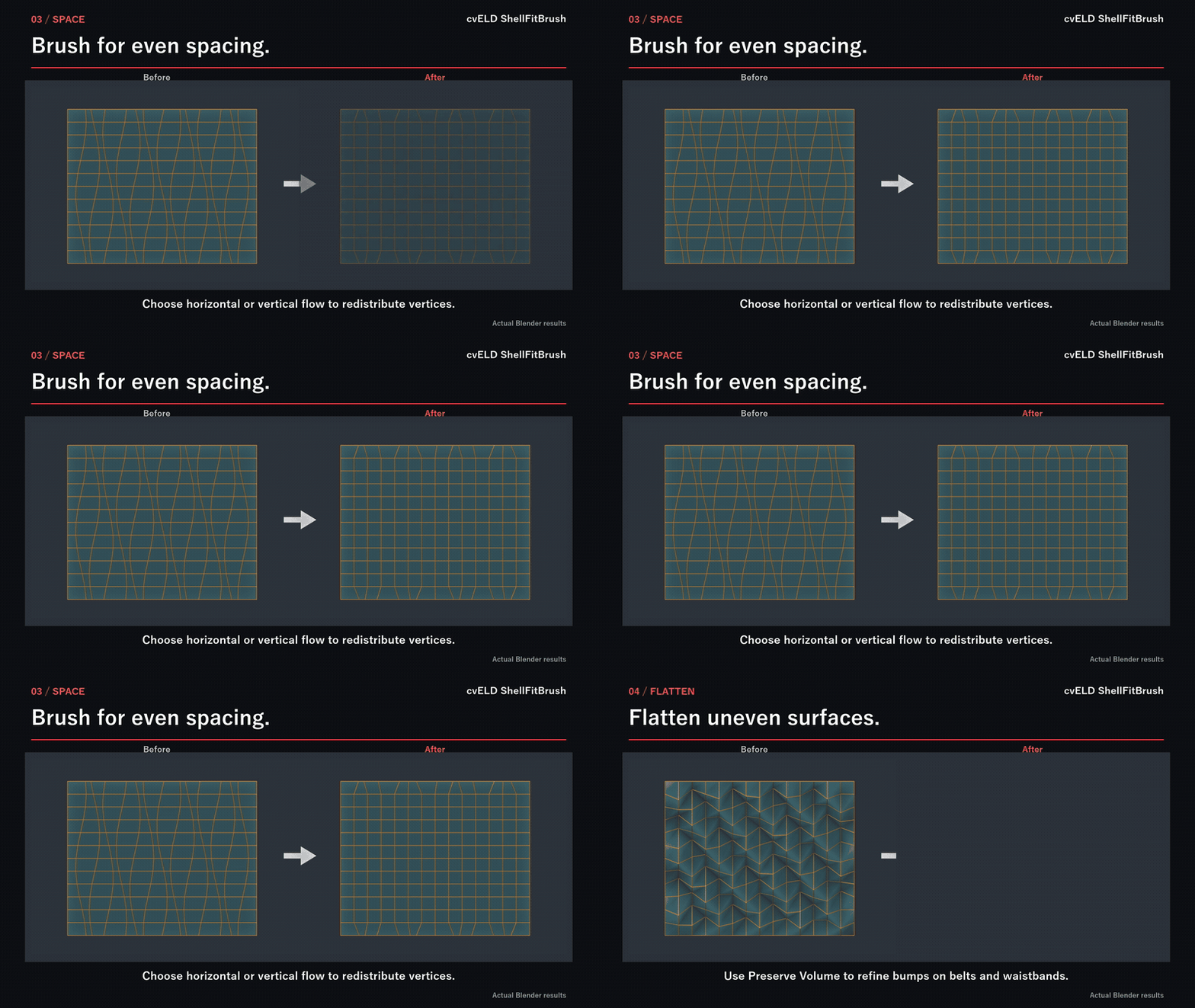
4.8-second animated comparison of actual results on a demonstration mesh. This clip is not a continuous brush recording.
YOUR BRUSH TOOLKIT
Choose the brush. Keep working.
Grab
Move a region freely; Preserve Shape helps retain detail.
Inflate / Smooth
Add room or soften bumps. Preserve Volume reduces shrinkage.
Shell Fit Move / Relax
Slide or redistribute vertices along the target surface.
Geometry Selection
Paint selections in Edit Mode. Isolate selected geometry to focus.
GET STARTED
Select. Brush. Refine.
- Select the clothing mesh. The body is your fitting target.
- Start Brush from the ShellFitBrush sidebar or toolbar. Choose a brush in the header.
- Brush in short passes. Release to commit. Esc cancels a stroke; Ctrl+Z undoes it.
For Shell Fit, choose the body with the eyedropper. Offset sets the gap; Fit Reach sets the search distance. Cover the whole decoration when preserving its shape.
BEFORE YOU BUY
Made for clothing refinement.
Requirements: Blender 4.5 or newer, below 5.3. Tested on Windows with 4.5.0 and 5.2.1. Works in Edit Mode, Weight Paint, Texture Paint and Vertex Paint. Starting from Object Mode enters Edit Mode. Other cvELD add-ons are not required.
Install: Drag the unextracted add-on ZIP into Blender, or use Preferences → Install from Disk, then enable cvELD ShellFitBrush.
Know the limits: Native Sculpt Mode and the Image Editor are not supported. Shape preservation is approximate; inspect tight gaps for intersections. Space depends on usable mesh flow. Edits affect the original mesh; modifier-generated vertices are not edited independently. Part Repair is experimental. Restore Shape needs a compatible saved reference and does not enforce body clearance.
Nothing moves? Check the active mesh, radius, strength, selection mask and Pin Boundary. If fitting finds no surface, check the target and Fit Reach.
cvELD / LAND-Y
Make the finishing pass yours.
Questions? Use Contact the Creator on Superhive. Include your Blender version, brush, mode and reproduction steps. GPL-3.0-or-later.