cvELD LIMINAL FORGE / 3-IN-1 BLENDER BUNDLE
Create. Explore. Build.
Empty pools. Yellow corridors. Forests beyond the doorway. Turn a single Blender scene into somewhere you want to explore.
Three creative tools, one bundle. Liminal Space creates twenty editable environments with connected rooms, stairs, materials and lighting. Liminal Walker lets you explore, fly and record. Liminal Sandbox adds modular building and editing, so you can make the world your own. All three panels appear in that order under the cvELD Liminal Forge sidebar tab.
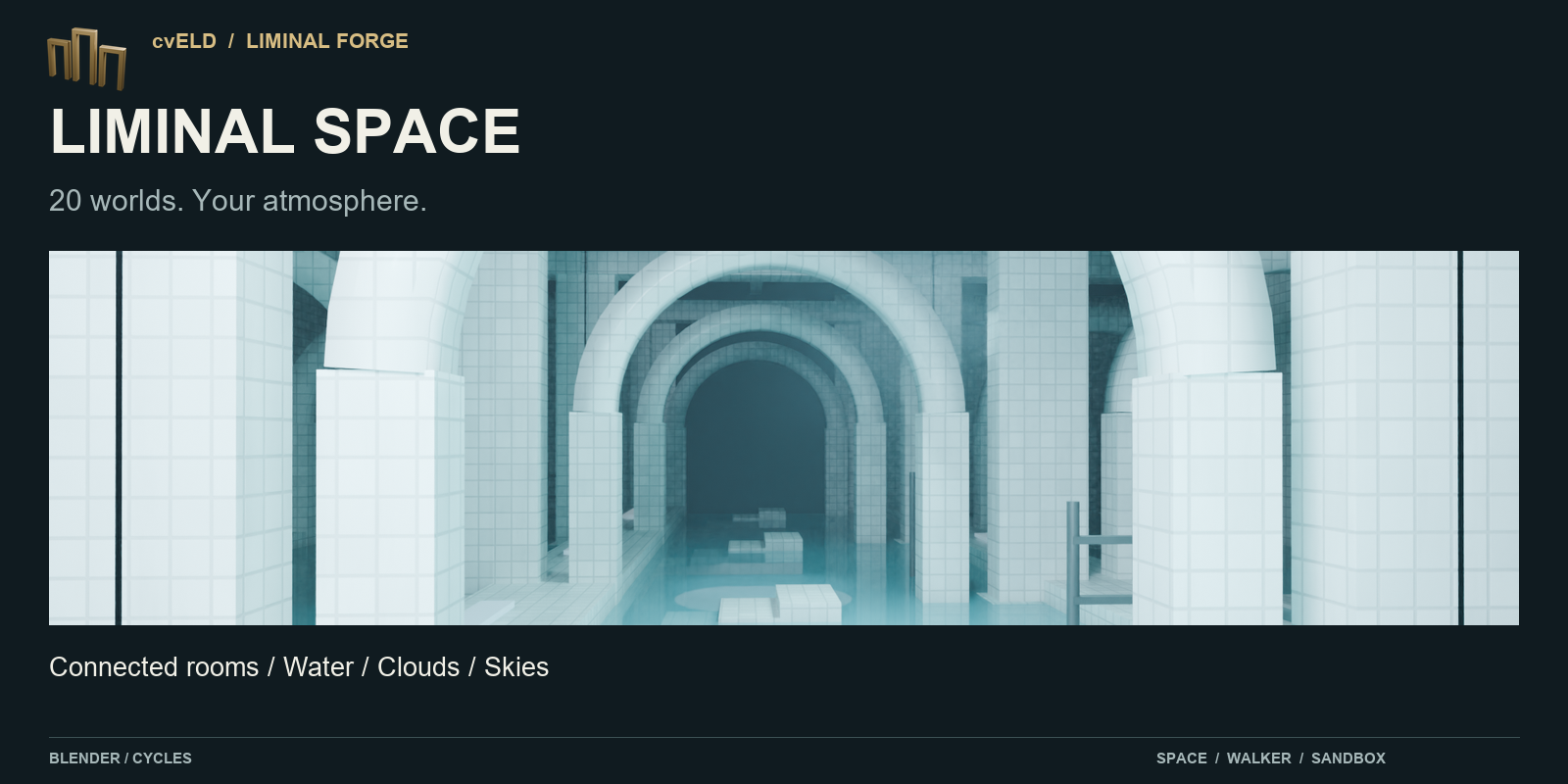
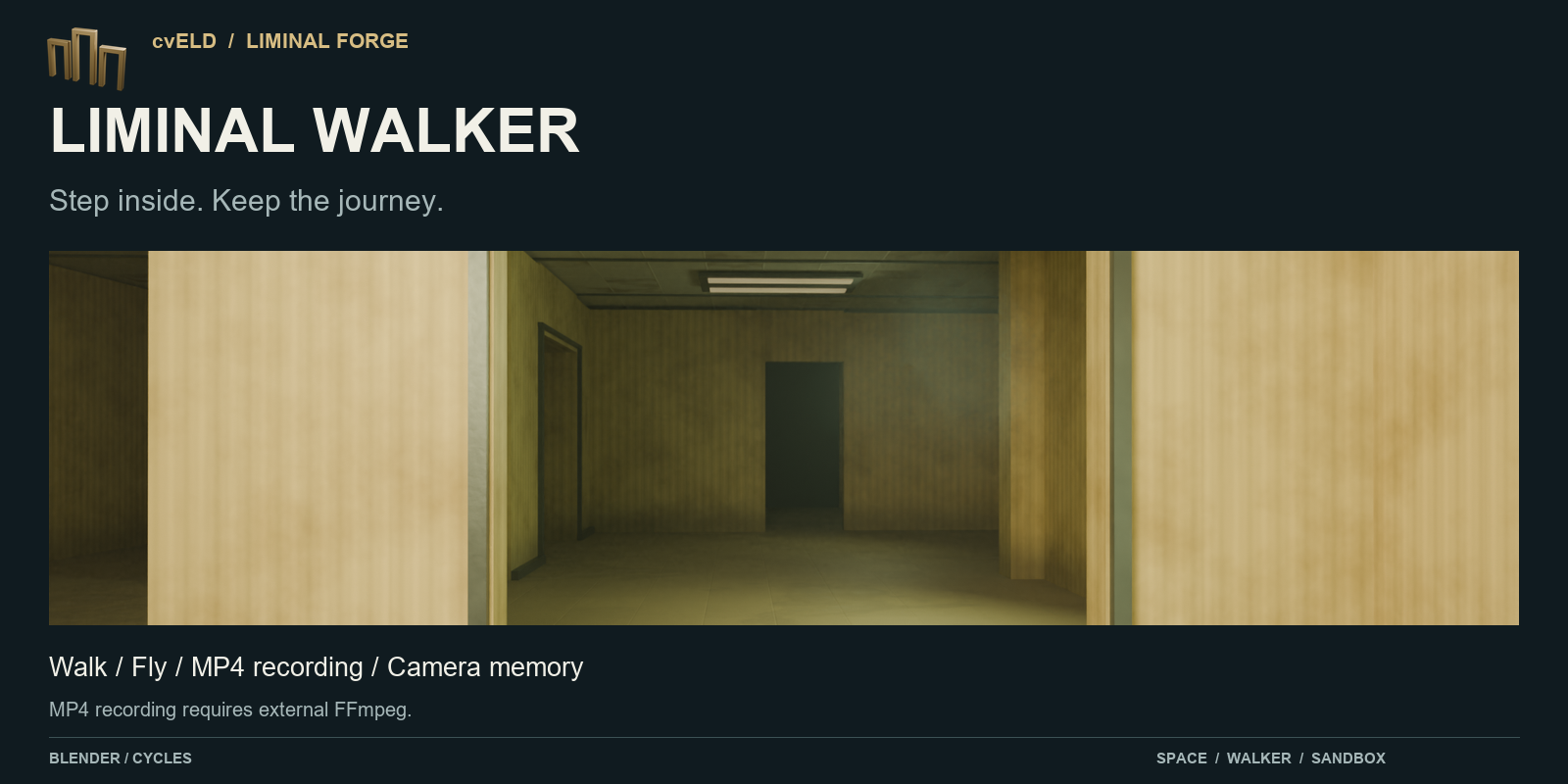
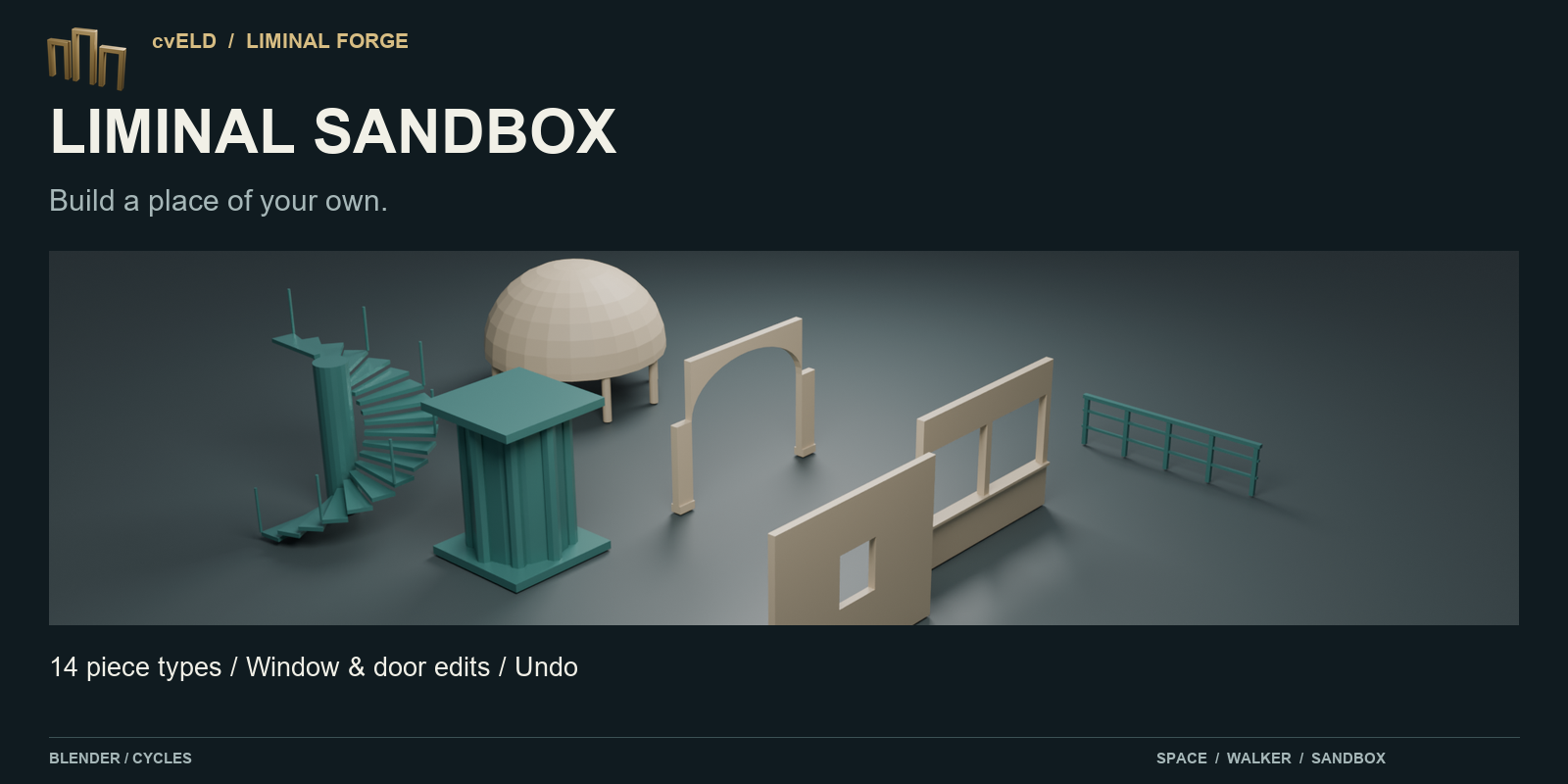
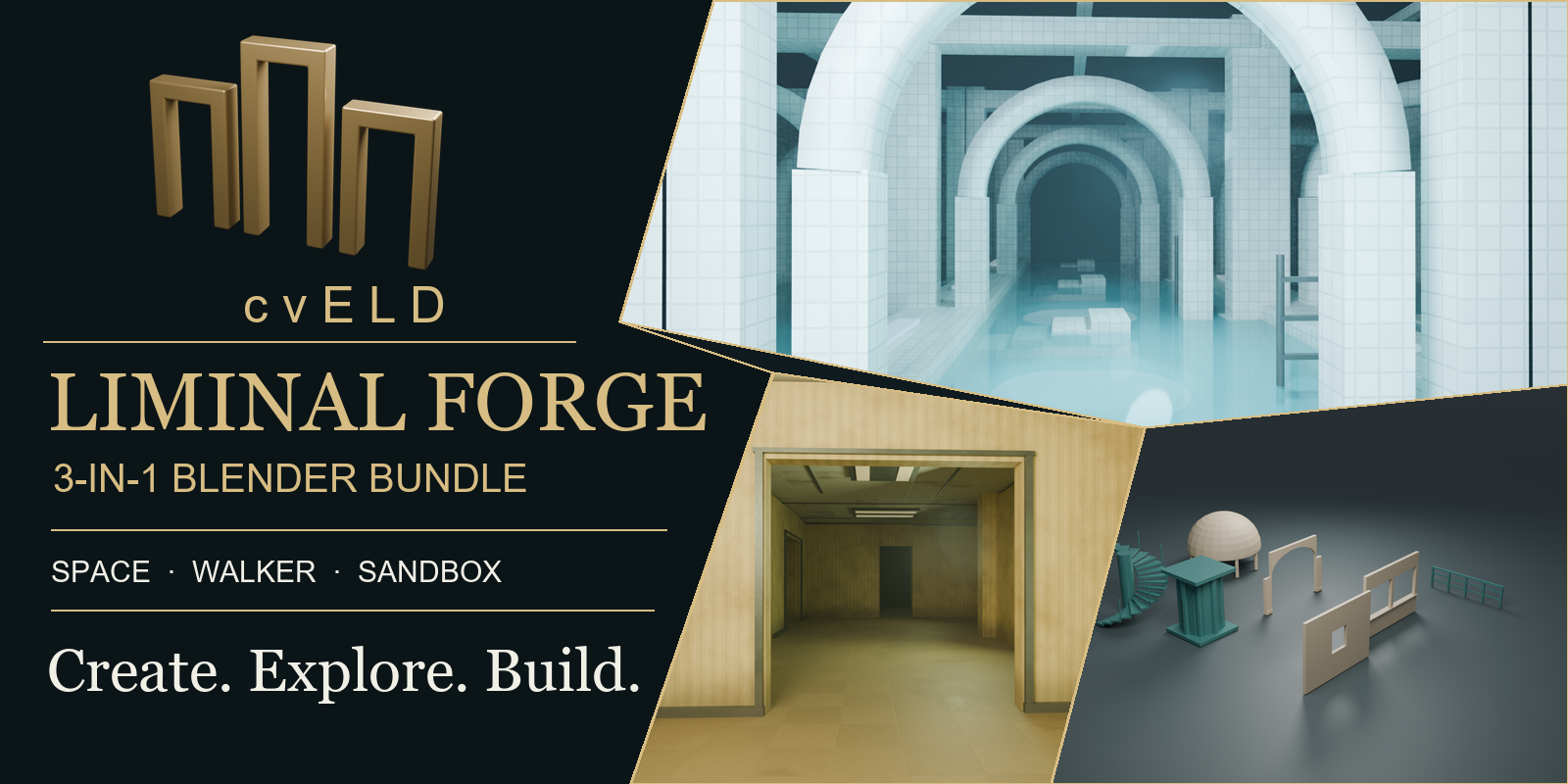
Product scenes and the 3D logo rendered in Blender Cycles. The videos below show Blender viewport captures.
Six worlds, five seconds inside each.
Actual Forge-generated environments captured with Walker in Blender 5.2.2 LTS / EEVEE. Each silent film lasts five seconds; steering was automated for capture.
Quiet hotel
Basalt passages
Mist forest
Root hall
Dream Pools flooded passages
Walker quality, side by side
The same Dream Pools route in Smooth (left) and Draft (right). Draft simplifies the water and preview detail. In this 960 × 540 offscreen capture on an RTX 5090, median frame processing rose from 1.23 to 4.19 equivalent FPS (+240.7%). The blended water surface costs more in Smooth mode. This includes water updates, walking, GPU rendering and readback; it is not monitor-presented gameplay FPS.
Three-second synchronized comparison. Measurement details are in the Walker manual.
Start simple. Keep making it yours.
- Choose an environment and press Create a World.
- Shape connected rooms and stairs, including spiral stairs.
- Add refracting water, underwater lighting, four volumetric cloud presets, procedural skies or a panorama.
- Try curated CC0 assets, replace individual objects and textures, or register downloaded asset ZIPs. External assets retain their own terms.
- Explore with walking collision, flying, a handheld spotlight and binoculars.
- Record MP4 using external FFmpeg, or save an editable camera animation for rendering.
Build inside your world
Liminal Sandbox adds fourteen modular piece types, window and door edits, reversible destruction and overlapping-piece repair. Exit with Esc, then explore your building with Walk.
Three-second Blender viewport sequence, with scripted input.
Ready for Blender 4.5
Forge 1.6.1 supports world creation and all four image moods in Blender 4.5. Walker 0.6.7 fixes the grid pattern in recorded video. All three included add-ons can be used together in Blender 4.5 or later.
Three seconds captured through Walker in Blender 4.5, using a scripted view and Draft quality.
Included & requirements
| Liminal Space / Forge 1.6.1 | Environment generation. Blender 4.5 or later. |
|---|---|
| Liminal Walker 0.6.7 | Independent first-person exploration. Blender 4.5 or later. |
| Liminal Sandbox 0.3.0 | Building, editing and destruction. Blender 4.5 or later. |
| Rendering | Preview in EEVEE; prepare Cycles for final rendering. Speed depends on scene complexity and GPU. |
| Recording | MP4 encoding requires an external FFmpeg executable. Camera memory can be rendered later with Blender. |
The bundle contains three independently installable add-ons. Liminal Space is the environment-generation panel in the Liminal Forge add-on; Walker and Sandbox are separate add-ons. Use Blender 4.5 or later for all three together.
Captured on Windows in Blender 5.2.2 LTS. The published installation and controls are explained in both English and Japanese manuals. Code is GPL-3.0-or-later, without warranty. Third-party assets retain their own licenses.
Your first world
- Extract the downloaded collection ZIP. Install and enable the three product ZIPs separately through Edit → Preferences → Add-ons → Install from Disk; leave the individual ZIPs intact.
- In Object Mode, open N → cvELD Liminal Forge → Liminal Space. Choose a world and press Create a World.
- Open Liminal Walker below Space and press Walk mode. Use WASD and the mouse; Esc returns to editing.
- Exit with Esc. Open Liminal Sandbox below Walker to place and edit building pieces, then return to Walker to explore again.
For troubleshooting and all controls, open the illustrated guides above.