黄色い迷宮
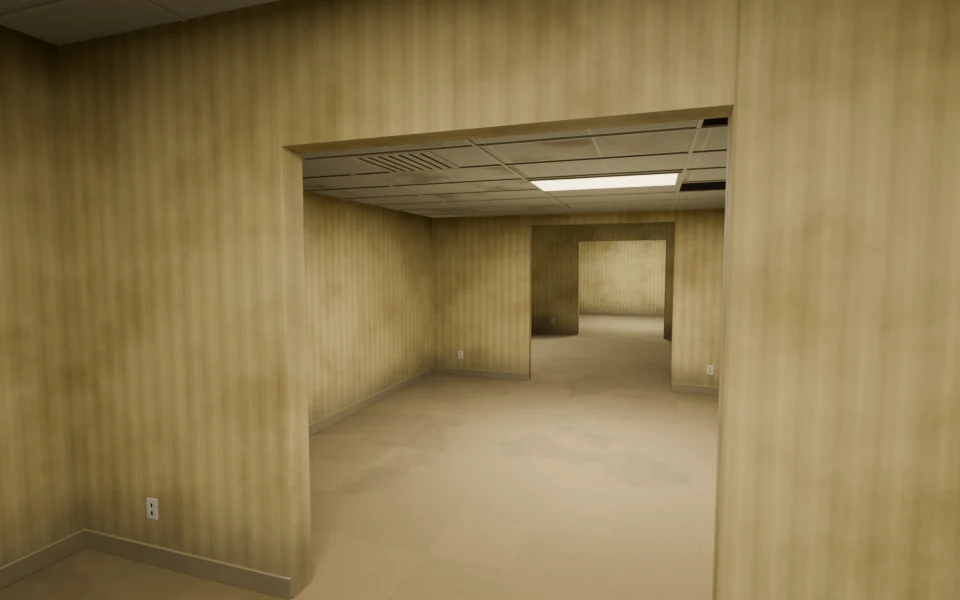
世界をつくり、水・雲・光・素材を整える。最初の一歩から、作り込みまで。
Liminal Forgeは、部屋・素材・照明・カメラをまとめて生成するBlenderアドオンです。このガイドでは、最初の世界をつくり、水・雲・空・素材を調整して、自分の風景として保存するまでを説明します。
Blender 4.5以降に対応しています。Windowsでの使用を前提としたガイドです。従来の画面・映像例はBlender 5.2.2 LTSで収録しています。
作成前のシーンは保持されます。上部のシーン選択から戻れます。もう一度「世界をつくる」を押すと、さらに別のシーンが増えます。
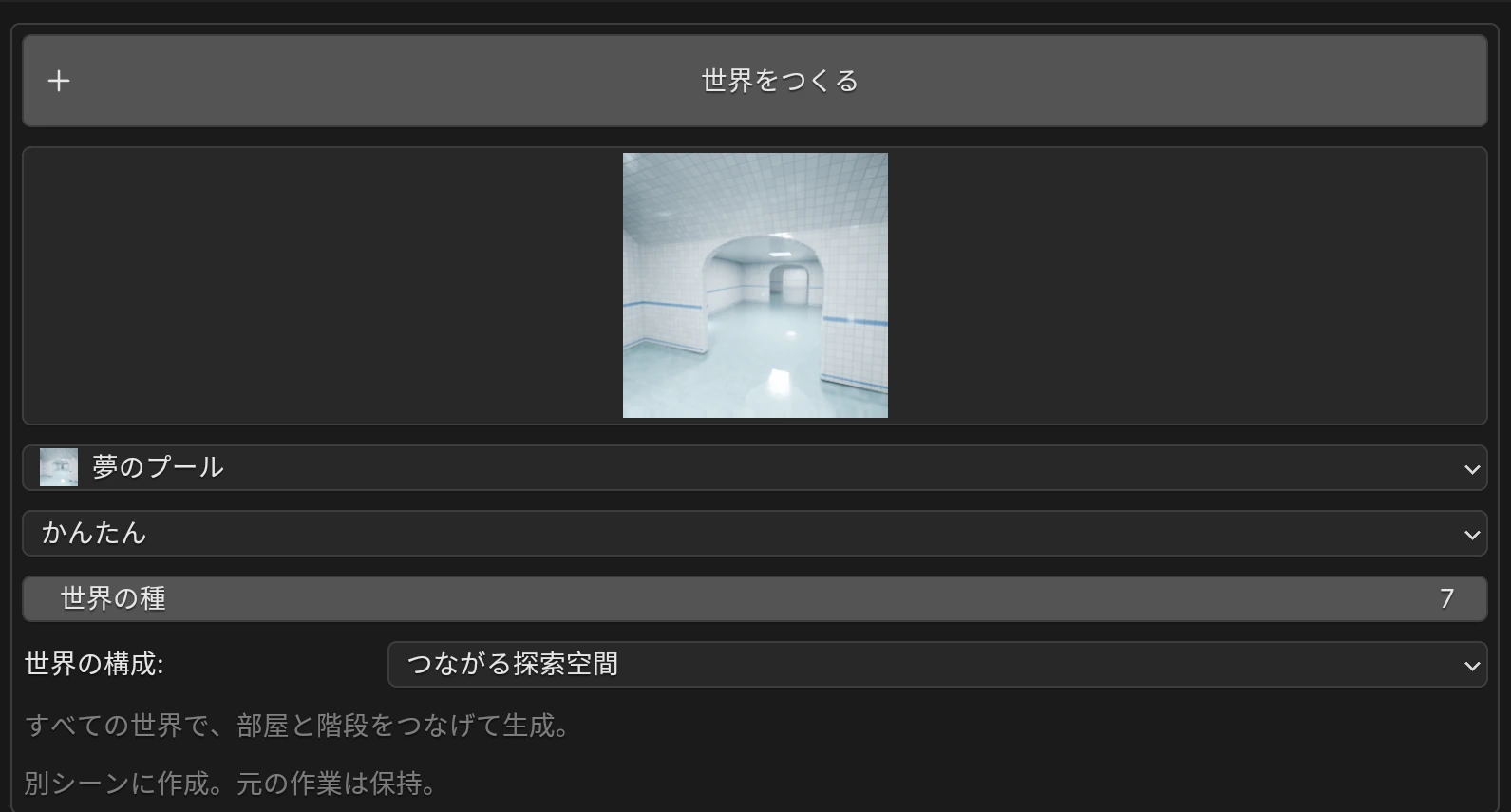
| Nパネルの場所 | できること |
|---|---|
| Liminal Forgeの先頭 | 次に作る世界の画像・操作セット・構成を選びます。生成済みの世界では、下に現在の間取りの設定が現れます。 |
| 見た目を仕上げる | 素材セットや部位別素材を適用。素材ZIPの登録、EEVEE/Cyclesへの切り替え。 |
| 光と雰囲気 | 明るさ、奥の見え方、対応テーマの霧・水面の高さ。生成済みの世界で表示されます。 |
| 映像の雰囲気 | 完成画像に色調・にじみ・周辺減光などを加えます。 |
| 天空 → ボリューム雲 | 背景の空と、実際に空間を占める雲をそれぞれ調整します。 |
| 遠景の天球 / HDRI | 内蔵パノラマや自分のHDRIを背景として使います。 |
| こだわりの設計 | 天井・装飾の表示、ノードで編集、編集用メッシュコピー。 |
パネルの見出しをクリックすると開閉できます。空・雲・遠景は、Forgeの世界を生成していないシーンでも使用できます。素材の適用や迷宮の再生成には、現在のシーンにForgeの生成物が必要です。
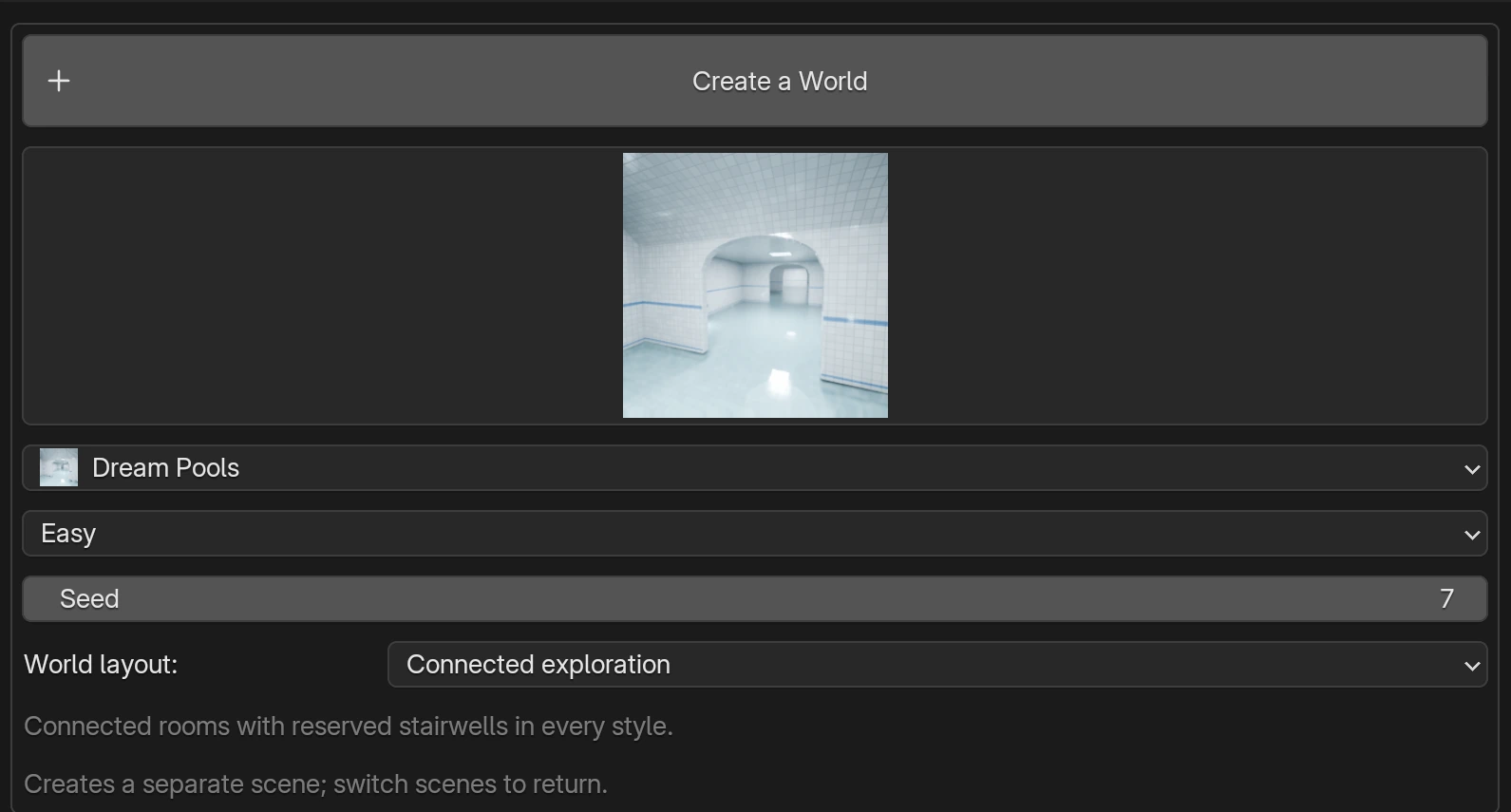
先頭の世界画像は新規作成用です。画像を変えただけで現在の世界のテーマは変わりません。既存の世界の形は下の間取り設定、見た目は各仕上げパネルで変更します。
以下は現行の「つながる探索空間」の作例です。天井・開口・照明器具・内装がテーマごとに異なります。画像をクリックすると大きく表示できます。Seed、操作セット、階数によって構成は変わります。
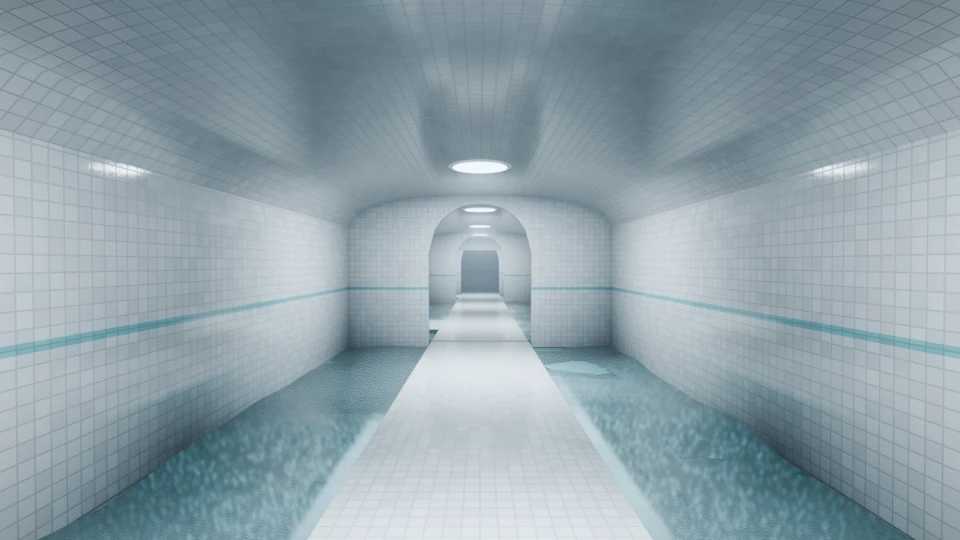
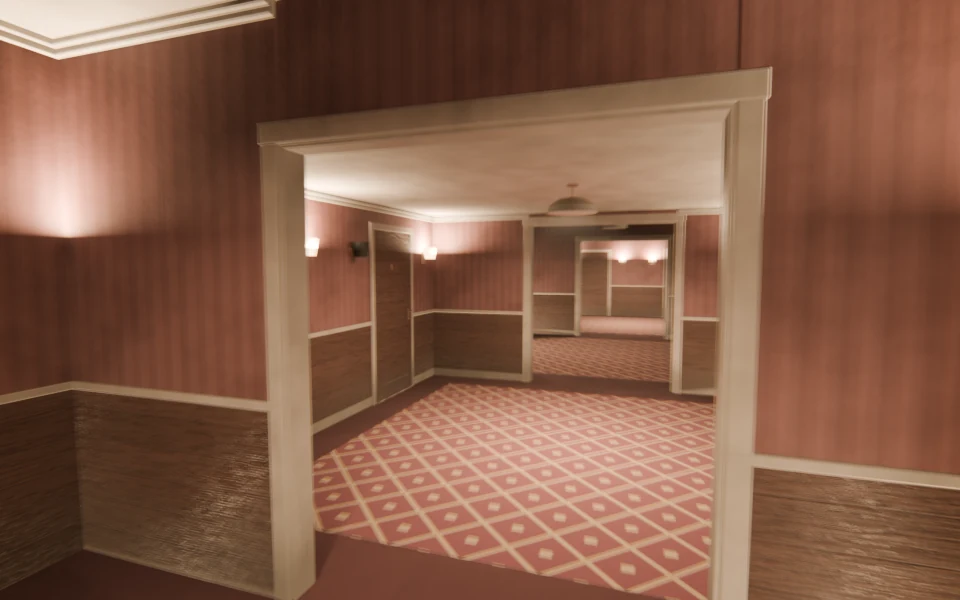
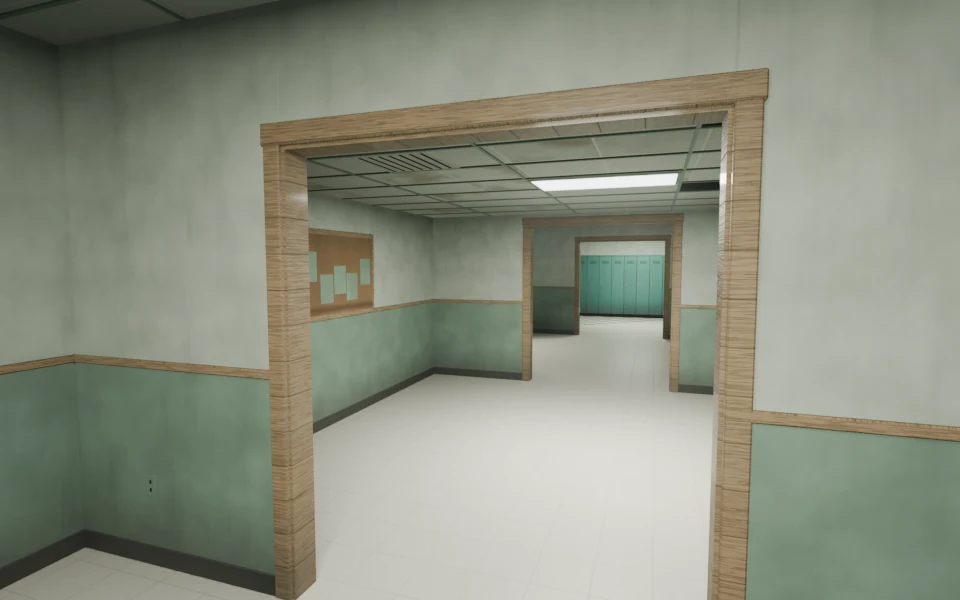
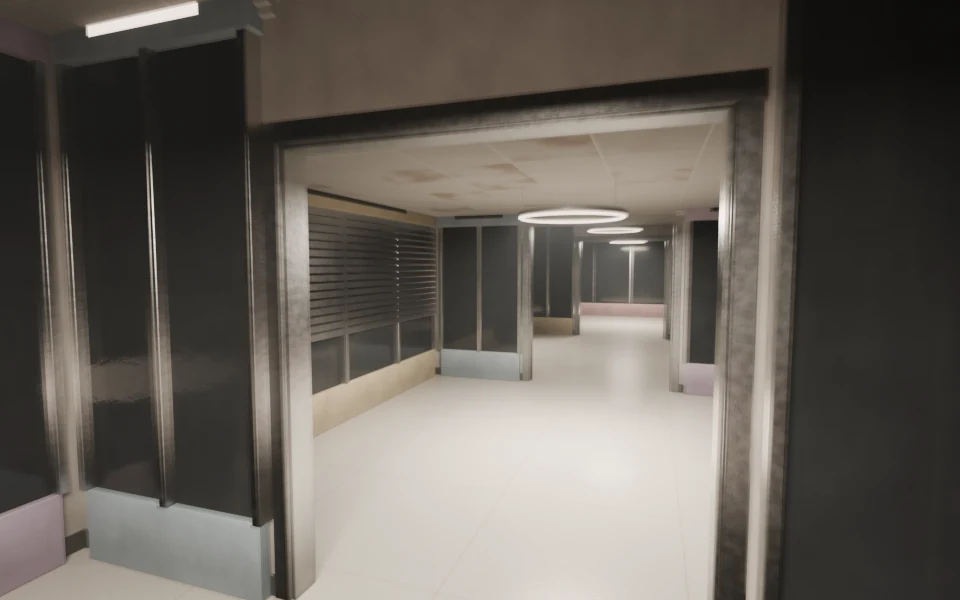
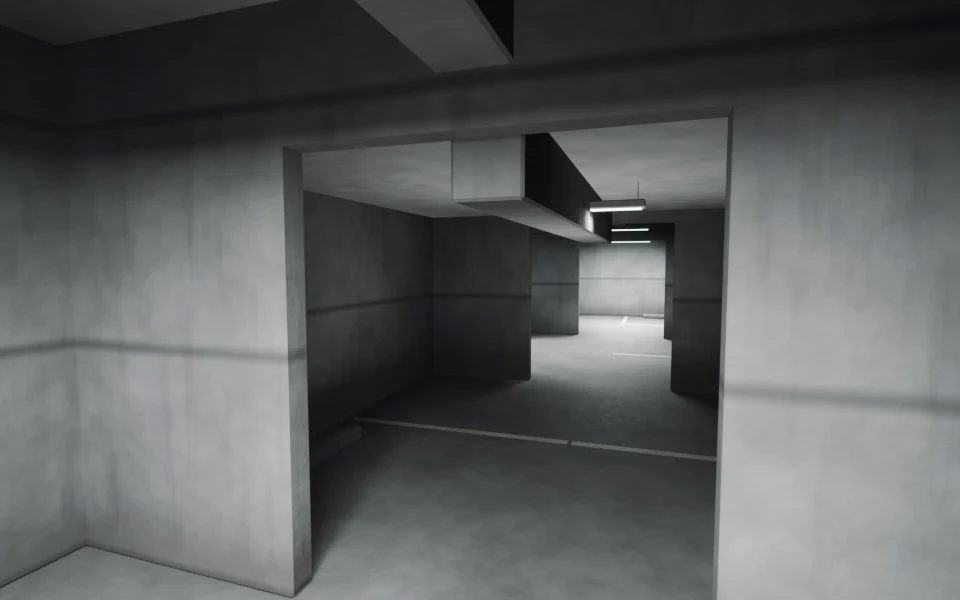
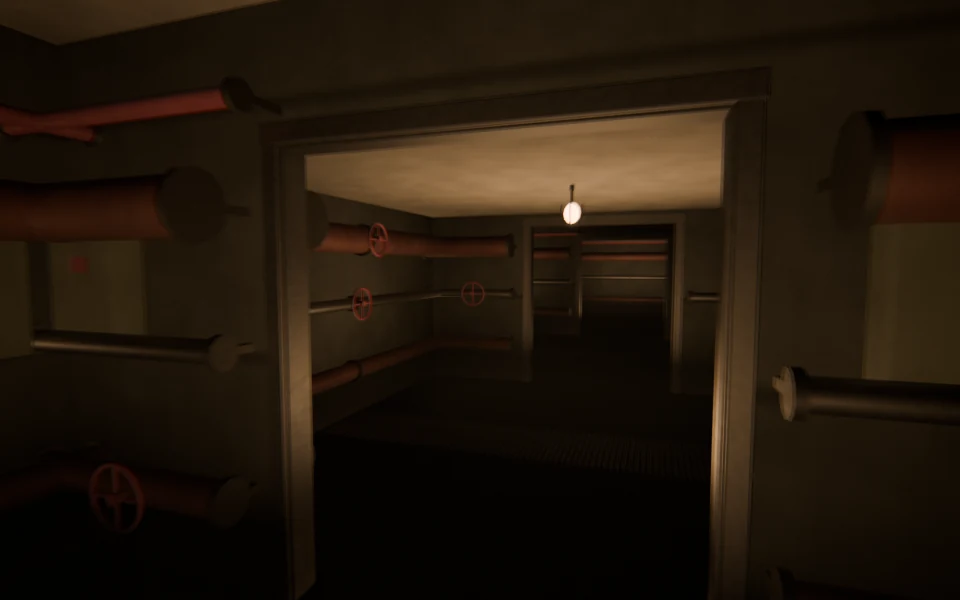
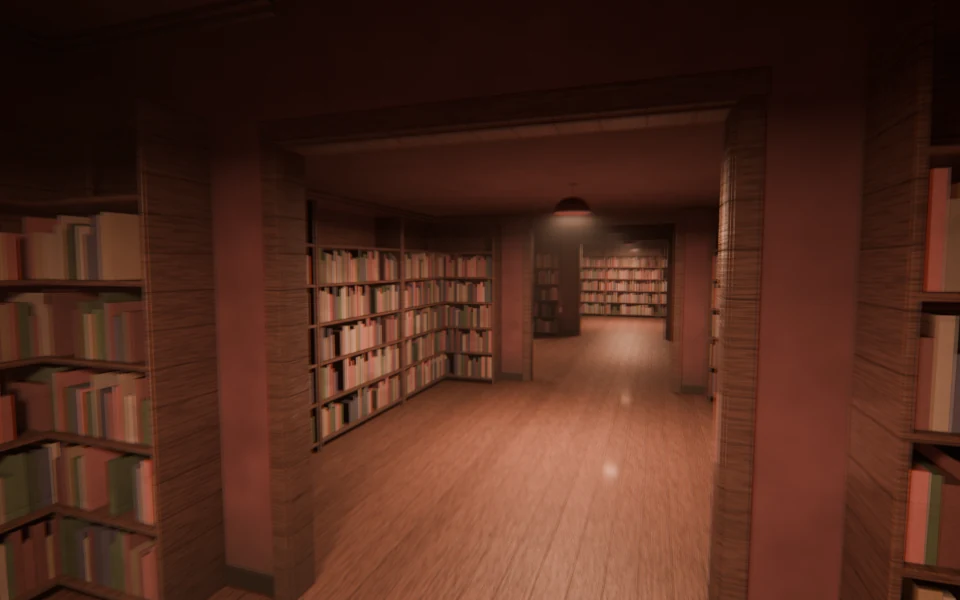
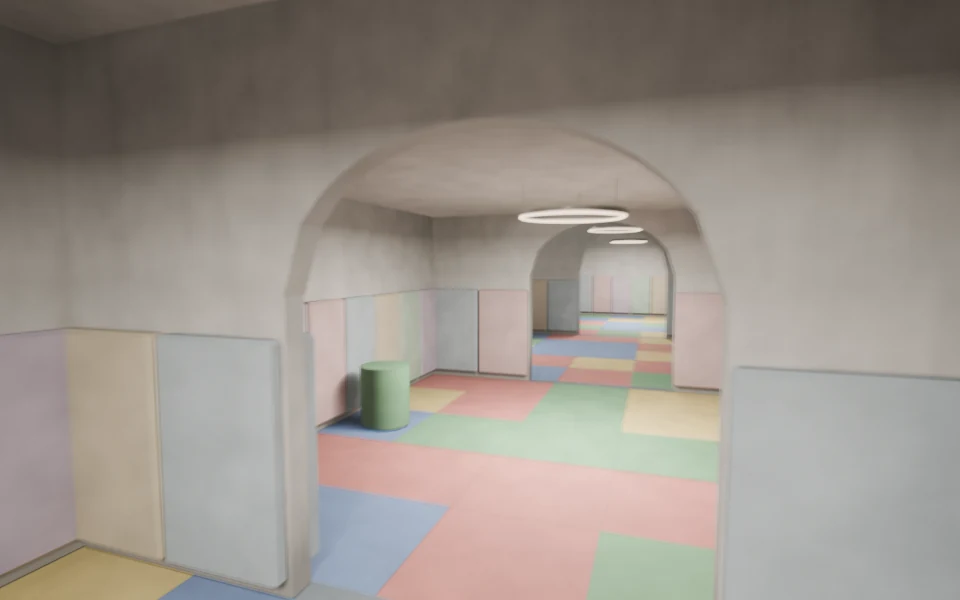
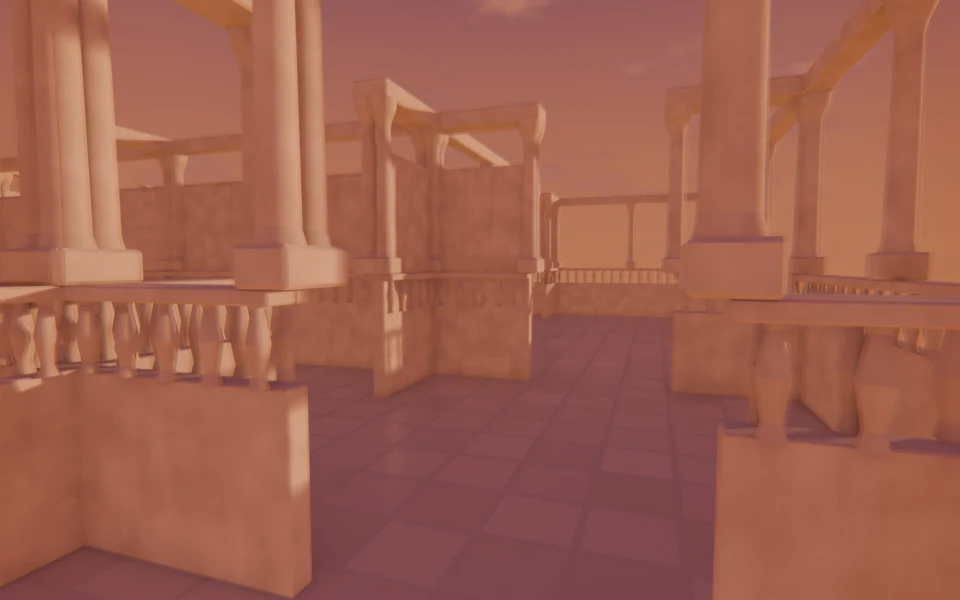
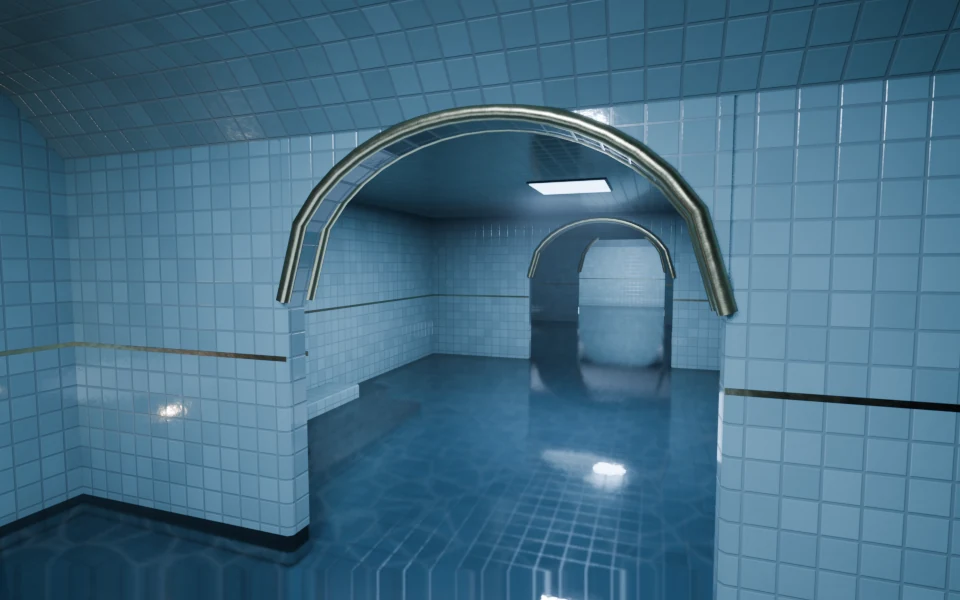
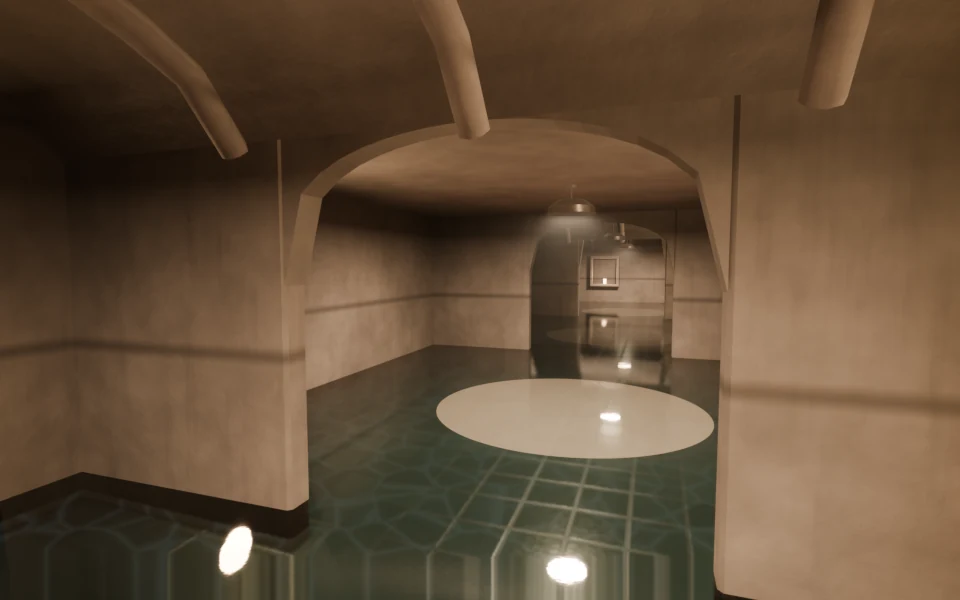
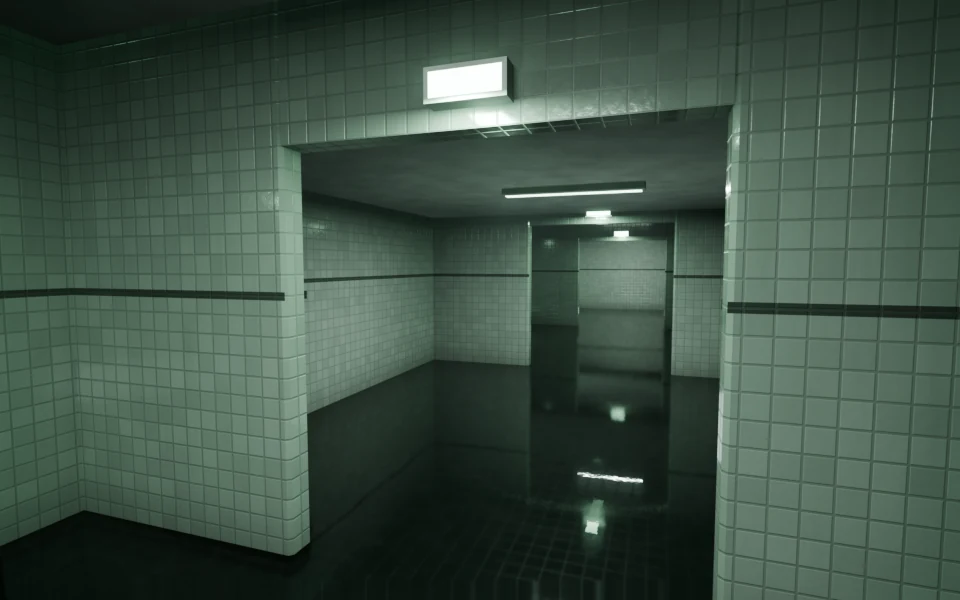
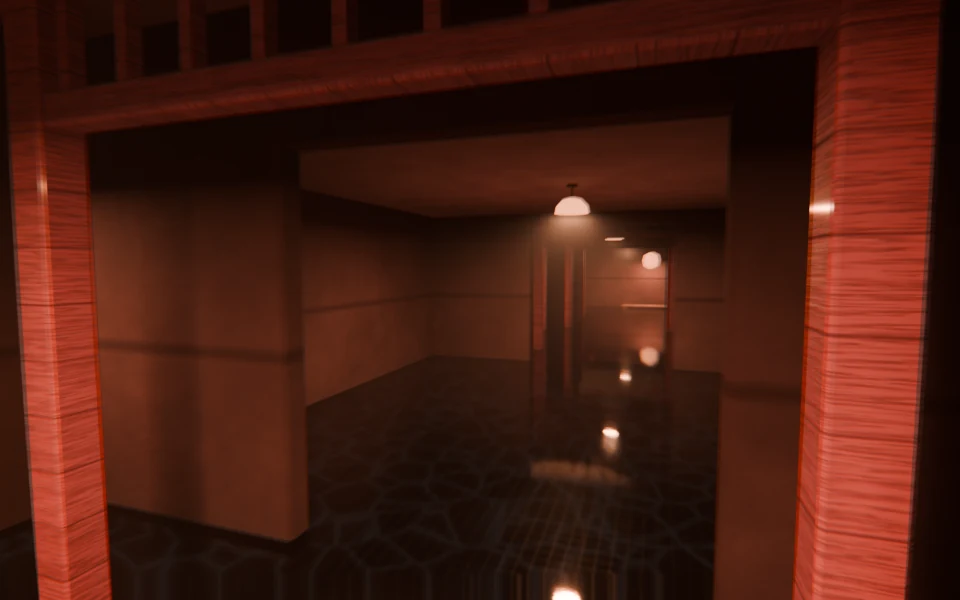
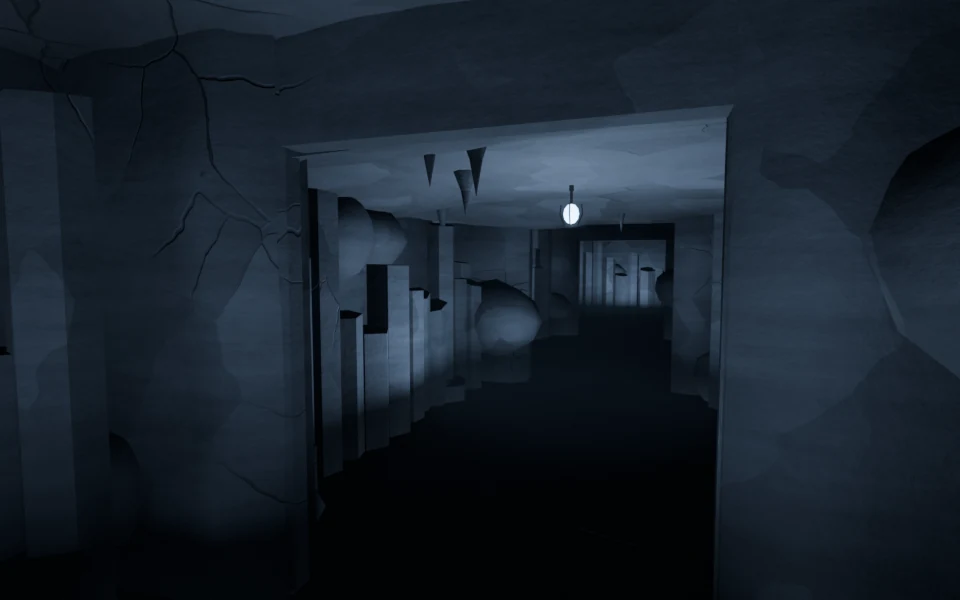
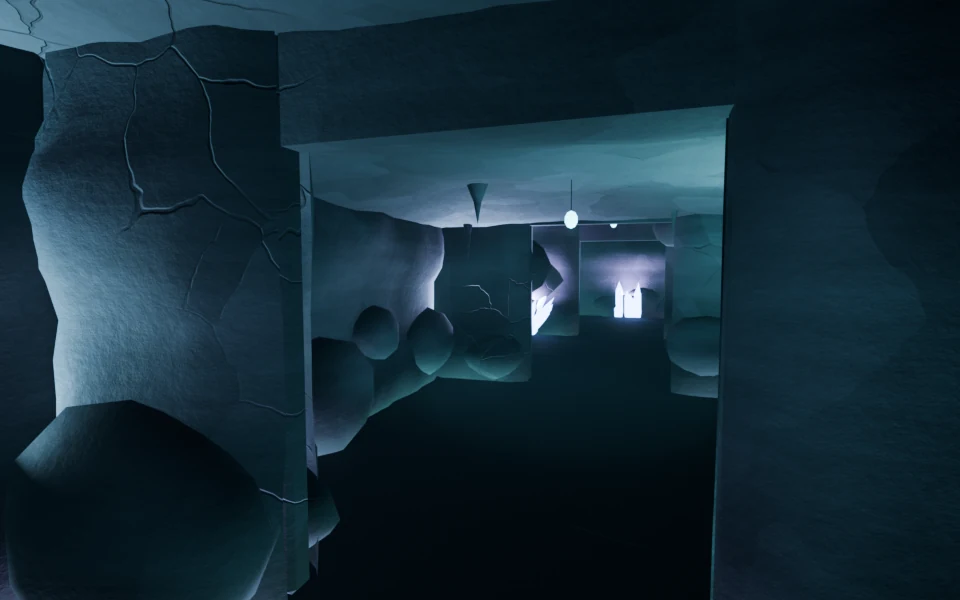
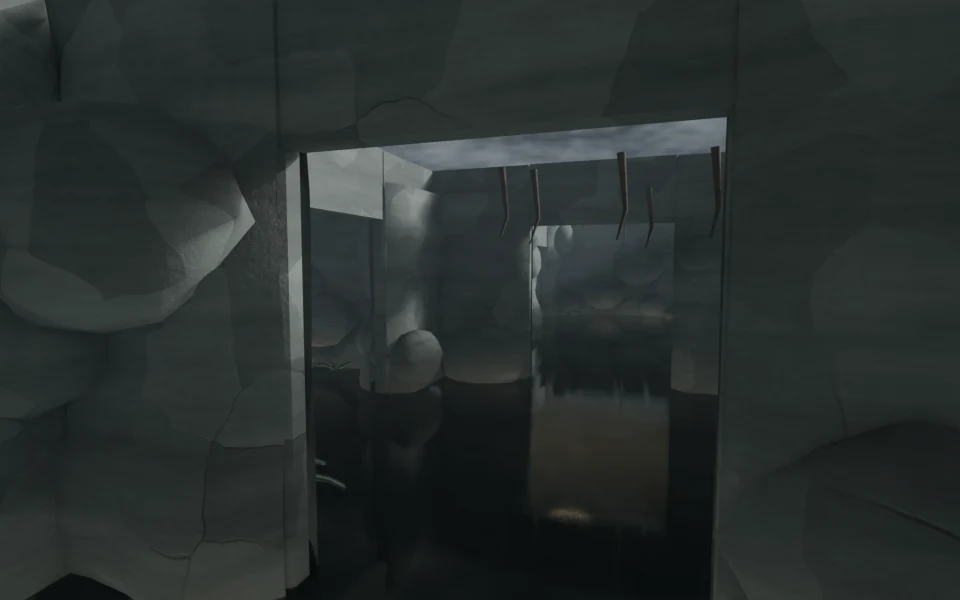
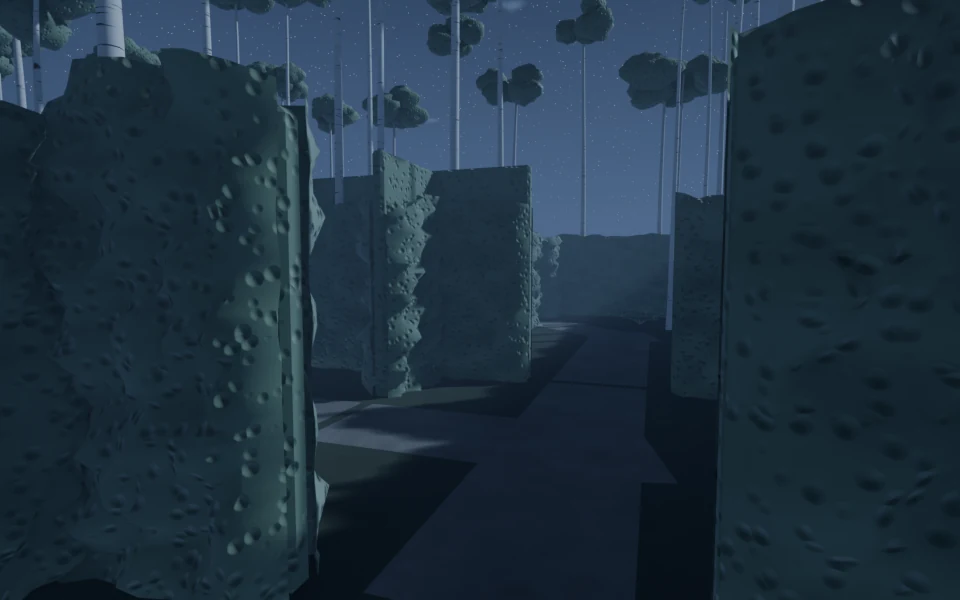
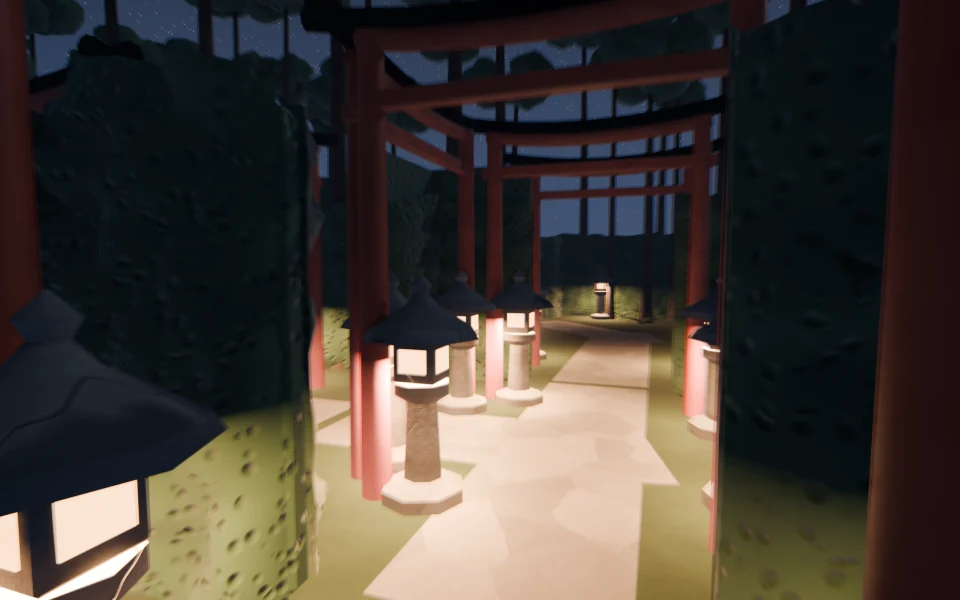
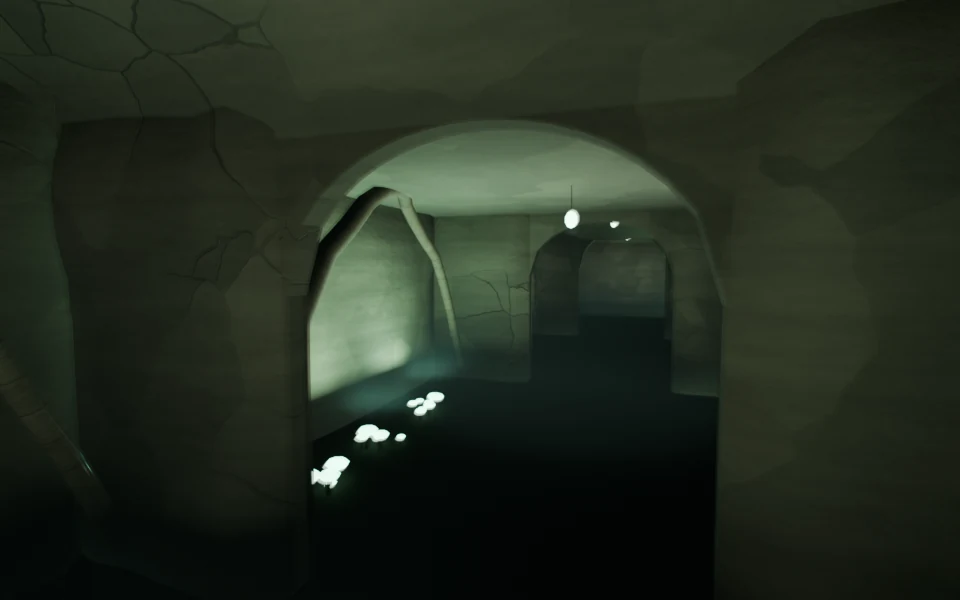
世界の構成 → つながる探索空間は、部屋と通路を接続し、階段と到達できるゴールを持つ世界です。「黄色い迷宮」はこの方式で作成されます。ほかの19テーマでも選択できます。
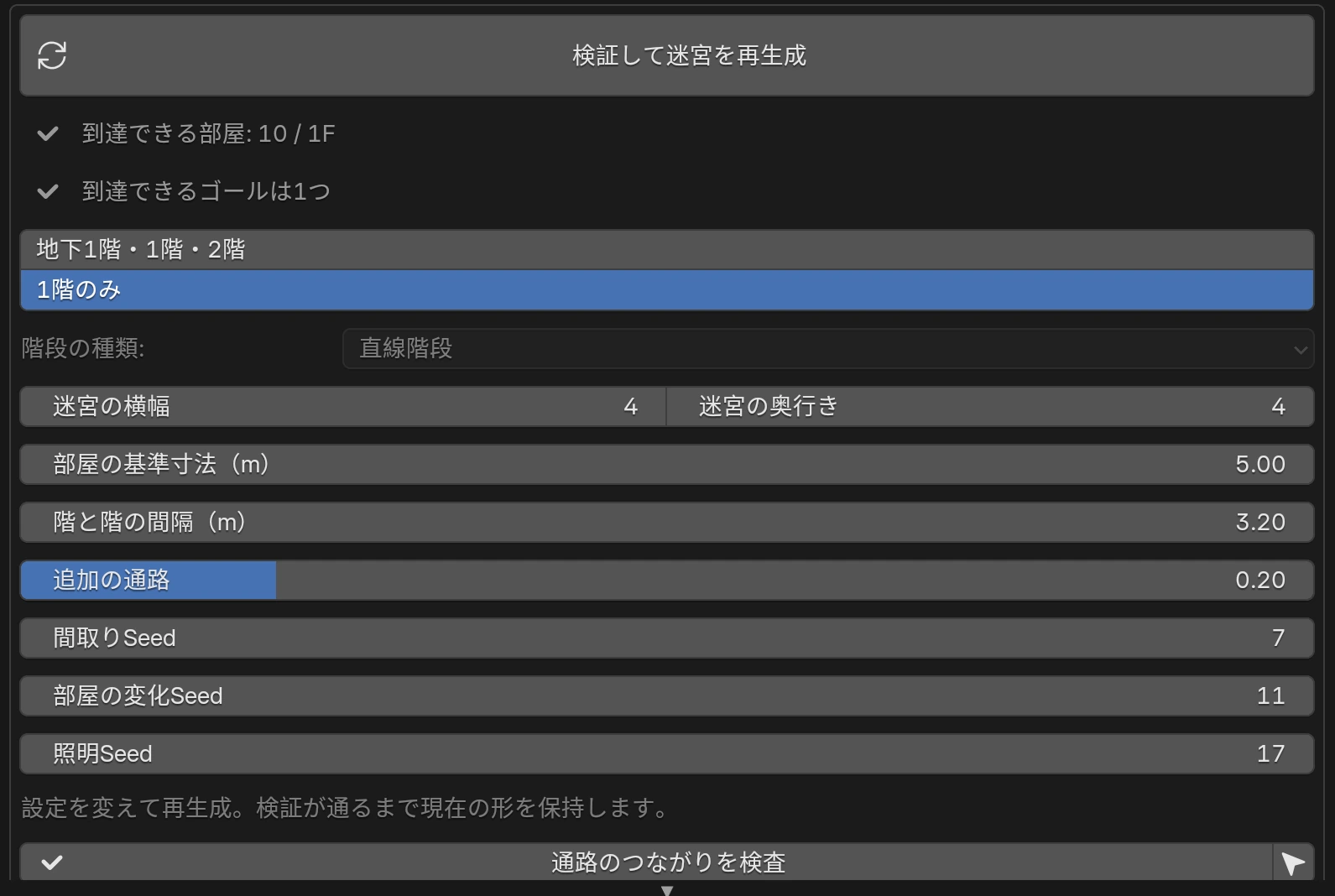
| セット | 連結ワールドの開始値 | 使いどころ |
|---|---|---|
| かんたん / Easy | 4 × 4・1階 | 最初の試作、軽い確認。 |
| 探検 / Explore | 5 × 6・地下1階/1階/2階 | 複数の階を歩く構成。 |
| 建築家 / Architect | 7 × 8・地下1階/1階/2階 | 広い背景を作り込みたいとき。 |
部屋の結合や階段室の配置により、表示される部屋数は横幅×奥行き×階数と一致するとは限りません。操作セットは難易度制限ではなく開始値です。選んだ後も各項目を変更できます。
| 設定 | 見た目と使い方 |
|---|---|
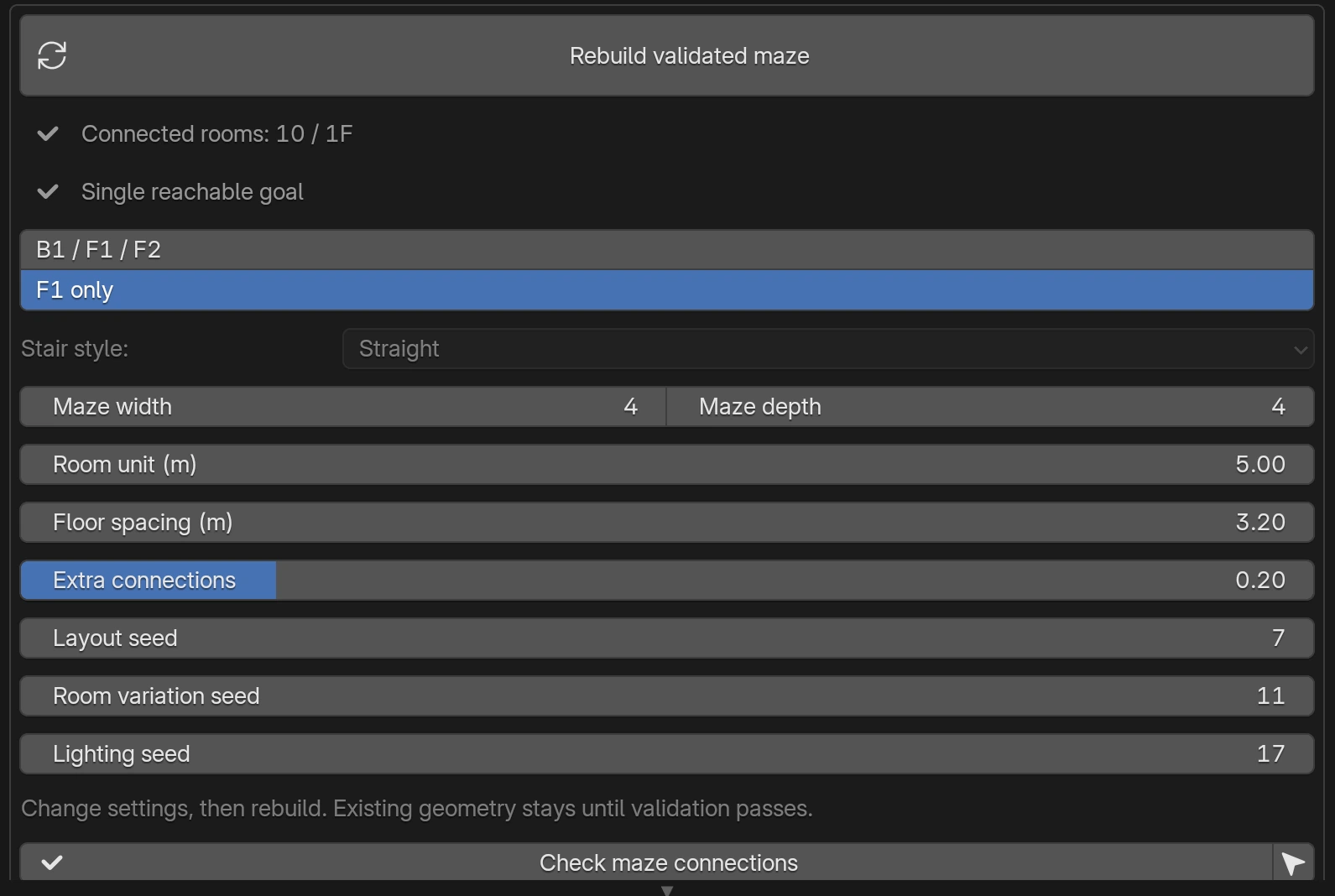
| 迷宮の横幅/奥行き | 間取りを増やします。範囲は4〜12/4〜14。広くすると生成と表示が重くなります。 |
| 部屋の基準寸法(m) | ひと区画の大きさ。4.5〜8m。通路や階段を含む構成全体の基準です。 |
| 階と階の間隔(m) | 3〜3.3m。従来型の「天井の高さ」とは異なり、階の位置を決めます。 |
| 追加の通路 | 枝分かれした間取りに別の接続を増やします。高い値で回遊しやすくなります。 |
| 間取りSeed | 部屋と通路の構成を変えます。 |
| 部屋の変化Seed | 間取りと分けて、部屋ごとの変化を試します。 |
| 照明Seed | 照明の配置や点灯の変化を試します。 |
間取り設定はボタンを押すまで反映されません。再生成は生成された建築を作り直すため、直接編集した生成メッシュを残したい場合は、先にシーンや編集用コピーを保存してください。検証に失敗した場合は現在の世界を保持します。接続検査は間取りの検査であり、後から追加した家具や差し替えモデルが通路を塞いでいないことまでは保証しません。
黄色い迷宮以外では、作成前に世界の構成 → 従来の風景を選べます。広々とした一階層の反復構成を、Geometry Nodesの数値で直接変えたいときに使います。連結や階段の仕組みは持ちません。
開始値は、かんたんが3 × 4、探検が5 × 7、建築家が8 × 10です。世界を調整で部屋数・間隔・天井の高さ・Seedを動かすと、その場で変わります。別の変化を試すでSeedを進められます。
天井・梁/小物・装飾で要素を表示・非表示にできます。こだわりの設計では高さの変化など、テーマに応じた追加項目が出ます。部屋数の上限は14 × 18です。広さを変えた後はカメラと照明を合わせるを実行してください。
連結ワールドの夢のプール/月窓の浴場/潮位の地下聖堂/黒水の更衣室/赤灯の湯殿/雨の縦穴には水があります。水面の屈折、細かな波、水中の床や壁の色、揺れる光の模様がテーマに合わせて組み込まれます。外部の水アセットを用意する必要はありません。
夢のプールでは小・中型の部屋に水を広く張り、少し高いタイルの通路で扉をつなぎます。間取りに十分な空間があると、25mの水槽、周囲の一段高い床、天井に埋め込まれた四角いエリアライトのある大部屋も生成します。螺旋階段と直階段で上下の階を移動できます。
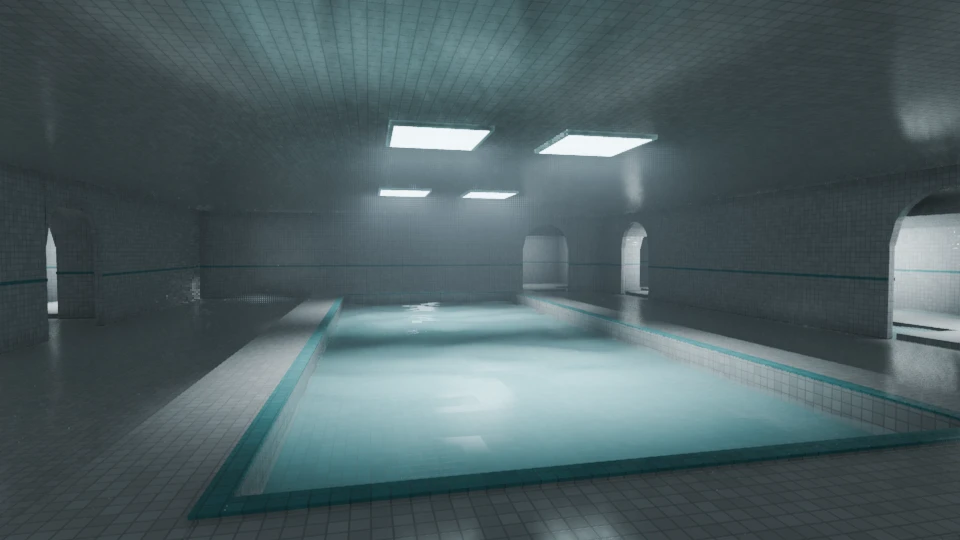
夢のプールの2つのモードは同じ水面メッシュを使います。軽量版はGeometry Nodesで揺らし、WaterScapes版は水盤ごとに波面を計算します。水面の泡は輪の演出で、浮上する気泡の流体計算ではありません。水色や水深の見え方はシェーダーエディターで調整できます。
流体シミュレーションではありません。水位の自動変化、泳ぐ操作、物体に合わせた水の押しのけは含みません。EEVEEの反射・屈折は画面内の情報に影響されます。最終構図で確認し、必要に応じてCyclesでも試してください。床や壁を外部素材へ置き換えると、その部位の元の水中色・光模様も変わる場合があります。
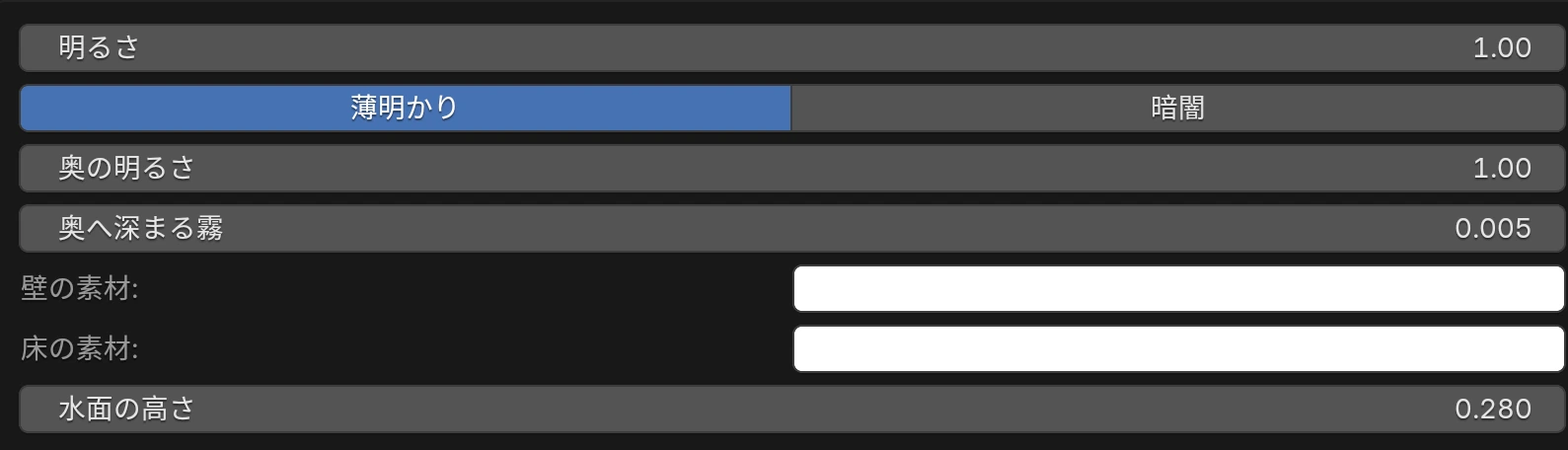
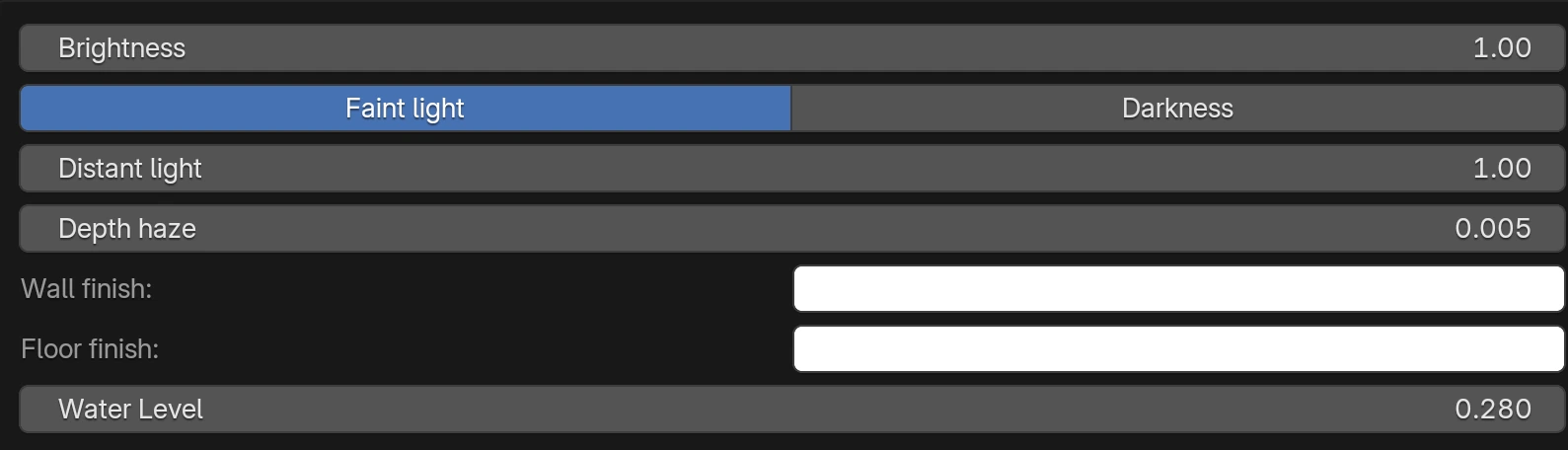
光と雰囲気で生成照明の明るさを調整します。先に構図を決め、手前の床や壁が読める明るさをつくってから、入口の奥を調整すると奥行きが分かりやすくなります。
| 設定 | 効果 |
|---|---|
| 明るさ | 生成ライトの明るさを調整します。暗すぎる場合は、まずこの値とレンダー表示を確認。 |
| 入口の向こう → 薄明かり | 次の部屋の輪郭を少し残します。「奥の明るさ」で強さを変更。 |
| 入口の向こう → 暗闇 | 奥の生成ライトと発光器具を消して、入口の先を暗くします。黄色い迷宮では低い補助光が残ります。手前の光や空からの光が届く場合も完全な黒にはなりません。 |
| 奥へ深まる霧 | 遠くを霞ませます。表示されるテーマで使用可能。濃くしすぎると部屋全体が白く、または暗く見えます。 |
| 壁の素材/床の素材 | 色調整が用意された素材で表示されます。表示されない素材はシェーダーエディターで調整します。 |
カメラと照明を合わせるは、現在の世界に合わせて生成カメラと照明を配置し直します。手で動かした生成ライトやカメラを保ちたい場合は、実行前にコピーや保存をしてください。空のプリセット変更だけでは、その空に合わせて既存のSunライトの方向が自動で変わることはありません。
初期状態でも外部画像なしで素材を表示できます。壁紙の継ぎ目、タイルの目地、コンクリートの表情、カーペット、吊り天井、木材、岩などをテーマ別に用意しています。
テーマ全体の印象を大きく変えるなら次章の素材セット、壁だけなど一部を変えるなら部位別の差し替えが便利です。生成建築の天井と小物の表示はこだわりの設計から切り替えます。
見た目を仕上げるから、Poly Haven/ambientCGの素材や自分の素材を使えます。初回はネットから取得し、以後はローカルのキャッシュを利用します。
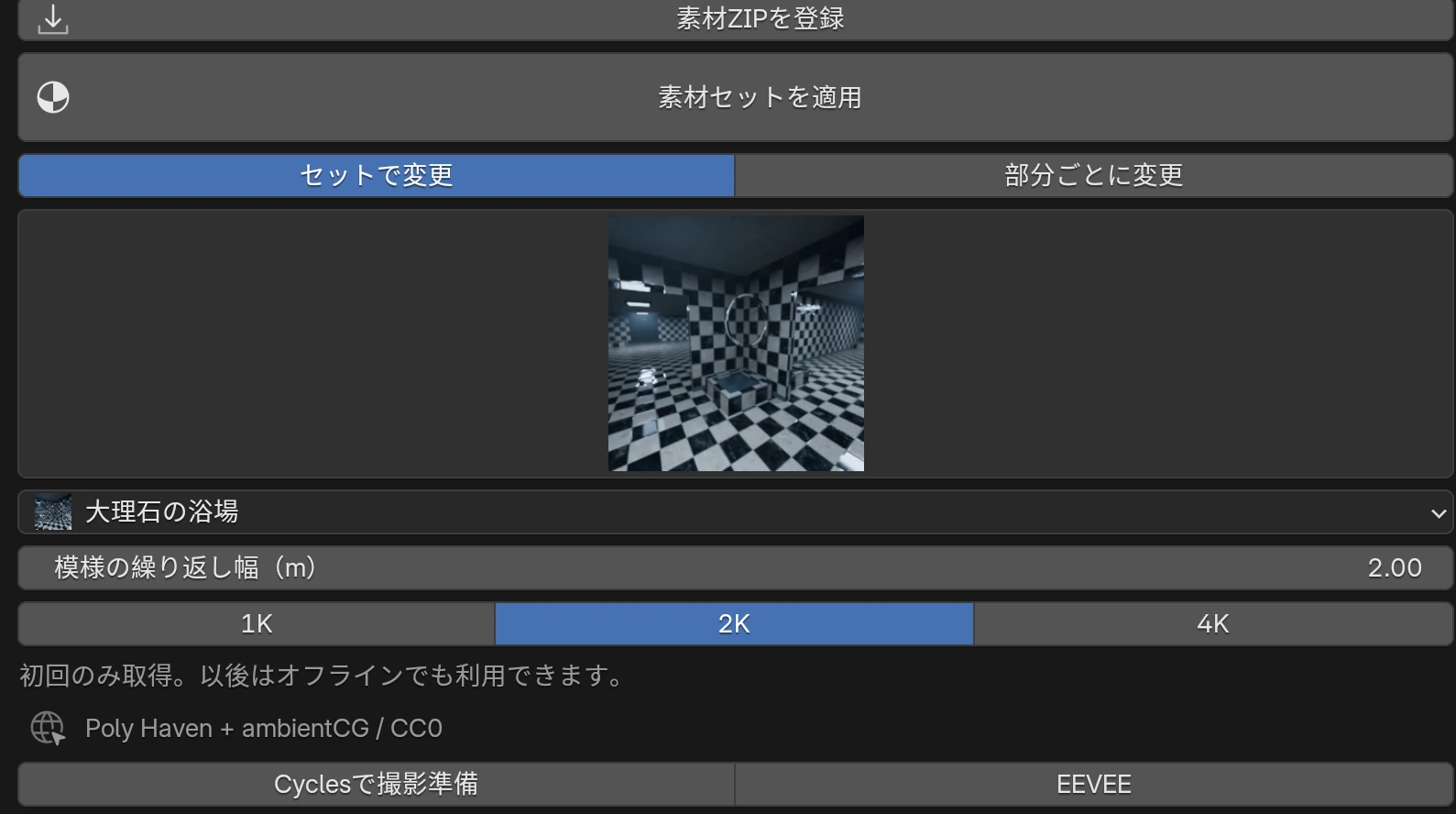
「セットで変更」に切り替えた上で「素材を個別に選ぶ」を開くと、このblendファイル内にある床・壁のマテリアルや対応するメッシュを指定できます。指定後に素材セットを適用し直します。岩・樹木・家具の差し替えは、配置先を持つテーマで使用できます。元の素材へ戻すには元の素材に戻す、家具だけ戻すには元の小物に戻すを使います。
素材を増やす → オンライン素材でサイトと検索語を指定し、検索して素材を追加すると候補をライブラリに登録します。一度の検索で最大100件。検索だけでは本体をすべてダウンロードせず、適用時に必要なファイルを取得します。
内蔵のオンライン連携はCC0素材を対象にしています。「素材の配布元を開く」で各素材を確認できます。持ち込んだZIPや自作以外のblend内素材は、元の利用条件がそのまま適用されます。登録しただけでCC0になるわけではありません。
対応モデルはBLEND・GLB/GLTF・OBJ・FBX。色画像だけでも登録できますが、通常はBase Color・Roughness・Normalなどの一般的な名前を付けると判別しやすくなります。ZIPは元の解像度で扱い、1K/2K/4Kの選択で再解像度化されません。
複雑な独自シェーダーや特殊なファイル構成まで完全には再現できません。表示が合わない場合は、元のファイルを確認してマテリアルを手動で調整してください。モデルを差し替えた後は、通路や階段を塞いでいないか確認します。
天空は360度の背景をつくります。実際の立体的な雲は次章で別に追加します。
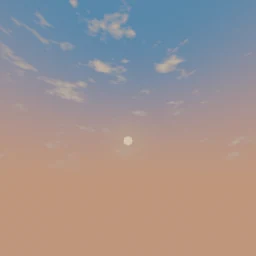
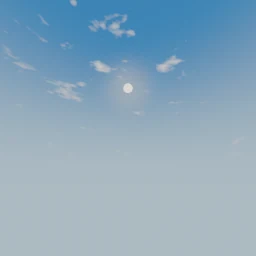
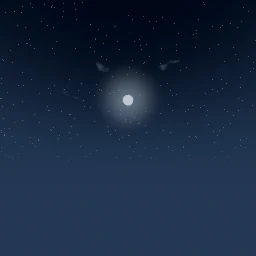
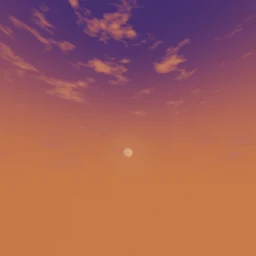
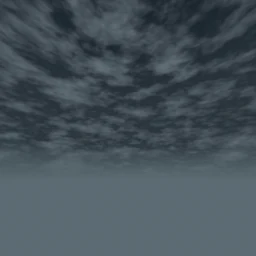
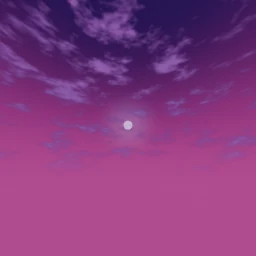
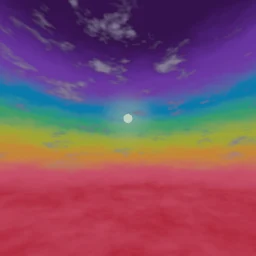
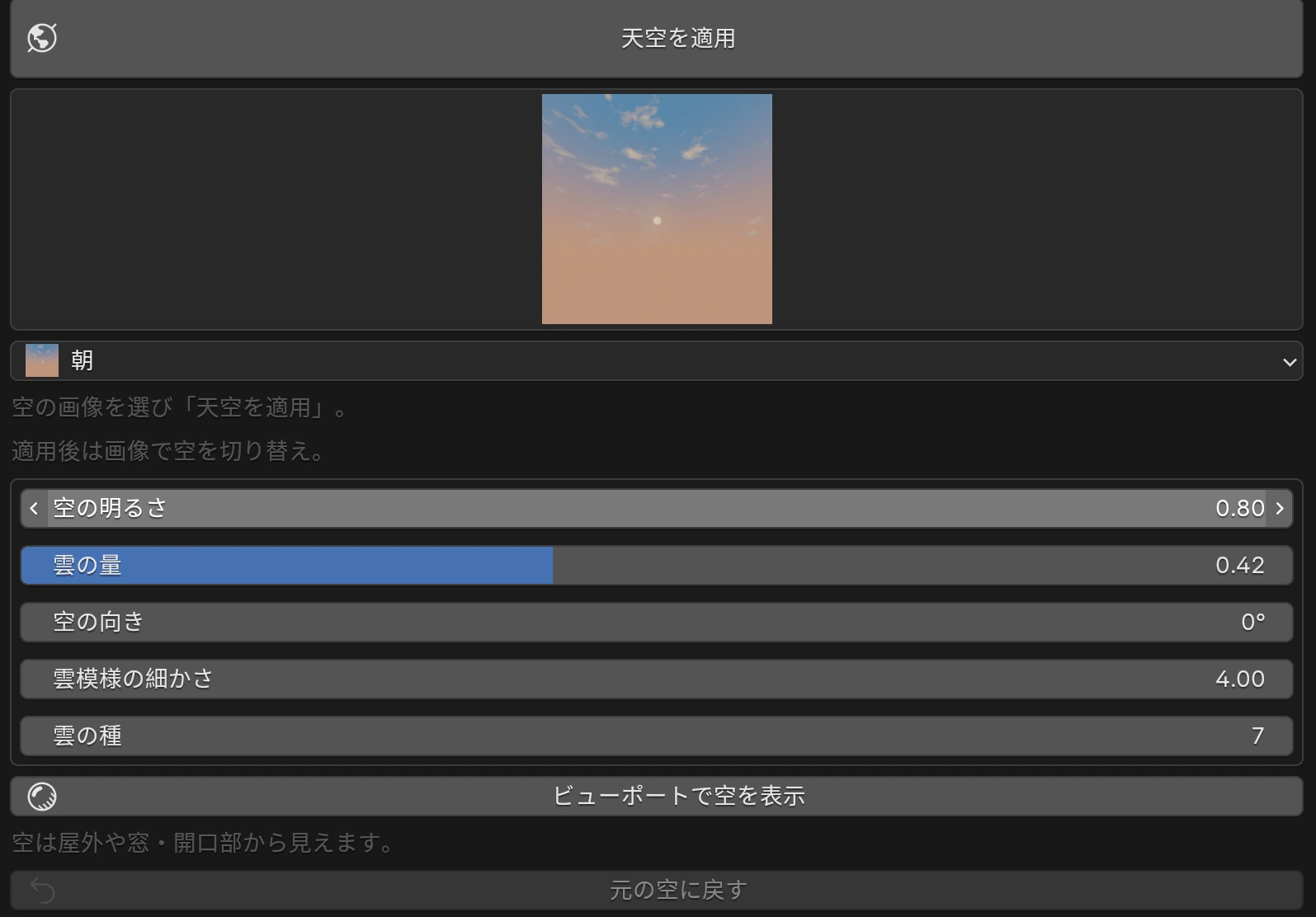
雨は雨雲の背景で、落下する雨粒は含みません。太陽と月は背景の模様です。この操作だけで影を落とすSunライトを追加することはありません。空を変えた後は必要に応じて既存のライトも調整します。フィルム → 透過がオンだと、レンダー背景に空は写りません。
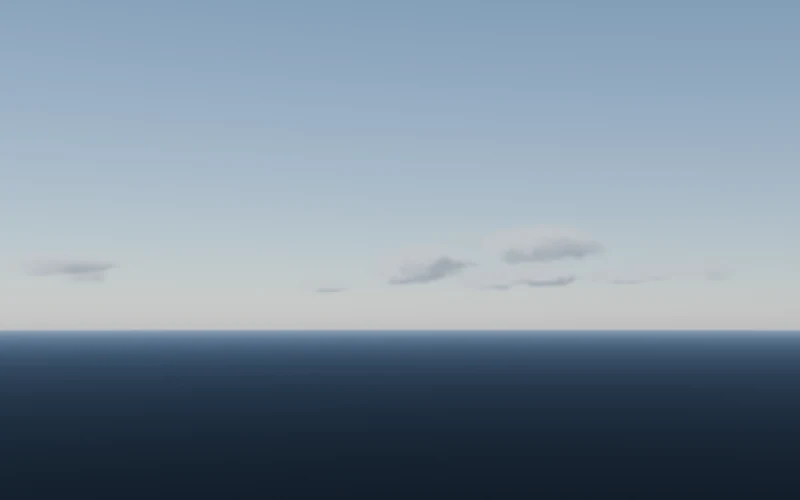
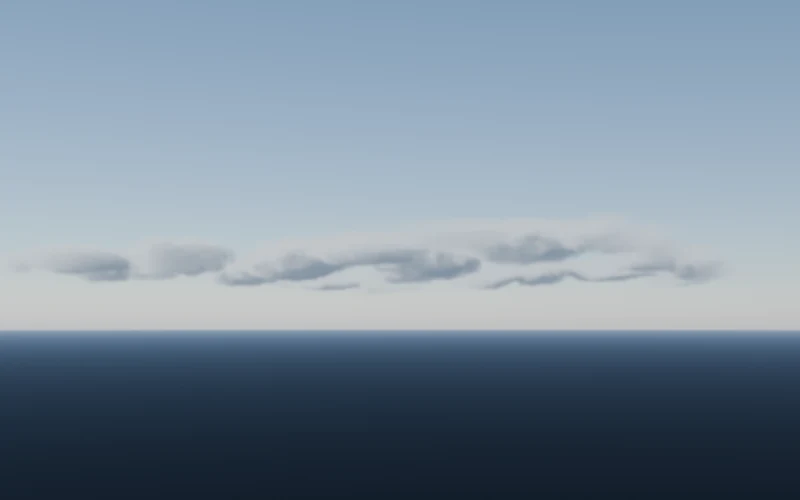
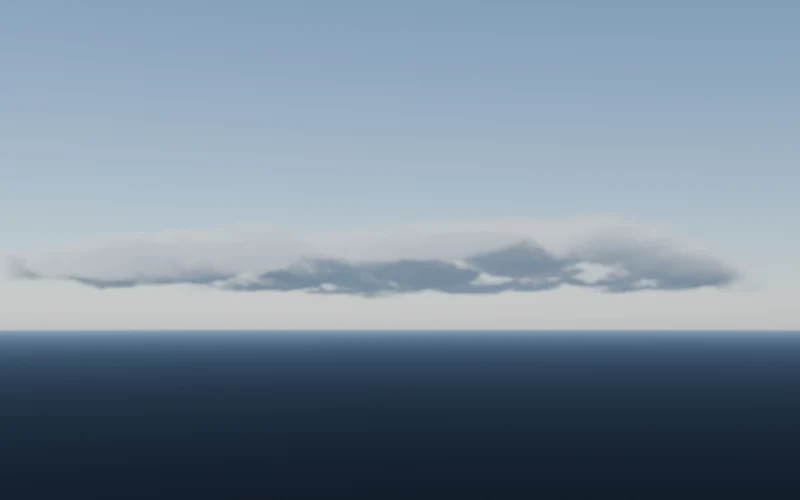
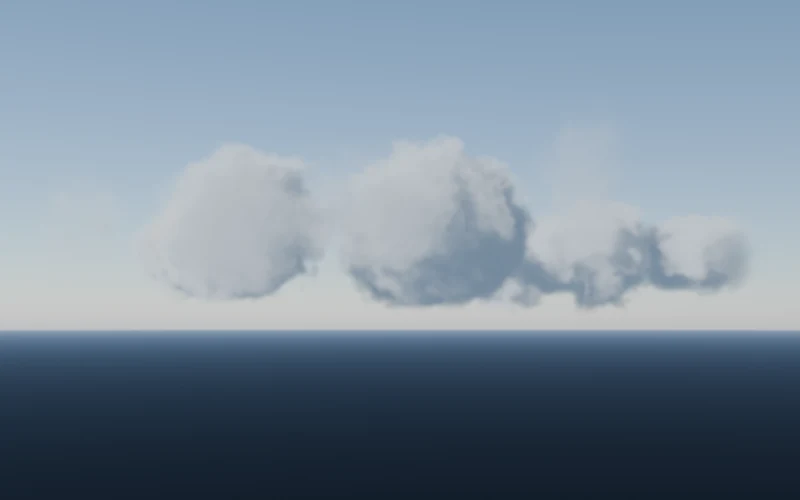
天空 → ボリューム雲は、空間に厚みのある雲を追加します。背景や既存の照明は置き換えません。Forgeの世界がないシーンでも使えます。
| 設定 | 選び方 |
|---|---|
| 雲の量 | 生成範囲のどの程度を雲で覆うか。空を広く見せるなら低めに。 |
| 雲の密度 | 透けにくさ。高すぎると内部が暗くなります。 |
| 雲底の高さ(m) | 雲の下側の高さ。建築の上に置きたい場合は屋根より上に。 |
| 雲の厚み(m) | 上下のボリューム。入道雲は厚みを大きく取ります。 |
| 生成範囲の幅(m) | 雲を置く有限の範囲。見せたい構図を覆う大きさにします。 |
| 雲のサイズ(m) | ひとまとまりの雲の大きさ。 |
| 雲の詳細設定 | 中心XY・配置角度・Seed・細部・環境補助光を調整。Seedで雲の形を試し、中心で位置を合わせます。 |
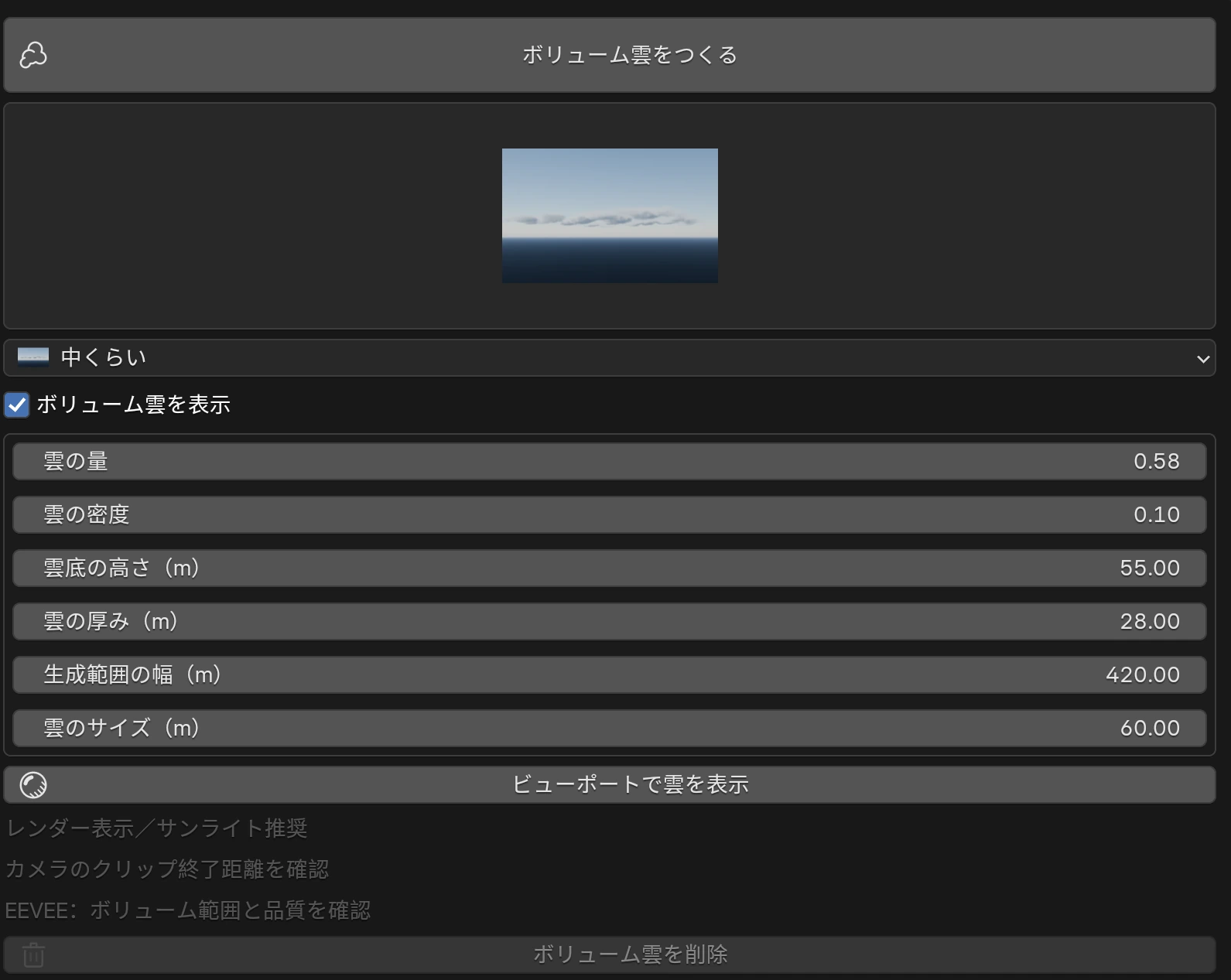
カメラのクリップ終了距離を雲より遠くへ設定し、EEVEEのボリューム範囲・サンプル数を確認します。「雲を表示」のボタンはビューポートの距離を調整しますが、撮影用カメラのクリップ設定も別に確認してください。試作中は少ないプリセットや小さい生成範囲から始めます。無限に続く雲や気象シミュレーションではありません。
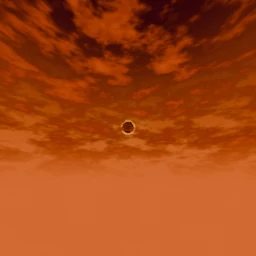
遠景の天球 / HDRIでは、金色の雲海・朱色の遠い島々の内蔵パノラマ、または自分のHDRIを使えます。
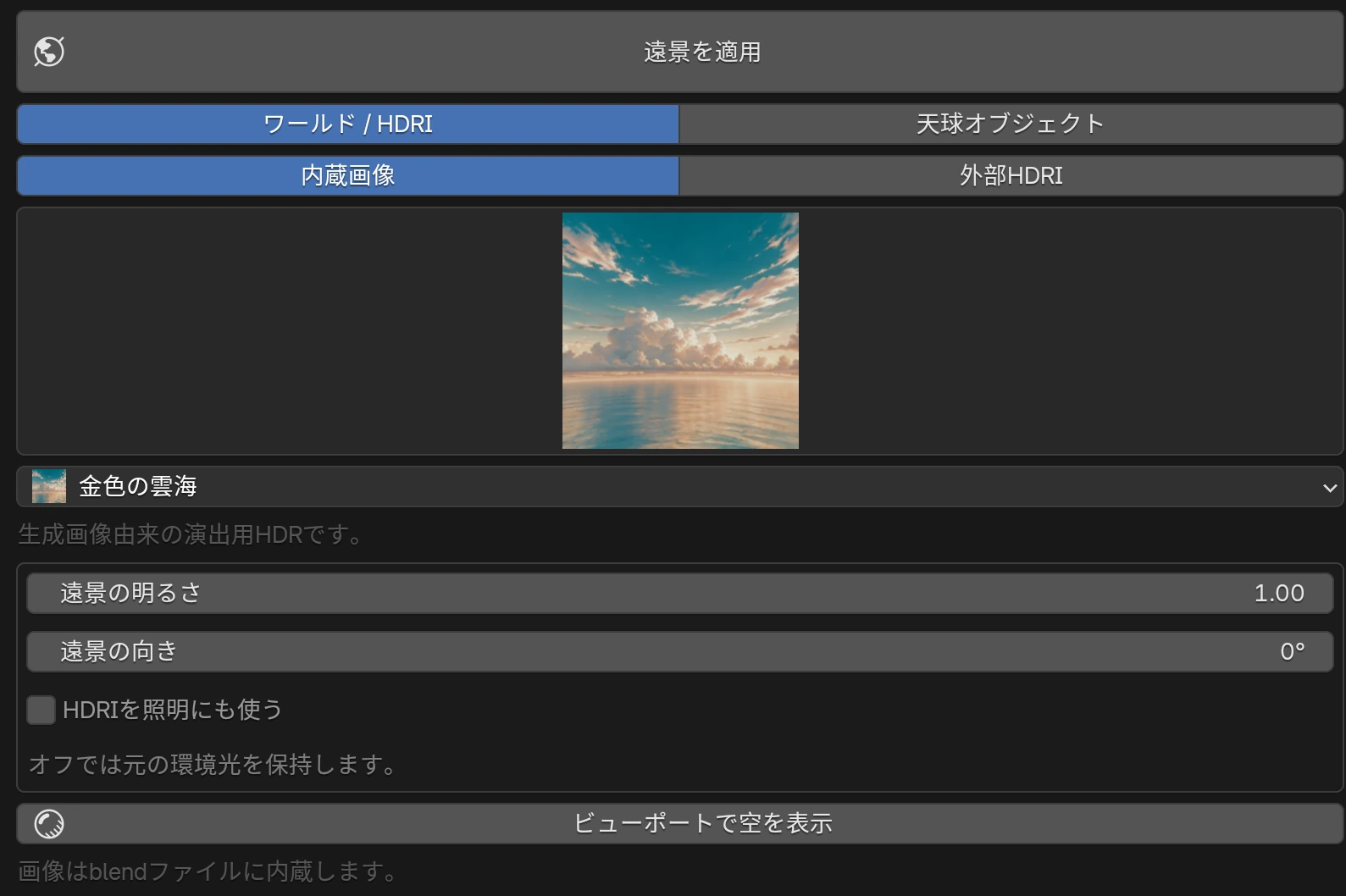
HDRIを照明にも使うは初期状態でオフです。オンにするとWorldの環境光も画像から得るようになります。天球とWorldを両方使用すると天球が背景を覆うため、空を見せたい場合は天球を非表示にするか取り除きます。
Worldは元の環境に戻す、球体は天球を取り除くで個別に戻します。画像はblendへ内蔵されます。内蔵パノラマはAI生成画像をもとにした演出用HDRで、実測HDRIではありません。近景の立体モデルのような視差は得られません。
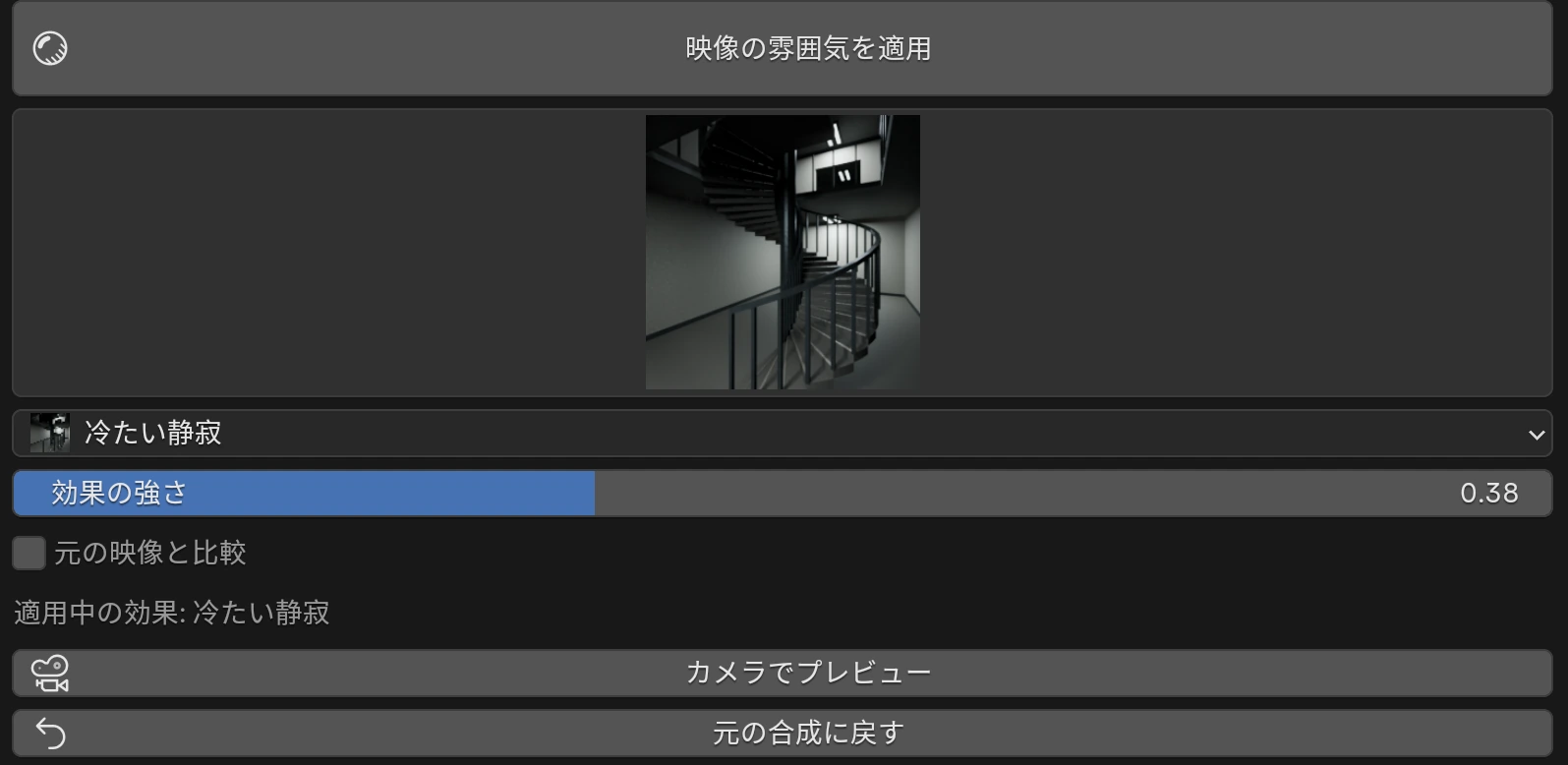
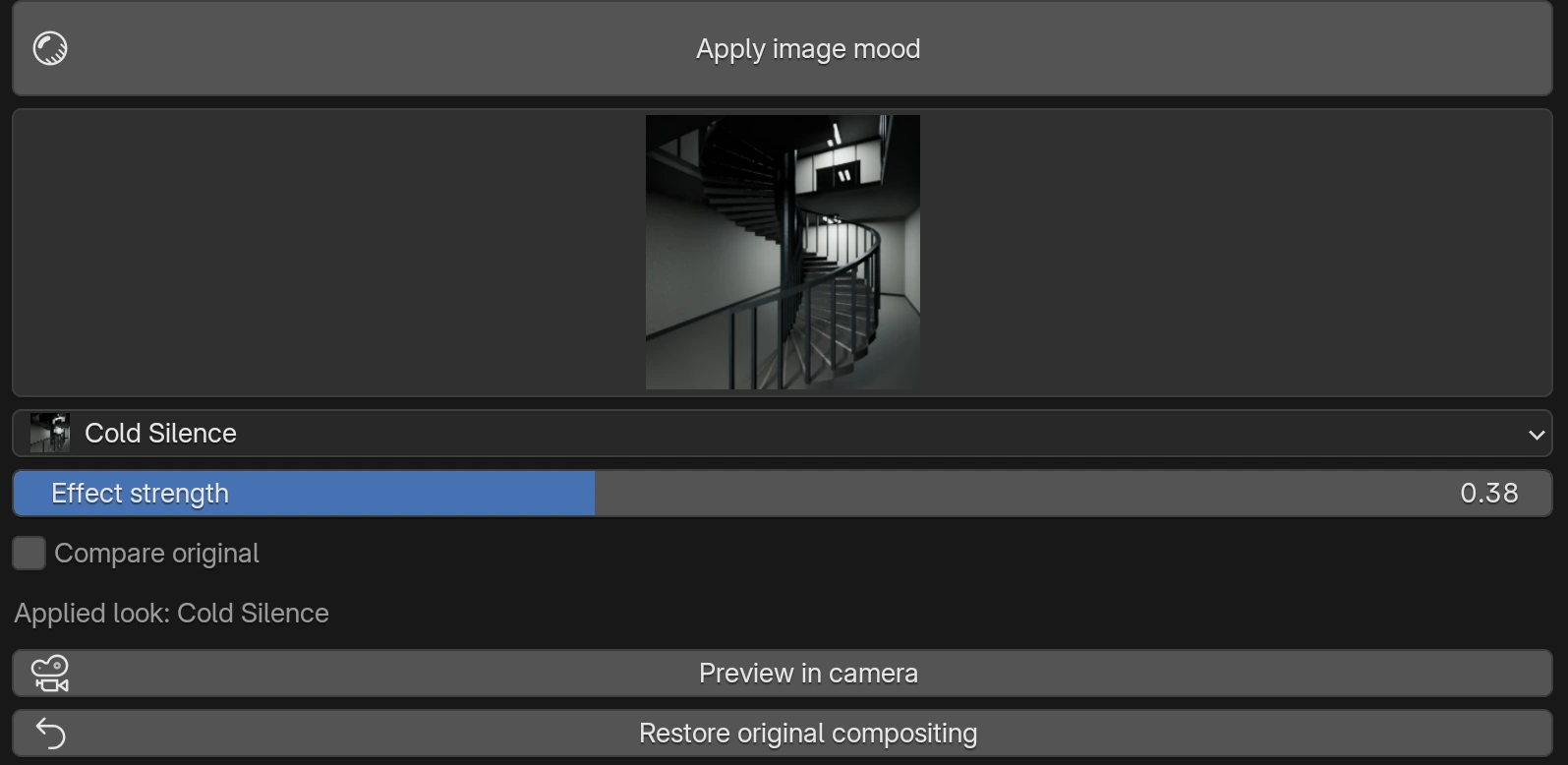
照明や素材を整えた後に、映像の雰囲気で仕上げます。画像を選び、映像の雰囲気を適用を押してください。画像選択だけでは適用されません。
Blender 4.5でも、4種類の映像効果と元の画像との比較を使えます。効果を外すときは「元の合成に戻す」を押します。適用前のノードと接続を保ったまま、元の出力へ戻します。
| プリセット | 印象 |
|---|---|
| 蛍光灯の残光 | 黄ばんだ色調と柔らかい光のにじみ。 |
| 冷たい静寂 | 彩度を抑えた青い影。 |
| 色褪せたフィルム | 暖かい退色、柔らかな光、わずかなレンズの歪み。 |
| 境界のノワール | モノクロのコントラストと暗い周辺。 |
| なし | Forgeの映像効果を取り除き、元の合成へ戻します。 |
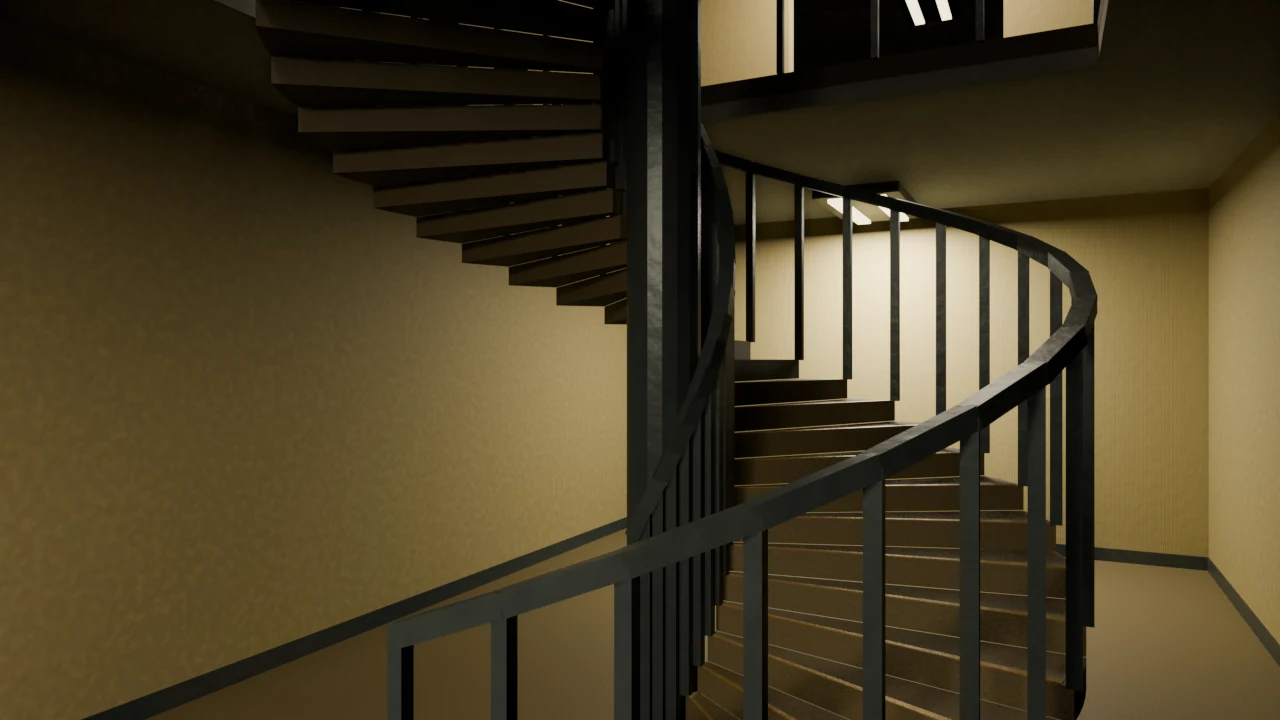
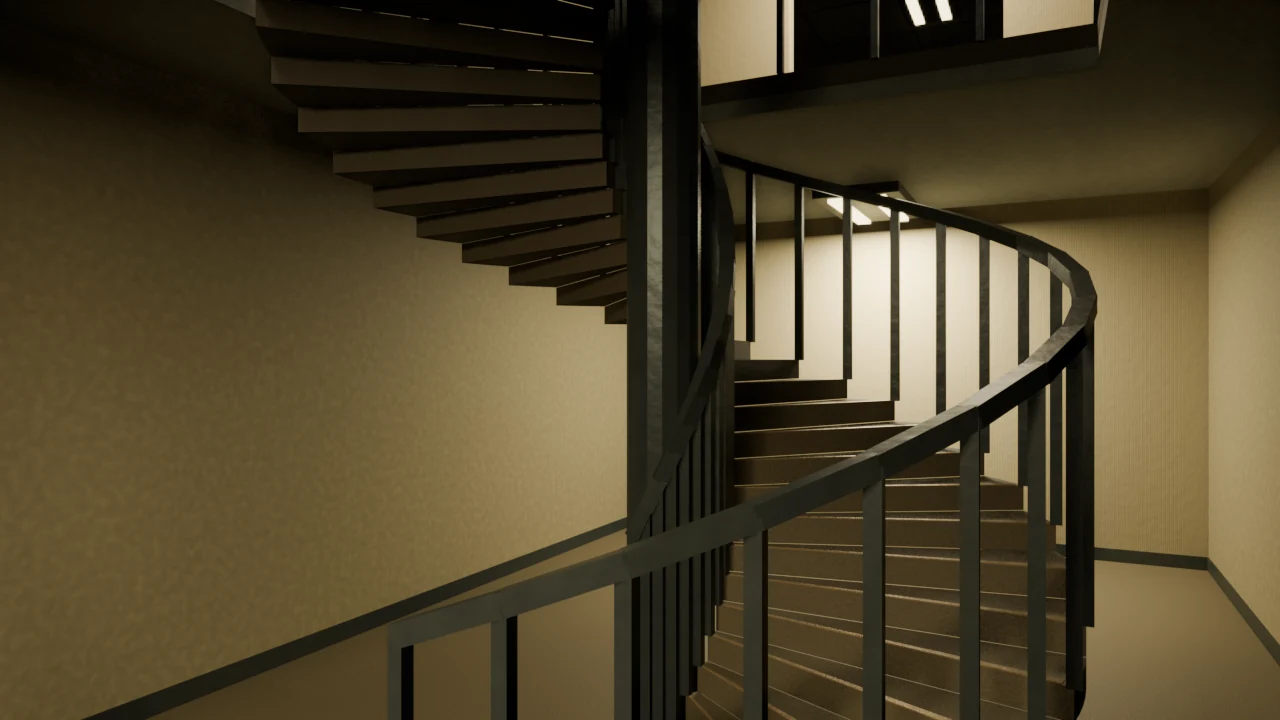
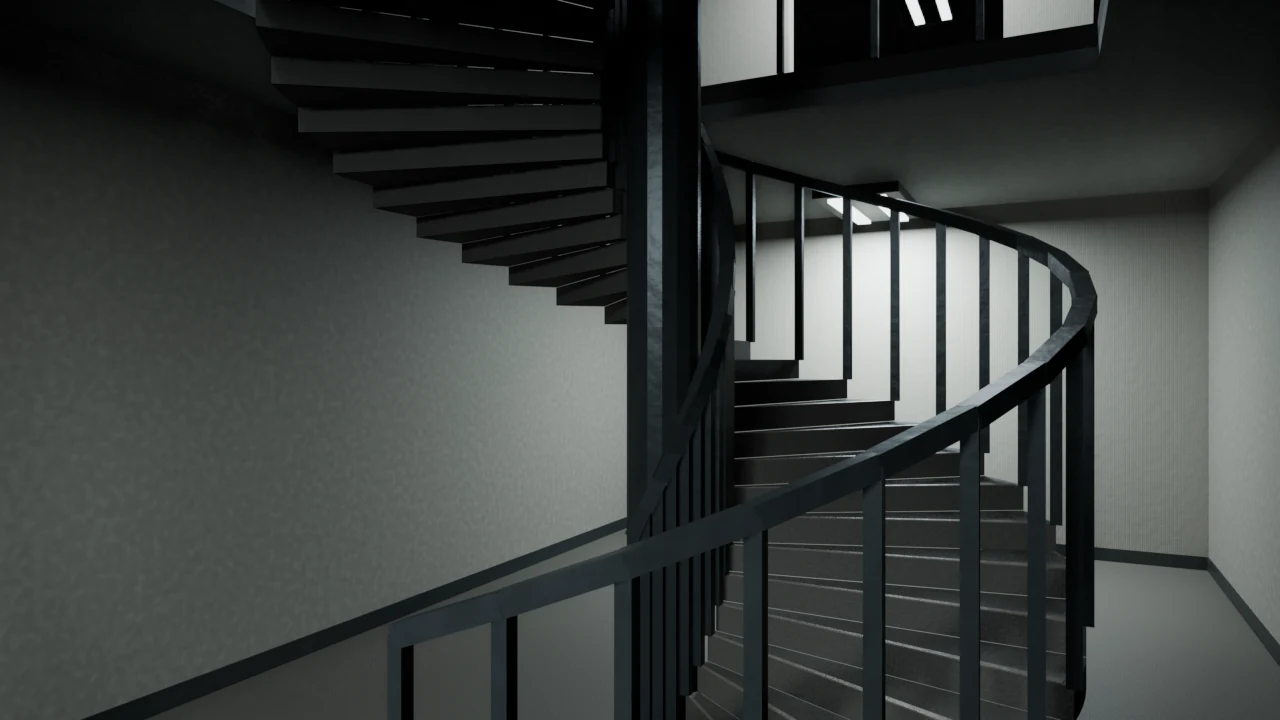
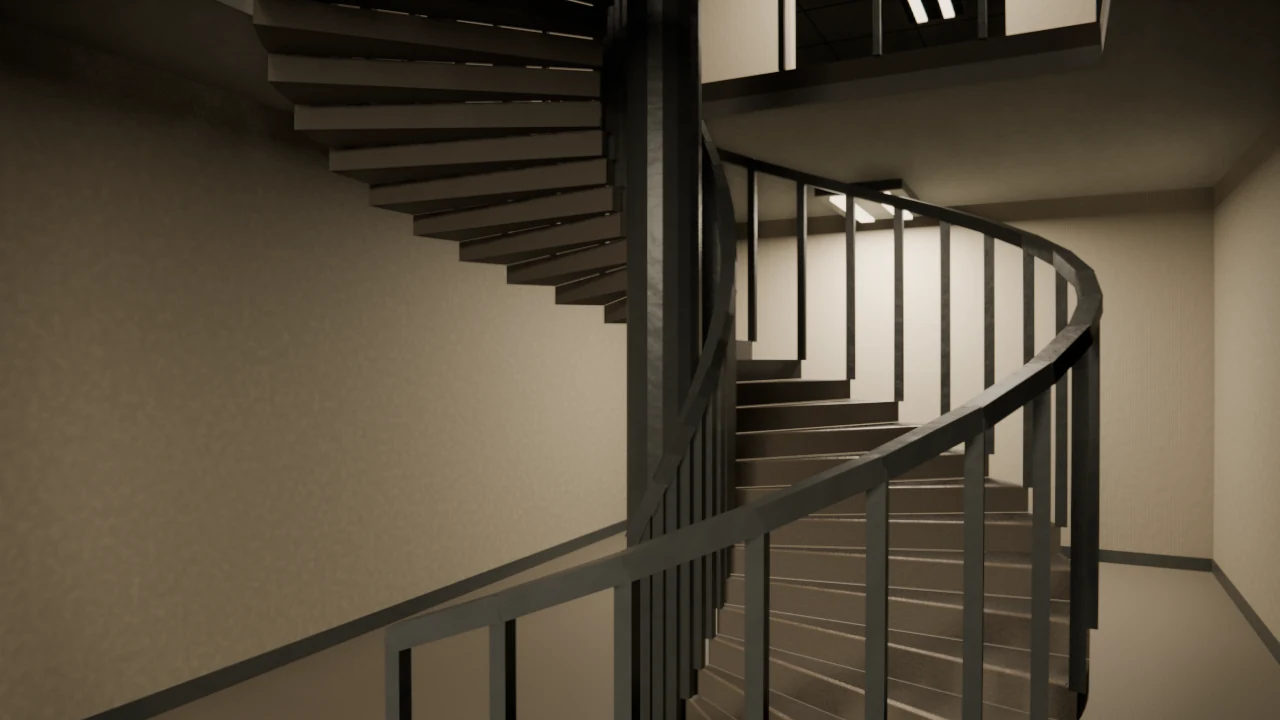
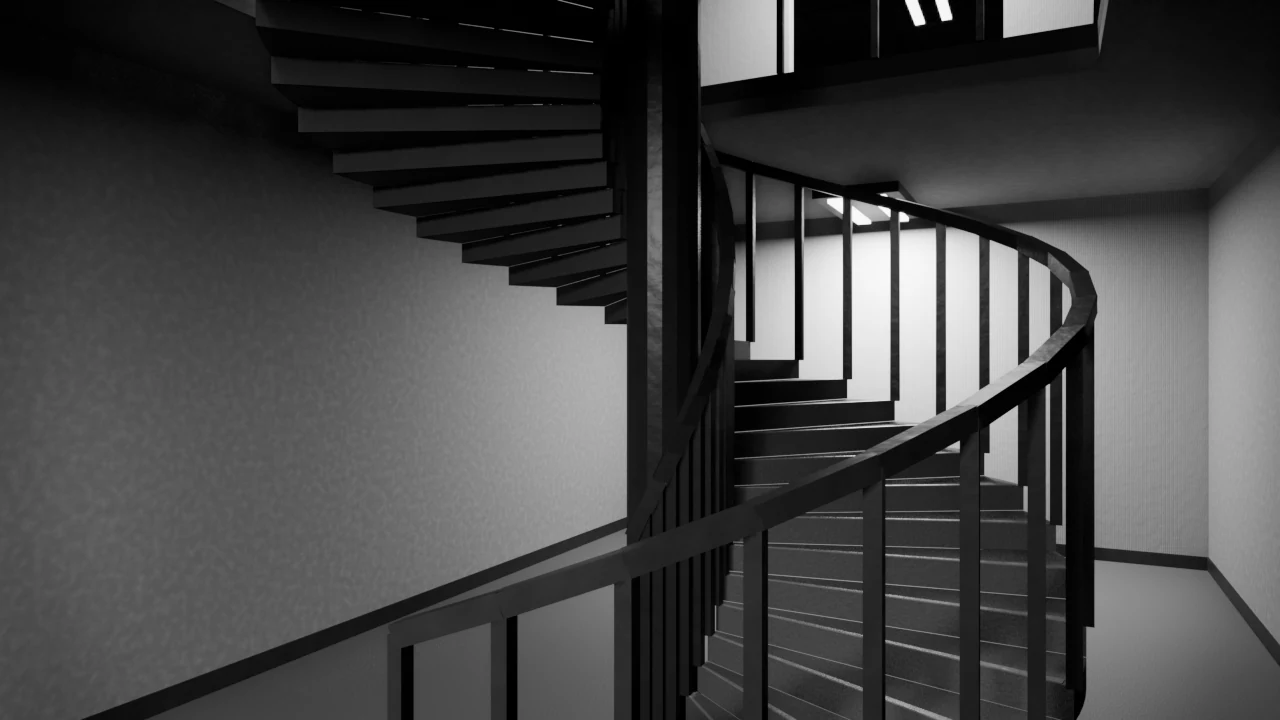
同じ構図での効果比較。建築は従来型の作例です。
効果の強さで加減し、元の映像と比較で一時的に効果を外して比べます。カメラでプレビューはカメラをレンダー表示にして合成を表示します。完全に外す場合は「なし」を適用、または元の合成に戻すを押します。元から自分の合成効果があった場合はそれが残ります。
こだわりの設計 → ノードで編集で生成ノードを表示します。3Dビューをノードエディターに切り替える操作です。元の3Dビューへ戻すには、エディターの種類を3Dビューポートへ戻します。
取り消しはCtrl + Z。後から生成物へ戻す場合は、コピーを非表示にし、Outlinerで元の生成物のビューポート・レンダー表示を戻してください。両方を同時に表示すると表面が重なってちらつきます。コピーは用途に応じて結合・面の整理が必要な場合があります。
WASDでの探索、カメラ記録、録画は別アドオンcvELD_LiminalWalkerの機能です。Forge単体に操作モードは含まれません。併用時の操作・設定はWalker側のマニュアルを参照してください。
Cyclesへの切り替えは、元の任意のレンダー設定を復元するボタンではありません。品質・反射・水・ボリュームの見え方はEEVEEと異なります。特に暗い部屋と雲は最終構図で試してください。
ファイル → 名前を付けて保存でblendを保存します。生成ノード・メッシュ・素材・照明は保存され、アドオンがなくても通常のシーンデータとして残ります。再生成や専用パネルにはアドオンが必要です。ダウンロードした素材を別PCへ渡す場合は、外部データ → リソースをパックし、保存後に不足ファイルがないか確認してください。
軽くするには、小さい操作セット、1K素材、少ない雲から始めます。ビューポートを軽量表示が表示される素材構成では、モデルの表示負荷を下げられます。最終撮影前に解除して確認してください。
編集 → プリファレンス → アドオン → Liminal Forgeで設定します。
| タブ | 内容 |
|---|---|
| 表示 | ヒントの表示、マニュアルを開く。 |
| 世界の作成 | 新規シーンの操作セット初期値。既存の世界には遡って適用しません。 |
| CC0素材 | ダウンロード保存先。空欄なら共通ローカルキャッシュを使います。 |
| ショートカット | ショートカットを有効化し、キー・イベント・修飾キーを変更。 |
初期状態でショートカットはオフです。有効にすると、Ctrl + Alt + Lで世界を作成、Ctrl + Alt + Rで別の変化を試します。Blenderのほかのキー設定と重なった場合は変更してください。変更後はBlenderのプリファレンスを保存を使います。設定JSONの書き出し・読み込み機能は現行版にありません。
UI言語はBlenderの言語設定に従います。このマニュアルは日本語・英語で切り替えられます。既存の追加言語ガイドは過去版の内容で、新機能の手順は本ガイドを参照してください。
| 症状 | 確認すること |
|---|---|
| 「世界をつくる」が押せない | 3Dビューをオブジェクトモードへ。Nパネルがなければアドオンの有効化とBlender 4.5以降かを確認。 |
| 形が変わらない | 連結ワールドの設定は「検証して迷宮を再生成」で反映。上部の画像選択は次の世界用です。 |
| 再生成の検証に失敗 | 現在の形は残ります。横幅・奥行きを広げ、Seedを変えて再試行。保存してから試してください。 |
| 水が見えない | 水を持つテーマか、レンダー表示か、水面の高さとカメラ位置を確認。旧版の保存シーンは新規生成の作例と異なる場合があります。 |
| 雲が見えない | 雲の生成・表示、雲底の高さ、カメラのクリップ終了、EEVEEボリューム範囲を確認。密閉室の天井越しには見えません。 |
| 空を変えたのに背景が変わらない | 適用ボタン、シーンWorldの表示、フィルム透過、天球が背景を覆っていないかを確認。 |
| 映像の雰囲気が見えない | 「映像の雰囲気を適用」後に「カメラでプレビュー」。比較のチェックと効果の強さも確認。 |
| 素材を取得できない | Blenderのオンラインアクセス、通信、保存先の空き容量を確認。キャンセル後に再適用。読み込みZIPは対応ファイルと名前を確認。 |
| 差し替え後に歩けない | 大きい岩・樹木・家具が通路を塞いでいないか確認。元の素材/オブジェクトへ戻して比較。 |
| 表示が重い | 小さい世界、低解像度素材、雲の非表示で切り分け。ソリッド表示は照明・水・雲の確認には使えません。 |
作業中のblendを保存し、Blenderを終了してから新しいZIPをインストールします。更新後に既存シーンを開き直します。古い世界の形状が、新版の建築へ自動で置き換わるわけではありません。新しい見た目を試すときは新規シーンを作成し、必要なら保存済みの世界と比較してください。
Preferencesでアドオンを無効化・削除します。保存済みのシーンデータやダウンロード済みキャッシュは自動では消えません。残したい素材を確認してからキャッシュを管理してください。
不具合の連絡には、Blenderとアドオンのバージョン、テーマ、構成方式、Seed、実行した操作、表示されたエラーを添えると状況を伝えやすくなります。
アドオンコードはGPL-3.0-or-laterです。無保証。詳しくは同梱LICENSEを参照してください。外部素材は各素材の利用条件に従います。風景の作例はBlenderで生成・レンダーしたものです。
Create a world, then shape its water, clouds, light and materials. From your first scene to a personal environment.
Liminal Forge creates rooms, materials, lights and a camera together. This guide takes you from your first world to adjusting water, clouds, skies and assets, then saving your own scenery.
Requires Blender 4.5 or later. This guide assumes Windows. Existing UI examples and films were captured in Blender 5.2.2 LTS.
The previous scene stays available in the top scene selector. Creating again adds another scene.
Adjust pool waterCreate volumetric cloudsChange the look with free assets
| Sidebar panel | Use it for |
|---|---|
| Top of Liminal Forge | Choose the image, creative set and layout for the next creation. Current layout controls appear below after generation. |
| Finish the look | Complete looks, individual replacements, ZIP import and EEVEE/Cycles preparation. |
| Atmosphere | Brightness, distant light and the supported style's haze and water level. Requires a generated world. |
| Image mood | Colour grading, glow and other effects on the finished image. |
| Sky → Volumetric clouds | Adjust the background sky and real cloud volumes independently. |
| Distant dome / HDRI | Use a bundled panorama or your own environment image. |
| Advanced architecture | Ceiling/detail visibility, Geometry Nodes and an editable mesh copy. |
Click panel headings to expand or collapse them. Sky, clouds and distant environments also work in scenes without a Forge world. Asset application and maze rebuilding require a Forge generator in the current scene.
The image at the top prepares the next world. Selecting it does not change the current world's theme. Change the current layout below, or use the finishing panels to change its appearance.
These examples show the current Connected exploration layout. Ceilings, openings, fixtures and furnishing vary by style. Click an image to view it at full size. Seed, creative set and floor count change the composition.
World layout → Connected exploration creates connected rooms and paths, reserved stairwells and a reachable goal. Yellow Labyrinth always uses this layout. It is available for the other nineteen styles too.
| Set | Connected starting values | Suggested use |
|---|---|---|
| Easy | 4 × 4, one floor | First experiments and lighter previews. |
| Explore | 5 × 6, B1 / F1 / F2 | Explore several connected floors. |
| Architect | 7 × 8, B1 / F1 / F2 | Develop a larger environment. |
Merged rooms and stairwells mean the displayed room count is not necessarily width × depth × floors. Sets are starting values, rather than limits on the controls you can use.
| Setting | Visible effect |
|---|---|
| Maze width / depth | More layout cells. Ranges: 4–12 / 4–14. Larger worlds cost more to generate and display. |
| Room unit (m) | Cell scale, 4.5–8m. It sets the scale of the layout including passages and stairs. |
| Floor spacing (m) | Vertical spacing, 3–3.3m. This positions floors; it differs from the classic Room Height control. |
| Extra connections | Add alternative connections to the branching layout. Higher values provide more routes around it. |
| Layout seed | Changes room and passage arrangement. |
| Room variation seed | Try room variation separately from the layout. |
| Lighting seed | Try fixture and light-state variations. |
Layout values take effect when you press Rebuild. Rebuilding regenerates the architecture: save a scene or editable copy first if you need to retain direct mesh edits. Failed validation keeps the current world. Connection checking checks the layout; it does not prove that later furniture or replacement models leave passages clear.
For styles other than Yellow Labyrinth, choose World layout → Classic landscape before creation to build a spacious single-level composition. Use it when you want to adjust repeated modules directly through Geometry Nodes values. It does not use the connected layout or stairs.
Easy starts at 3 × 4, Explore at 5 × 7 and Architect at 8 × 10. In Shape your world, room counts, module size, room height and seed update immediately. Try Another Variation advances the seed.
Ceiling and Details toggle those elements. Advanced architecture shows style-specific controls such as height anomaly. The room-count limit is 14 × 18. After resizing, run Refresh Camera & Lights.
Connected Dream Pools, Moonwell Baths, Tidal Cathedral, Blackwater Changing Rooms, Vermilion Steam Baths and Rainshaft Cavern include water. Refraction, ripples, underwater floor/wall colour and moving light patterns are built into the style; no external water asset is required.
Dream Pools fills small and medium rooms with water and connects their doors with a slightly raised tiled walkway. When the layout has room, it also creates a 25 m basin with a raised surround and recessed square ceiling area lights. Straight and spiral stairs connect the floors.
Dream Pools uses the same water meshes in both modes. Lightweight water moves them through Geometry Nodes; WaterScapes calculates waves for each pool. Its bubbles are animated surface rings, not rising bubbles in a fluid simulation. Adjust water colour and depth appearance in the Shader Editor.
This is not a fluid simulation. Automatic tides, swimming and displacement around objects are not included. EEVEE reflections/refraction depend on screen information; check your final camera and compare in Cycles if needed. Replacing a floor or wall material can also change that surface's original underwater tint and light patterns.
Use Atmosphere to adjust generated lights. Start with the camera composition, make nearby surfaces readable, then adjust light beyond the doorway to establish depth.
| Control | Effect |
|---|---|
| Brightness | Adjust generated light intensity. Check this and Rendered shading first if the room is too dark. |
| Beyond the doorway → Faint light | Retain silhouettes in the next chamber. Set their intensity with Distant light. |
| Beyond the doorway → Darkness | Switch off distant generated lights and luminous fixtures. Yellow Labyrinth retains a low fill light. Nearby or sky light may also enter, so this does not force absolute black. |
| Depth haze | Soften distant rooms. Available where shown; excessive haze can wash out or darken the scene. |
| Wall finish / Floor finish | Appear for materials with the provided tint control. Edit other materials in the Shader Editor. |
Refresh Camera & Lights repositions the generated presentation rig. Save or duplicate manually adjusted generated cameras/lights first if you want to retain their positions. Changing only a sky preset does not automatically rotate an existing Sun to match it.
Default materials work without external image downloads. Styles include wallpaper seams, tile joints, concrete, carpet, suspended ceilings, wood and rock finishes.
Use complete looks in the next chapter for a broad change, or individual replacement for one surface. Toggle generated ceilings and details in Advanced architecture.
Finish the look uses Poly Haven / ambientCG assets or your own materials and models. Requested files download once, then use the local cache.
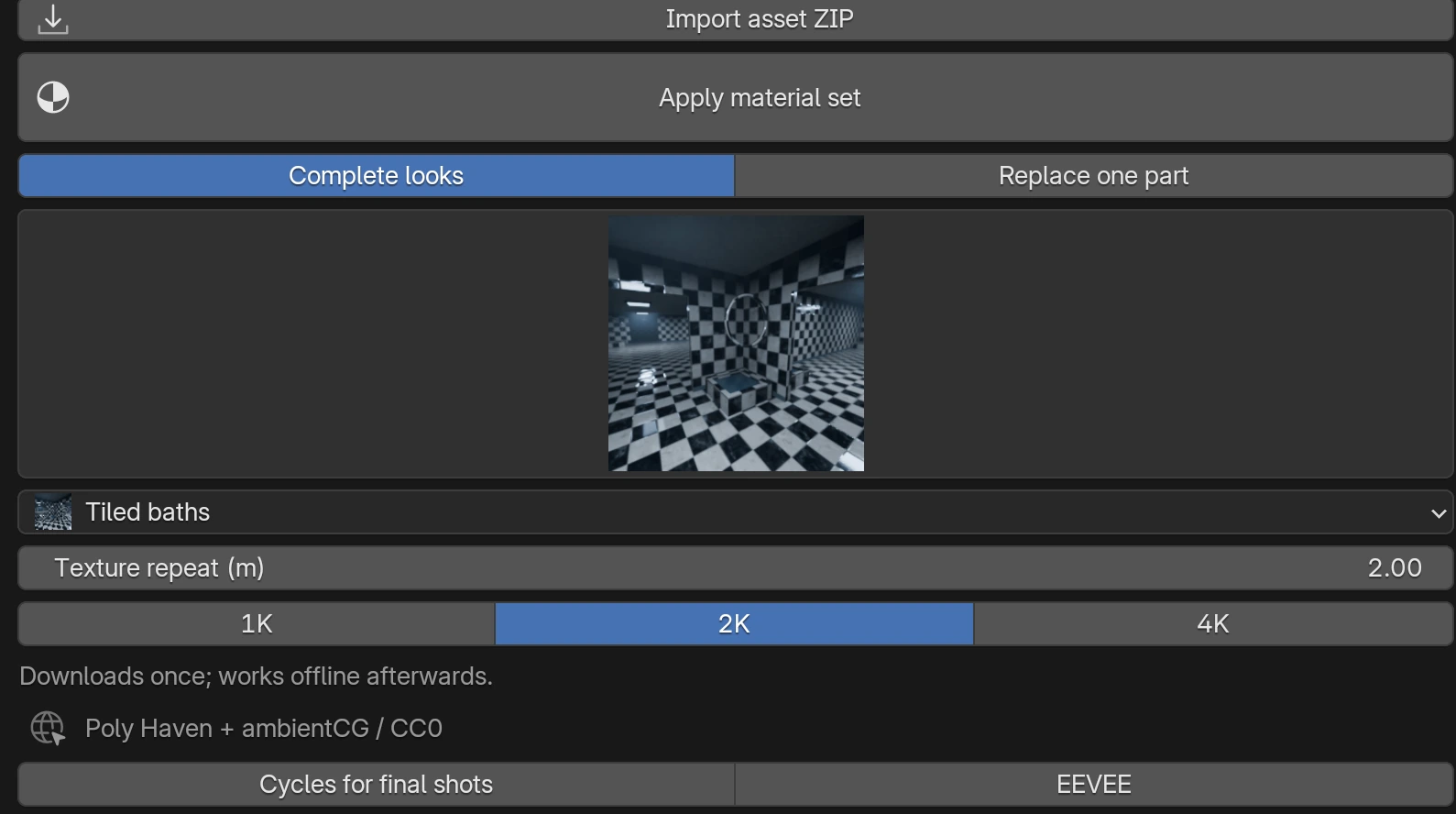
Switch back to Complete looks, then open Choose individual assets to assign floor/wall materials or supported meshes already in this blend file. Apply the material set again after assignment. Model replacements require a style with the corresponding rock, tree or prop sockets. Use Restore original materials to return to the preserved generator look, or Restore procedural objects to remove the prop replacement only.
In Add free and local assets, select an online library and search term, then press Search and add assets. A search adds up to 100 candidates. Search does not download every full asset; files are requested when you apply one.
The bundled online integration targets CC0 assets. Use View asset source to inspect each source. Imported ZIPs and third-party materials in your blend keep their own licence terms; importing does not convert them to CC0.
Supported models are BLEND, GLB/GLTF, OBJ and FBX. A colour image alone can be registered; conventional names such as Base Color, Roughness and Normal help map detection. ZIPs use their original resolution; choosing 1K/2K/4K does not resample them.
Unusual archive layouts and complex custom shaders may need manual correction. Inspect the source files and edit the material if needed. After model replacement, check that passages and stairs remain clear.
Sky creates a 360° background. Add real volumetric clouds separately in the next chapter.
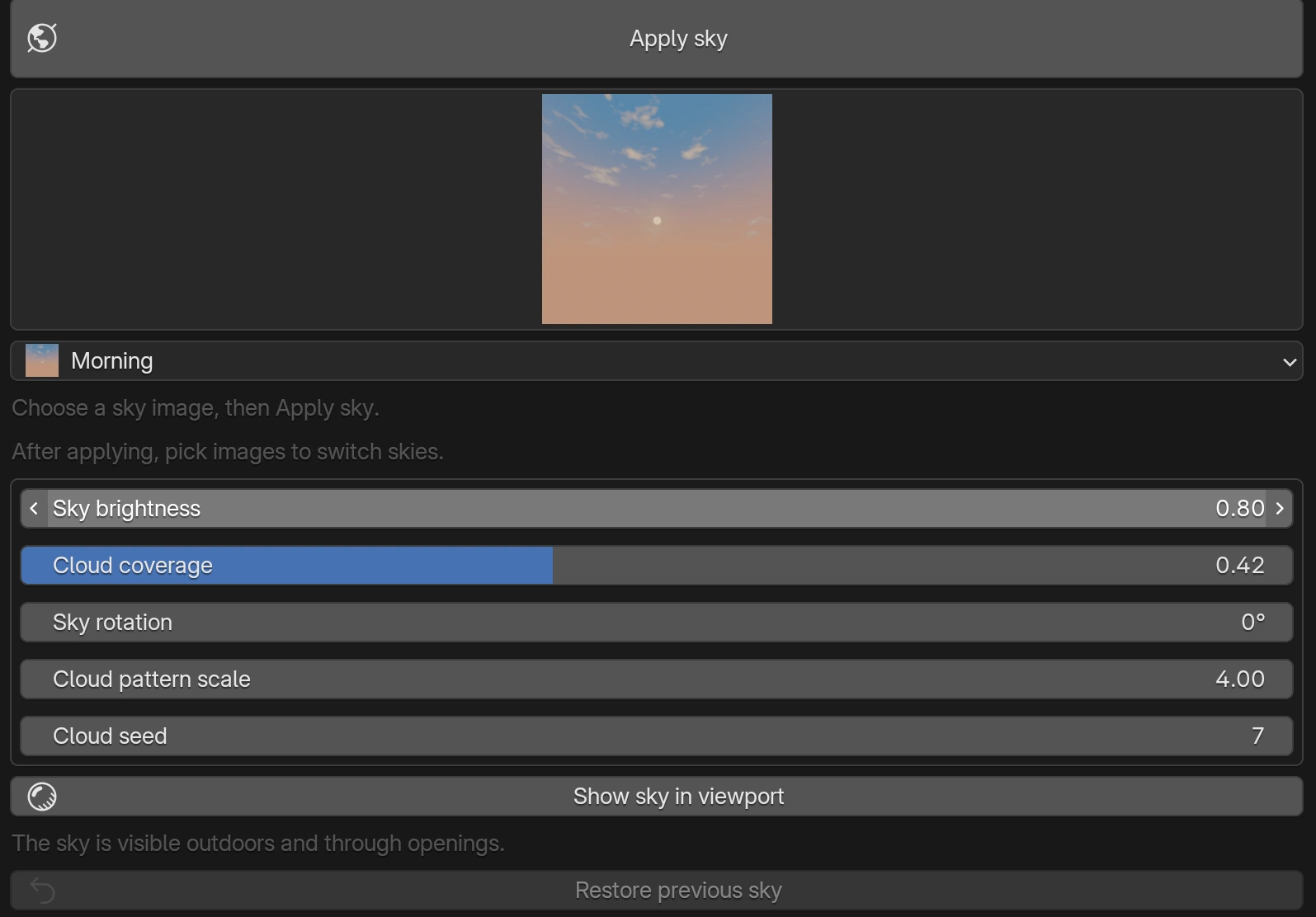
Rain is an overcast background without falling raindrops. Sun and moon discs are background features; applying a sky does not add a shadow-casting Sun light. Adjust existing lights separately when needed. Film → Transparent hides the rendered sky background.
Sky → Volumetric clouds adds a cloud volume without replacing your background or lights. It also works without a generated Forge world.
| Control | How to choose |
|---|---|
| Cloud amount | Coverage within the finite field. Lower it to leave more open sky. |
| Cloud density | Opacity. Excessive density darkens the interior. |
| Cloud base height (m) | The bottom altitude. Set it above the roof for clouds over a building. |
| Cloud thickness (m) | Vertical extent. Cumulus uses a taller volume. |
| Cloud field width (m) | Finite field size. Cover the area your camera needs. |
| Cloud size (m) | The scale of individual cloud forms. |
| Cloud details | Center XY, field rotation, seed, detail and ambient fill. Try a seed for new forms; use Center to align the field. |
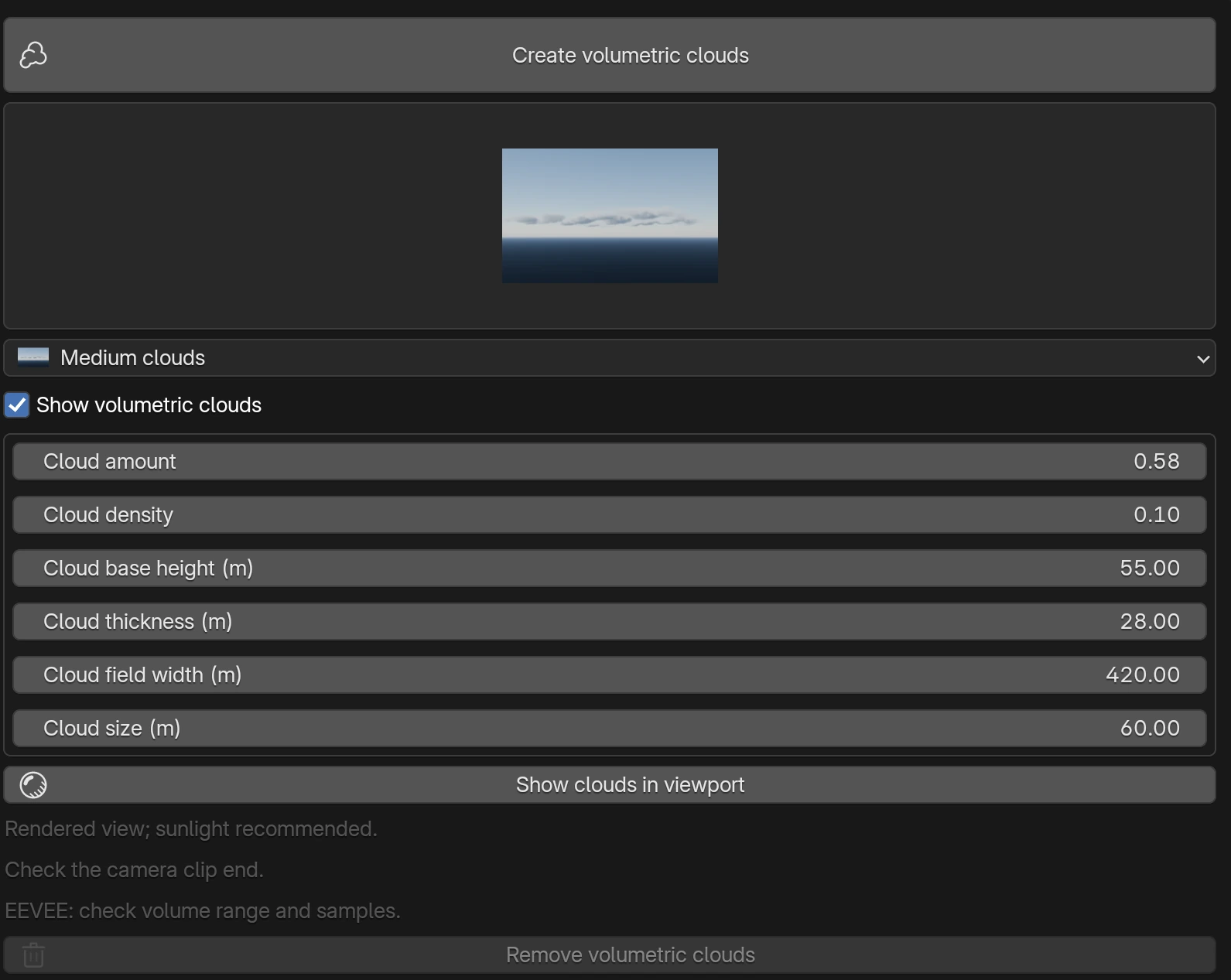
Set camera Clip End beyond the clouds and check EEVEE volume range and samples. Show clouds adjusts the viewport's viewing distance; check the camera's clipping separately for rendering. Start with Few clouds or a smaller field while experimenting. This is a finite cloud volume, not endless weather simulation.
Distant dome / HDRI offers Golden cloud sea and Vermilion distant islands, plus custom environment images.
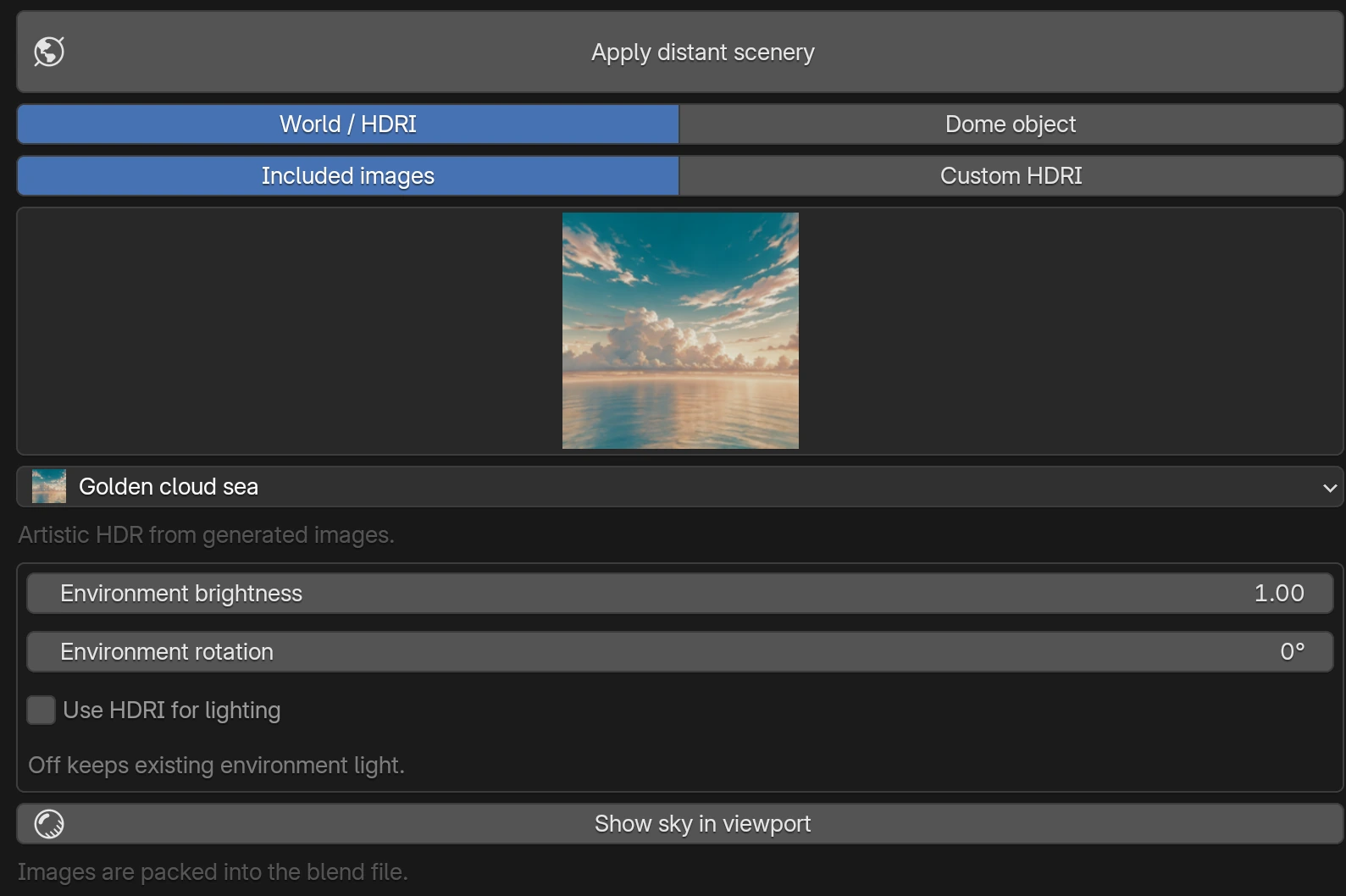
Use HDRI for lighting starts off. Enable it to change World environment illumination too. A dome covers the World background when both are present; hide or remove the dome to see the sky behind it.
Use Restore previous environment for the World and Remove dome object for the sphere. Images are packed into the blend. Bundled panoramas are artistic HDR derived from AI-generated images, rather than measured HDRIs. They do not provide the distance parallax of nearby geometry.
Blender 4.5 supports all four image looks and comparison with the original. Use Restore original compositing to remove a look and return to the original output while preserving its nodes and connections.
After lighting and materials, finish with Image mood. Select an image and press Apply image mood; selection alone does not apply it.
| Preset | Appearance |
|---|---|
| Fluorescent Haze | Yellowed colour and soft light glow. |
| Cold Silence | Desaturated blue shadows. |
| Faded Film | Warm faded colour, soft highlights and slight lens distortion. |
| Threshold Noir | Monochrome contrast and dark corners. |
| None | Remove the Forge mood and restore original compositing. |
Effects compared in the same composition, using a classic-layout example.
Adjust Effect strength and use Compare original to bypass the effect temporarily. Preview in camera enables rendered camera view with compositing. Apply None or use Restore original compositing to remove the effect. Any original user compositing remains.
Advanced architecture → Open Geometry Nodes displays the generator graph. It changes the current editor to the node editor; change its editor type back to 3D Viewport to return.
Use Ctrl + Z to undo. To return later, hide the copy and restore the generator's viewport and render visibility in the Outliner. Displaying both overlaps their surfaces and can cause flicker. The copy may need joining or face cleanup for your intended use.
WASD exploration, camera motion recording and screen recording belong to the separate cvELD_LiminalWalker add-on. Forge does not include those interaction modes. Refer to Walker's own manual when using them together.
Switching engines does not restore your arbitrary previous render settings. Reflections, water and volumes differ between EEVEE and Cycles; check dark rooms and clouds in the final camera.
Use File → Save As for a blend file. Generated nodes, meshes, materials and lights remain as scene data without the add-on; dedicated controls and rebuilding require it. Before transferring downloaded materials to another computer, use External Data → Pack Resources, save and check for missing files.
Start with a smaller creative set, 1K textures and fewer clouds. Where available, Lightweight preview lowers model display cost. Turn it off and inspect the result before final shots.
Open Edit → Preferences → Add-ons → Liminal Forge.
| Tab | Settings |
|---|---|
| Interface | Helpful hints and the manual button. |
| Creation | Default creative set for new scenes, without changing existing worlds. |
| CC0 assets | Download folder. Leave empty to use the shared local cache. |
| Shortcuts | Enable shortcuts and edit keys, events and modifiers. |
Shortcuts start disabled. Once enabled, Ctrl + Alt + L creates a world; Ctrl + Alt + R tries another variation. Change conflicts with other Blender bindings and use Save Preferences afterwards. Settings JSON export/import is not included in the current version.
The UI follows Blender's language. This manual switches between Japanese and English. Existing additional-language guides describe earlier versions; use this guide for new features.
| Problem | Check |
|---|---|
| Create a World is disabled | Use Object Mode. If the panel is missing, check add-on enablement and Blender 4.5 or later. |
| Shape does not change | Apply connected layout values with Rebuild validated maze. The top image prepares the next world. |
| Maze validation fails | The current world stays. Widen the layout or try a seed after saving. |
| Water is invisible | Use a flooded style and Rendered shading. Check level and camera position. Old saved scenes can differ from newly generated examples. |
| Clouds are invisible | Check creation, visibility, altitude, camera Clip End and EEVEE volume range. A closed ceiling blocks the view. |
| Sky does not change | Check Apply, scene World display, Transparent Film and whether a dome covers the background. |
| Image mood is invisible | Apply it, then Preview in camera. Check Compare original and Effect strength. |
| Asset download fails | Check Blender online access, connection and cache disk space. Cancel then apply again. For ZIPs, check supported files and names. |
| Replacement blocks walking | Check large rocks, trees or props around passages and stairs. Restore the original look/objects for comparison. |
| Slow display | Try a smaller world, lower-resolution assets and hidden clouds to isolate cost. Solid shading does not show final lighting, water or clouds. |
Save your blend, close Blender and install the new ZIP. Reopen existing files afterwards. Old architecture is not automatically replaced by the new design. Create a new scene to try the current appearance and compare with your saved world.
Disable and remove the add-on in Preferences. Saved scene data and downloaded cache files are not automatically deleted. Check which assets you need before managing the cache.
For support, include Blender/add-on versions, style, layout mode, seed, the operation and the exact error.
Add-on code: GPL-3.0-or-later, without warranty. See the supplied LICENSE. External assets retain their own terms. Scenery examples are generated and rendered in Blender.