黄色い迷宮
5 s · EEVEE · Liminal Walker
映像を保存自分の目線で歩く。好きな場所へ飛ぶ。気に入った道を映像とカメラに残す。
Liminal Walkerは、Blenderのシーンを一人称で探索するアドオンです。歩く、飛ぶ、ライトで照らす。その体験をMP4やカメラのキーフレームに残せます。Liminal Forgeとの同梱ツールですが、単体でも使えます。
このマニュアルの画面と6本の映像はBlender 5.2.2 LTSで収録しています。同梱のLiminal Forge 1.6.1もBlender 4.5以降に対応しています。
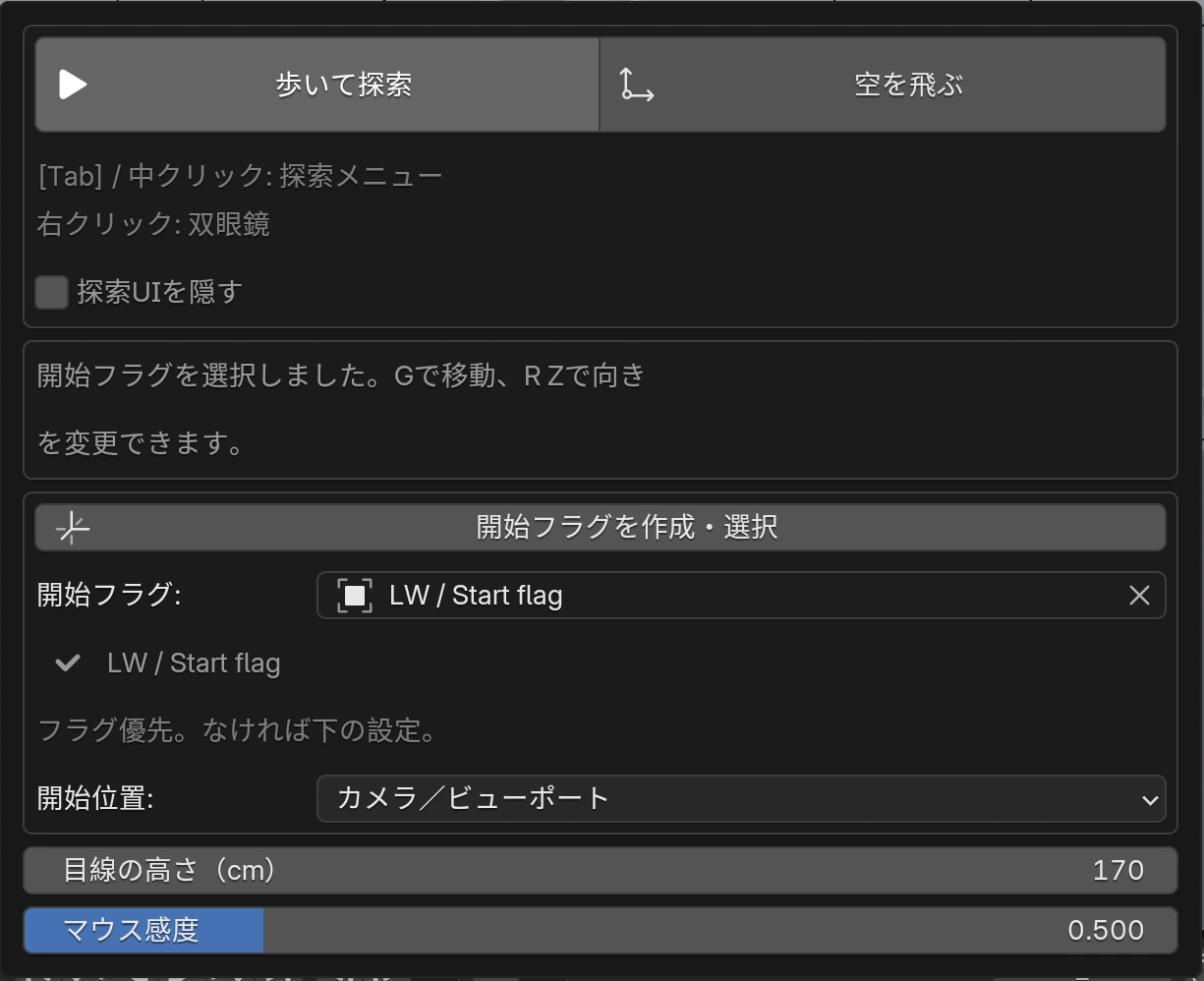
2つのアドオンは別のNパネルタブです。説明ページも上部のLiminal Forge / Liminal Walkerで切り替えられます。通常のBlenderシーンなら、Forgeを有効にしなくても探索できます。
探索中は操作をWalkerが受け取ります。ほかのツールで編集するときは、先にEscで探索を終了してください。
現在のForgeで生成した背景を、Walkerの歩行・衝突判定と録画機能で撮影しました。画面内の映像は自動で繰り返し再生します。各5秒、音声なし。経路は収録用に自動操縦しています。
5 s · EEVEE · Liminal Walker
映像を保存5 s · EEVEE · Liminal Walker
映像を保存5 s · EEVEE · Liminal Walker
映像を保存5 s · EEVEE · Liminal Walker
映像を保存5 s · EEVEE · Liminal Walker
映像を保存5 s · EEVEE · Liminal Walker
映像を保存映像はWindows / Blender 5.2.2 LTS / EEVEEで収録。実際の動作速度はシーンやGPUによって変わります。水面は歩行床として扱いません。
| 初期操作 | 動作 |
|---|---|
| マウス / WASD | 視点 / 前後左右に移動 |
| Space | ジャンプ。フライ中は上昇 |
| Shift | ダッシュ |
| Ctrl | 滑らかにしゃがむ。ダッシュ中はスライディング。フライ中は下降 |
| Shift + ホイール | 歩く速さを上げる・下げる |
| H | 歩行とフライの切り替え |
| 左クリック | 手持ちスポットライトの点灯・消灯 |
| 右クリックを押し続ける | 双眼鏡。押している間のホイールで倍率を調整 |
| Tab / 中クリック | 探索メニュー |
| Shift + H | 操作説明などの探索UIを隠す・表示 |
| Esc | 探索を終了し、編集中の画面へ戻る |
これは初期設定です。ショートカットを変更した場合は設定側の表示が優先されます。中央のレティクルは70%透明です。探索UIを隠すと説明や状態表示が消えますが、中央のレティクルは残ります。録画にはこれらのUIは入りません。
開始フラグ欄のフラグが優先されます。指定がなければシーン内の開始フラグを探します。フラグはレンダーに映らず、探索中も一時的に非表示になります。
フラグがなければ開始位置を使います。カメラ/ビューポートではシーンカメラ、カメラがなければ現在のビュー。現在のビューポートでは現在の視点です。開始フラグを使わない場合はOutlinerから削除します。フラグを複数置く場合は、使うものを欄で明示してください。
フラグは床の近く、壁から離して配置します。地面が見つからない・位置が塞がっている場合は、場所を変えて入り直してください。
| 設定 | 調整方法 |
|---|---|
| 目線の高さ(cm) | 120〜180cm。初期値160cm。探索を終了して変更し、入り直します。 |
| マウス感度 | 初期値2.0。0.1〜4.0で調整します。 |
| 歩く速さ | 初期値3.4m/s。ゆっくり鑑賞したいときは下げます。探索中はShift+ホイールでも調整できます。 |
| 視野角 / 双眼鏡の視野角 | 通常の画角と、右クリック中の狭い画角。小さな値ほど拡大して見えます。 |
| ライトの強さ | 手持ちスポットライトの明るさ。暗い部屋を照らすときに調整します。 |
| 探索品質 | 開始ボタンの上で選びます。「なめらかさ優先」はEEVEEを軽くしてビューポートを縦横1/2、「ドラフト(最軽量)」は影・レイトレーシング・ボリューム・合成を省いて縦横1/8で表示します。「シーンの画質を使用」はシーンのサンプル設定を保ちます。探索を終えると一時的な品質設定を戻します。 |
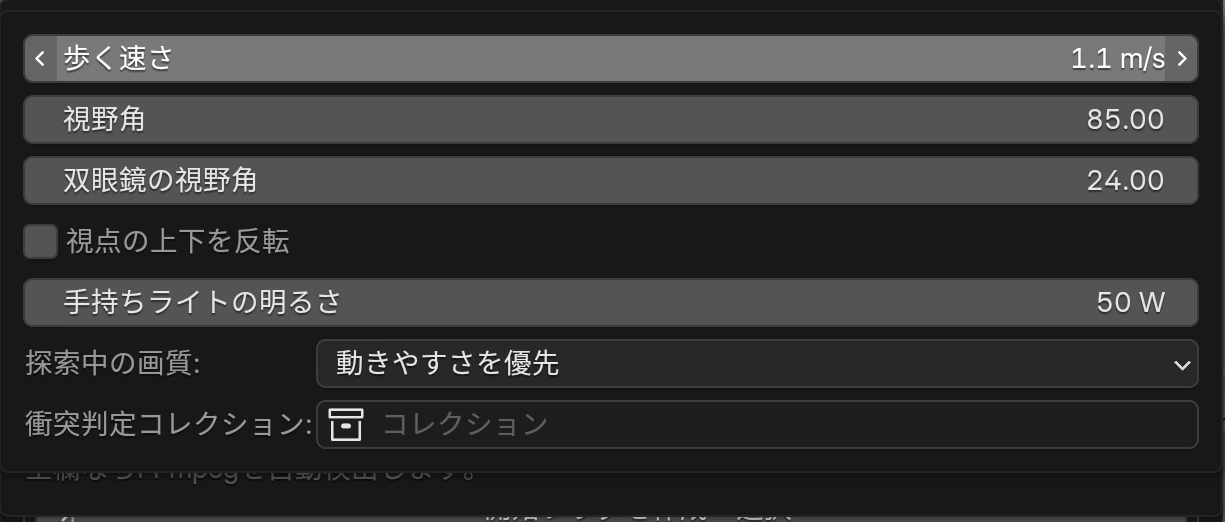
ドラフトは探索中だけGPU画像テクスチャにもBlenderの縮小制限を適用します。元画像は変更せず、終了時に制限を戻します。ドラフトで録画した映像には、その簡略化された見た目が反映されます。
| 新しい夢のプール/960×540 | なめらかさ優先 | ドラフト |
|---|---|---|
| 処理時間の中央値 | 811.7ms | 238.9ms |
| 描画処理の換算速度 | 1.23 FPS | 4.19 FPS |
このシーンではドラフトが換算で約2.96 FPS、240.7%速くなりました。なめらかさ優先では半透明の水面が重い設定です。Windows、Blender 5.2.2 LTS、RTX 5090で同じ経路を72フレームずつ撮影し、冒頭8フレームを除いた中央値です。水面更新・歩行計算・GPU描画・画像読み戻しを含む隔離撮影の換算値で、実画面に表示されたFPSやすべてのシーンの性能を示す値ではありません。比較動画は撮影したフレームを24 FPSで並べたもので、リアルタイム録画ではありません。
広い画角や速い移動が苦手な場合は、画角と速度を下げ、しゃがみや双眼鏡の変化もゆっくり試してください。シーン全体の単位設定も、移動距離と目線のスケールに影響します。
探索を開始すると、シーンのメッシュから衝突形状を作ります。Geometry Nodesの評価結果も対象です。壁を避け、床に立ち、階段や坂を上り下りできます。細い穴や急な段差など、体が通らない形状には入れません。
重いシーンでは、床・壁・階段だけを集めた軽いコレクションを作り、移動と視点 → 衝突判定コレクションへ指定します。指定した形状で歩行判定し、装飾や高密度の樹木は見た目として残せます。
空を飛ぶで開始するか、探索中にHでフライへ切り替えます。WASDはカメラの向きに沿って移動し、EまたはSpaceで上昇、QまたはCtrlで下降します。高い天井や上階を確認した後、Hで歩行へ戻れます。
左クリックでライトを点灯・消灯。右クリックを押し続けると双眼鏡になり、離すと元の画角へ戻ります。双眼鏡中のホイールは倍率、Shift+ホイールは歩く速さです。
Tabまたは中クリックで探索メニューを開きます。モード、UI表示、録画、カメラ記憶などの操作を選べます。メニューを開くと移動は止まりますが、録画とカメラ記憶は継続します。
| 操作 | 戻り先 |
|---|---|
| B | 現在地をブックマーク |
| Backspace | ブックマークへ戻る |
| Home | この探索の開始位置へ戻る |
Walker 0.6.7では、Blender 4.5で録画画像が格子状に崩れる問題を修正しています。旧版を使っている場合は、探索を終了して更新してください。
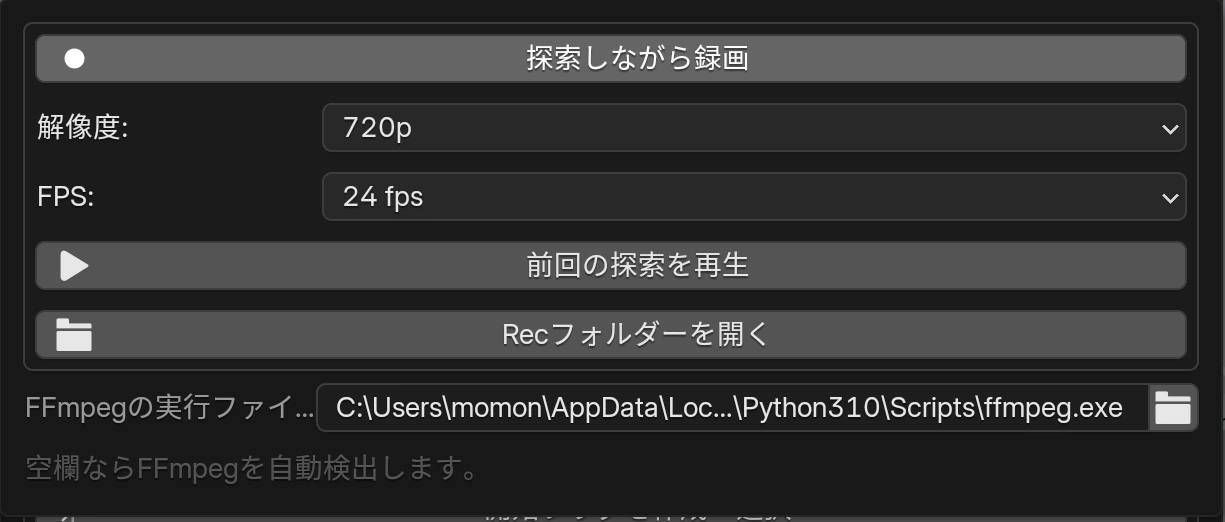
出力はblendファイルと同じ場所のRecフォルダーです。シーン名と日時などを付けたMP4を作成します。画面にはカメラから見た背景が入り、操作説明やメニュー、レティクルは入りません。音声は収録しません。
低い録画サイズ、軽い探索品質、雲やフォグの密度を下げた状態を試します。描画が間に合わない場合は同じフレームを補って時間を保つため、設定したfpsのすべてが異なる画像になるとは限りません。
録画中は.partial.mp4、完了時は.mp4になります。失敗時は録画ログを確認します。完了前にBlenderを閉じないでください。MP4に並ぶ.take.jsonはリプレイ用です。
カメラ記憶は動画ではなく、カメラの位置・向き・レンズをキーフレームとして保存します。後からEEVEEやCyclesでレンダーする場合、こちらが便利です。外部FFmpegは不要です。
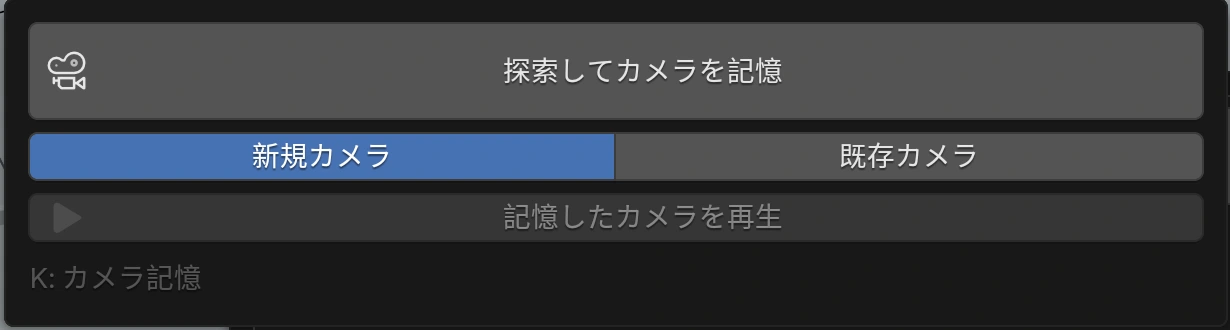
既存カメラへ記録する場合は、同じシーンの編集可能なカメラを指定します。元のアクションとカメラデータを保持し、新しい動き用のアクションを割り当てます。コンストレイント、ドライバー、NLA、デルタ変換などがあるカメラは使えない場合があるため、新規カメラを選びます。
記録は現在のフレームから、シーンのfpsに合わせて作成します。双眼鏡の画角変化も記録しますが、手持ちライトの点灯アニメーションは記録しません。適用に失敗した動きはTextデータLW / Unapplied camera motionに保持されます。
| 方法 | 用途と必要なもの |
|---|---|
| MP4録画 | その場の映像をすぐ見せたいとき。保存済みblendと外部FFmpegが必要。 |
| 最後の探索を再生 | MP4と同時に保存したtake.jsonから探索経路を再生。現在のシーンの形状と見た目を使います。 |
| カメラ記憶 | タイムラインでキーを編集し、レンダーし直したいとき。新規または既存のカメラに保存。 |
最後の探索を再生はシーン全体を元に戻す機能ではありません。背景を変更すると、同じ経路でも映るものが変わります。MP4と同名のtake.jsonを一緒に残してください。MP4単体の視聴にはtake.jsonは不要です。
最終レンダーでは探索を終了し、記憶したカメラをシーンカメラにして、解像度・フレーム範囲・出力先を設定します。Cyclesならマテリアルやボリューム、照明の見え方を改めて確認してください。WalkerはレンダーファームやCyclesのリアルタイム録画機能ではありません。
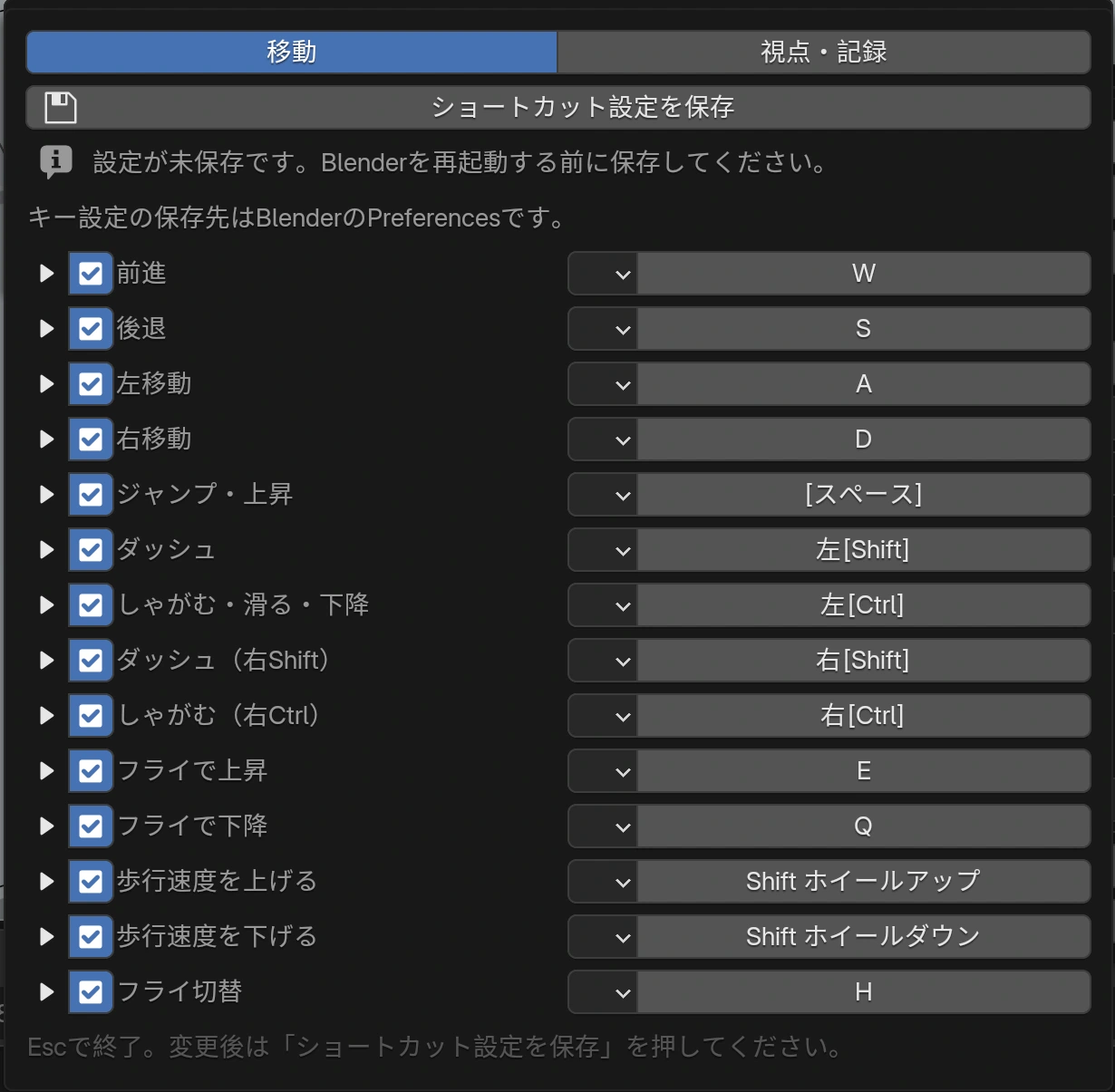
キー設定はblendファイルではなくBlenderのユーザー設定に保存します。Blenderの別バージョンや別プロファイルを開いた場合は、同じ設定が自動で引き継がれるとは限りません。重複キーを避け、操作できなくなった場合はEscで戻って修正します。
| 症状 | 確認すること |
|---|---|
| 探索に入れない | Object Modeの3Dビューポートから実行。別の探索を終了。パネルに表示された理由を読み、フラグ・床・衝突判定コレクションを確認します。 |
| その場から動けない | 開始フラグを壁や装飾から離し、足元の床を確認。形状変更後は探索を開始し直します。 |
| 描画が重い | 探索品質を軽くし、録画を720pへ。Forgeの雲・フォグ・高密度素材を調整。衝突形状が多い場合は軽い衝突判定コレクションを指定。 |
| 録画が始まらない | blendを保存。FFmpegの場所とH.264対応を確認。出力フォルダーの書き込み権限・空き容量・録画ログを確認します。 |
| キー設定が消える | 変更後の「ショートカット設定を保存」を確認。同じBlenderバージョン・同じユーザー設定を使用しているか確認します。 |
| カメラ記憶が適用できない | 記録先を新規カメラへ変更。既存カメラの制約やドライバーを確認。保持されたTextデータを削除せず、エラー内容を控えます。 |
更新前に探索と録画を終了し、blendファイルを保存します。新しいパッケージへ更新後、Blenderを再起動してください。問い合わせにはBlenderとWalkerのバージョン、操作手順、パネルのエラー、録画ログを添えると確認しやすくなります。
Liminal Forgeは背景生成・水・雲・光・素材調整。Liminal Walkerは探索・録画・カメラ記憶です。それぞれ独立して有効化できます。建築や破壊を行う別アドオンLiminal Sandboxの機能は、このWalkerガイドの対象ではありません。
アドオンのコードはGPL-3.0-or-laterです。外部から取り込んだアセットや画像は、それぞれのライセンスに従ってください。サポートと更新情報はcvELDで確認できます。
Walk at eye level, fly to a new view, and keep your favourite route as video or camera animation.
Liminal Walker brings first-person exploration to a Blender scene. Walk, fly and light your way, then save the experience as an MP4 or editable camera animation. It is included with Liminal Forge and also works independently.
Screenshots and the six films in this guide were captured in Blender 5.2.2 LTS. The companion Liminal Forge 1.6.1 also supports Blender 4.5 or later.
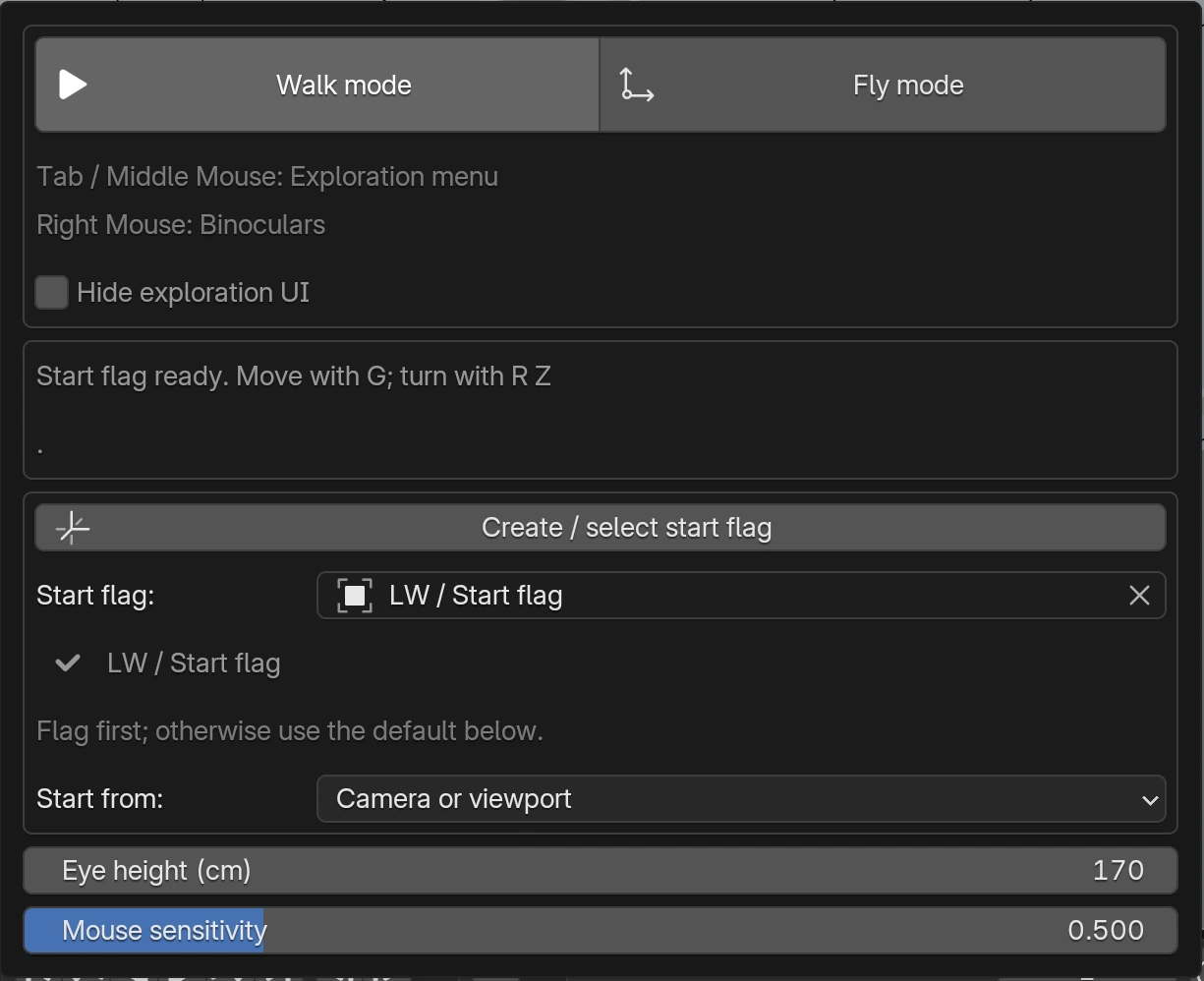
The add-ons have separate sidebar tabs. Their guides are separate too: use Liminal Forge / Liminal Walker at the top of this page to switch. A normal Blender scene can be explored without enabling Forge.
Walker receives navigation input during exploration. Exit with Esc before editing with another tool.
These backgrounds were generated with the current Forge and filmed using Walker's live movement, collision and recording. Films loop automatically while visible. Each lasts five seconds without audio. Steering was automated for this capture.
5 s · EEVEE · Liminal Walker
Download film5 s · EEVEE · Liminal Walker
Download film5 s · EEVEE · Liminal Walker
Download film5 s · EEVEE · Liminal Walker
Download film5 s · EEVEE · Liminal Walker
Download film5 s · EEVEE · Liminal Walker
Download filmCaptured on Windows in Blender 5.2.2 LTS with EEVEE. Performance depends on the scene and GPU. Water surfaces are not walking floors.
| Default input | Action |
|---|---|
| Mouse / WASD | Look / move forward, back and sideways |
| Space | Jump; rise while flying |
| Shift | Sprint |
| Ctrl | Smooth crouch; slide while sprinting; descend while flying |
| Shift + wheel | Increase or decrease walking speed |
| H | Switch between walking and flying |
| Left click | Toggle the handheld spotlight |
| Hold right click | Binocular view; use the wheel while held to adjust magnification |
| Tab / middle click | Exploration menu |
| Shift + H | Hide or show exploration instructions and status |
| Esc | Exit exploration and restore the editing view |
These are the defaults. Your shortcut settings take priority after customization. The central reticle is 70% transparent. Hide exploration UI removes instructions and status, while the reticle remains. Recorded video excludes all of these overlays.
The flag selected in Start flag takes priority. Without an explicit choice, Walker searches the current scene for a flag. Flags do not render and are temporarily hidden during exploration.
Without a flag, Start from applies. Camera or viewport uses the scene camera, falling back to the current view. Current viewport uses your view directly. Delete the flag in the Outliner to stop using it. If you create several flags, explicitly select the one to use.
Place the flag close to a floor and clear of walls. If the ground is missing or the position is blocked, move the flag and try again.
| Setting | How to adjust it |
|---|---|
| Eye height (cm) | 120–180cm; default 160cm. Exit exploration, change the value and re-enter. |
| Mouse sensitivity | Default 2.0; adjust from 0.1 to 4.0. |
| Walk speed | Default 3.4m/s. Lower it for a slow tour. Shift + wheel also changes it during exploration. |
| Field of view / Binocular field of view | Normal viewing angle and the narrower angle while holding right click. Smaller values look more magnified. |
| Flashlight power | Brightness of the handheld spotlight for dark rooms. |
| Exploration quality | Choose it above the start buttons. Smooth movement uses lighter EEVEE settings and half resolution on each viewport axis. Draft (fastest) disables shadows, ray tracing, volumes and compositing, and draws at one eighth resolution per axis. Scene quality retains the scene sampling. Temporary settings are restored when exploration ends. |
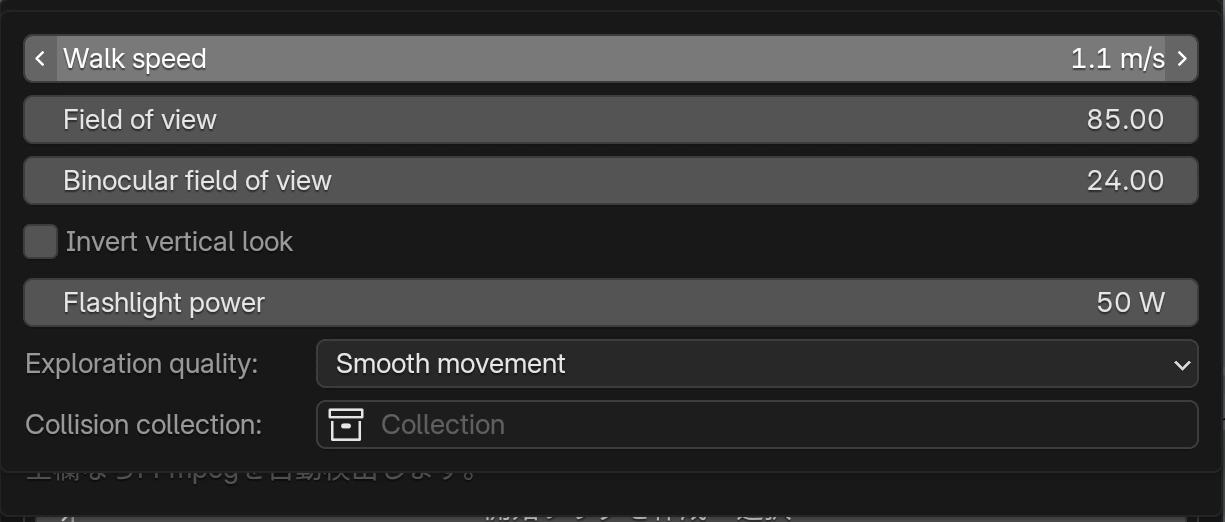
Draft also applies a temporary Blender GPU image texture limit during exploration. Source images are unchanged, and the limit is restored on exit. A video recorded in Draft retains its simplified appearance.
| New Dream Pools / 960×540 | Smooth movement | Draft |
|---|---|---|
| Median processing time | 811.7ms | 238.9ms |
| Equivalent draw throughput | 1.23 FPS | 4.19 FPS |
Draft was about 2.96 equivalent FPS, or 240.7%, faster in this scene. The blended water surface is costly in Smooth mode. Both cases used the same 72-frame route on Windows, Blender 5.2.2 LTS and an RTX 5090; the first eight frames were excluded from the median. The isolated capture time includes water updates, walking, GPU drawing and image readback. These are equivalent offscreen throughput figures, not displayed viewport FPS or a prediction for every scene. The comparison film plays captured frames at 24 FPS; it is not a real-time screen recording.
If fast movement or wide angles feel uncomfortable, reduce speed and field of view, then try crouching and binoculars gently. Scene unit scale also affects movement and eye height.
Walker builds collision from scene meshes when exploration starts, including evaluated Geometry Nodes results. It avoids walls, stands on floors and follows stairs and slopes. Gaps or steps too narrow for the body cannot be traversed.
For a heavy scene, put simplified floors, walls and stairs in a collection and choose it under Movement and view → Collision collection. Use those shapes for collision while retaining detailed trees and decoration in the rendered view.
Start with Fly mode, or switch using H. WASD follows the camera direction. E or Space rises; Q or Ctrl descends. Check a high ceiling or upper floor, then press H to return to walking.
Left click toggles the spotlight. Hold right click for binoculars and release it to restore your normal view. The wheel changes magnification while using binoculars; Shift + wheel changes walking speed.
Press Tab or middle click for the exploration menu. Choose navigation mode, UI visibility, recording or camera memory. Opening the menu pauses movement, but video and camera memory continue recording.
| Input | Destination |
|---|---|
| B | Bookmark the current position |
| Backspace | Return to the bookmark |
| Home | Return to this exploration's entrance |
Walker 0.6.7 fixes a grid pattern in Blender 4.5 recordings. Exit exploration before updating an earlier version.
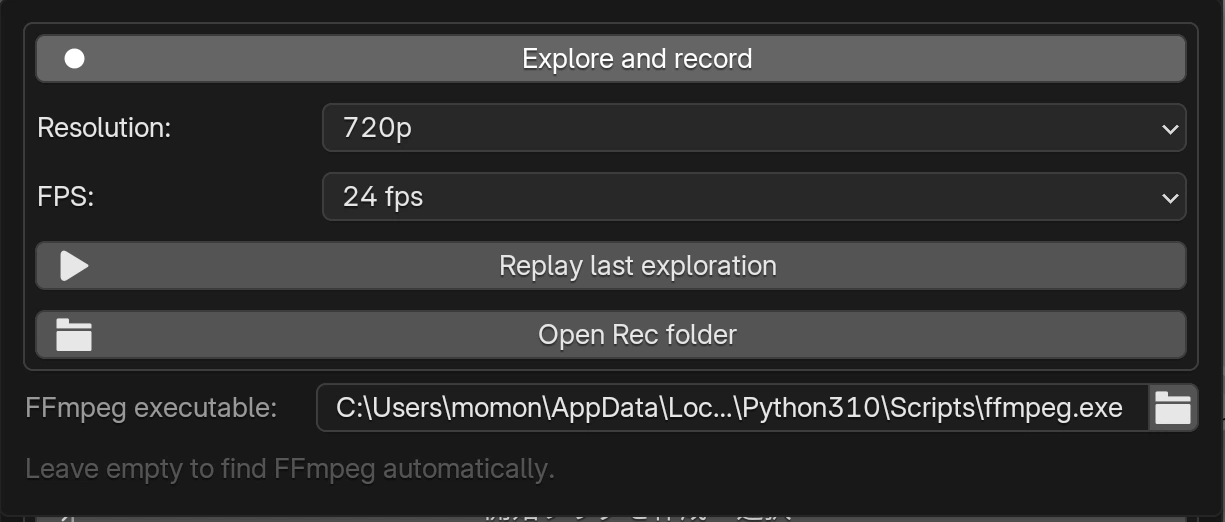
Output goes into Rec beside your blend file. Each MP4 gets a scene name, timestamp and unique suffix. It records the camera view without instructions, menus or reticle. Audio is not recorded.
Try a smaller recording size, lighter exploration quality and less cloud or fog density. If rendering falls behind, held frames preserve elapsed time. The requested frame rate does not guarantee that every output frame is a distinct rendered image.
During encoding the file ends in .partial.mp4; on completion it becomes .mp4. Check the recording log if it fails. Keep Blender open until saving finishes. The accompanying .take.json stores the exploration for replay.
Camera memory saves position, rotation and lens keyframes instead of a movie. Use it when you want to render later in EEVEE or Cycles. External FFmpeg is not required.
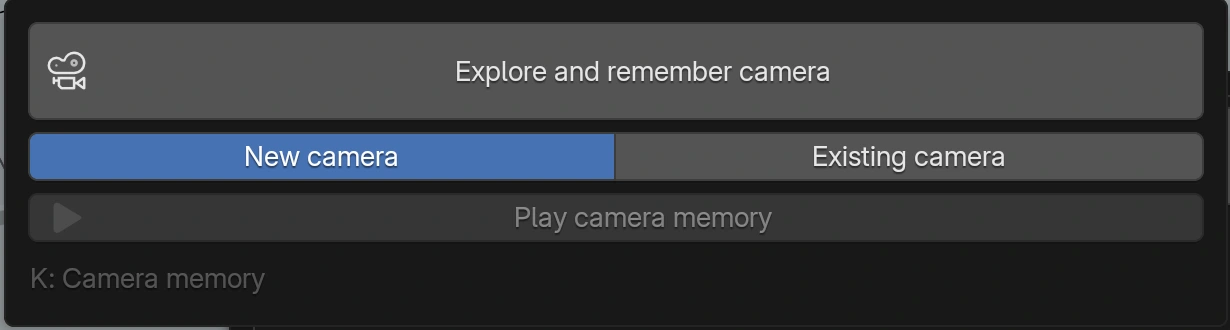
For Existing camera, choose an editable camera in the current scene. Walker retains its previous action and camera data, then assigns a new action for the recorded motion. Cameras with constraints, drivers, NLA or delta transforms may be rejected; use a new camera instead.
Keys begin at the current frame and use the scene's frame rate. Binocular lens changes are recorded; spotlight on/off animation is not. If applying motion fails, the samples remain in the Text datablock LW / Unapplied camera motion.
| Method | Purpose and requirements |
|---|---|
| MP4 recording | A movie to share immediately. Requires a saved blend and external FFmpeg. |
| Replay last exploration | Replays the path in the accompanying take.json, using the current scene's geometry and appearance. |
| Camera memory | Editable timeline keys for rendering again, saved to a new or existing camera. |
Replay last exploration does not restore the entire scene. Changing the background changes what the same route shows. Keep the matching take.json alongside the MP4 for replay. The MP4 itself can be watched without that JSON.
For final rendering, exit exploration, use the remembered camera as the scene camera and set resolution, frame range and output. Check materials, volumes and lighting again when switching to Cycles. Walker is not a render farm or a real-time Cycles recorder.
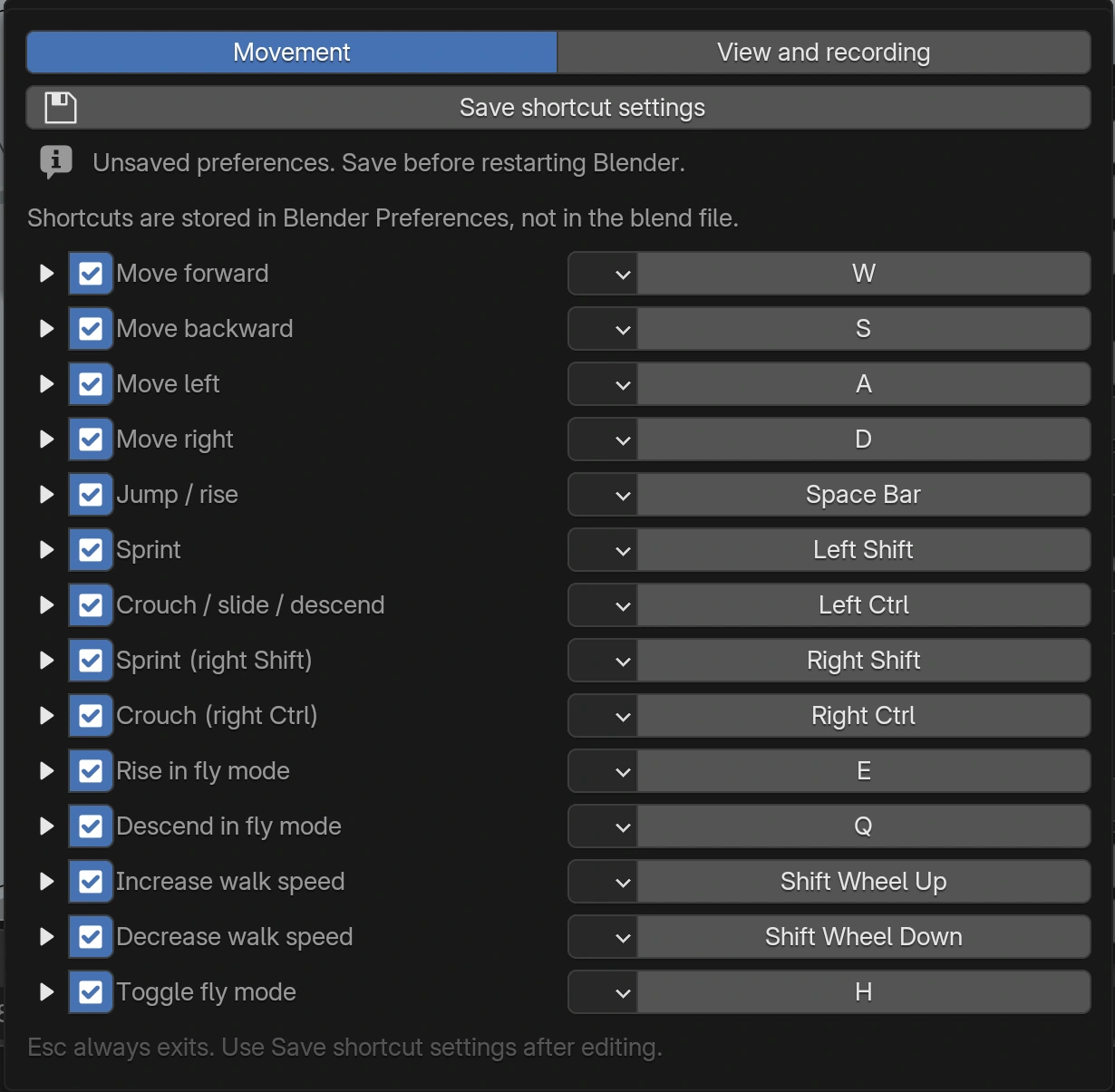
Bindings belong to Blender's user preferences, not the blend file. A different Blender version or user profile may have different preferences. Avoid duplicate bindings; exit with Esc to correct a control that behaves unexpectedly.
| Symptom | What to check |
|---|---|
| Cannot enter exploration | Run from a 3D Viewport in Object Mode. Stop any other exploration. Read the reason in the panel; check the flag, floor and collision collection. |
| Cannot move away from the entrance | Move the flag clear of walls and decoration. Check the floor. Re-enter after changing geometry. |
| Slow drawing | Use lighter exploration quality and 720p recording. Adjust Forge clouds, fog and dense assets. Use a simpler collision collection for excessive collision geometry. |
| Recording will not start | Save the blend. Check FFmpeg's path and H.264 support, output permissions, free space and the recording log. |
| Shortcut changes disappear | Use Save shortcut settings. Check that you restarted the same Blender version with the same user preferences. |
| Camera memory cannot be applied | Choose New camera. Check constraints and drivers on an existing target. Keep the preserved Text datablock and note the error. |
Before updating, exit exploration, finish recording and save the blend. Restart Blender after installing the update. For support, include Blender and Walker versions, reproduction steps, the panel error and recording log.
Liminal Forge generates environments and adjusts water, clouds, light and assets. Liminal Walker explores, records video and remembers camera motion. Enable them independently. Building and destruction in the separate Liminal Sandbox add-on are outside this Walker guide.
Add-on code is GPL-3.0-or-later. Imported assets and images retain their own license terms. Find support and updates at cvELD.