Build as you explore. Edit windows and doors, and shape your own space.
VERSION 0.3.0BLENDER 4.5+WINDOWS2026-10-11
Open contents
Install & start
Liminal Sandbox lets you build, edit and destroy while exploring a Blender scene. Generate a space in Forge, build in Sandbox, then explore and record with Walk. Each add-on can also work independently.
Open Edit → Preferences → Add-ons → Install from Disk, select your supplied Sandbox ZIP and enable it.
Open a scene with a floor and switch the 3D Viewport to Object Mode.
Press N, open cvELD Liminal Forge → Liminal Sandbox, choose a start position and press Start building sandbox.
Look with the mouse and move with W A S D. Press Esc to exit. Save the .blend to retain your building.
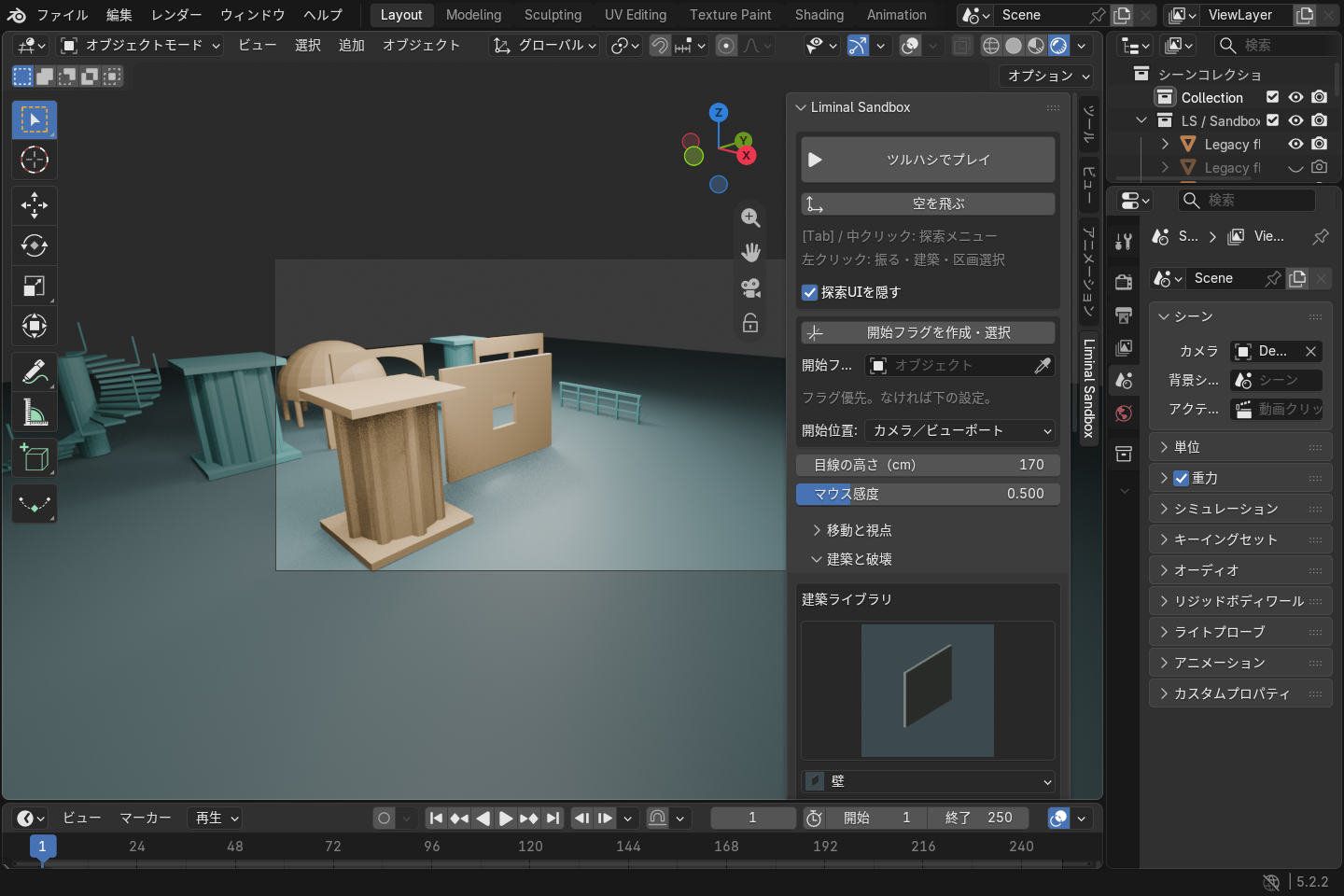
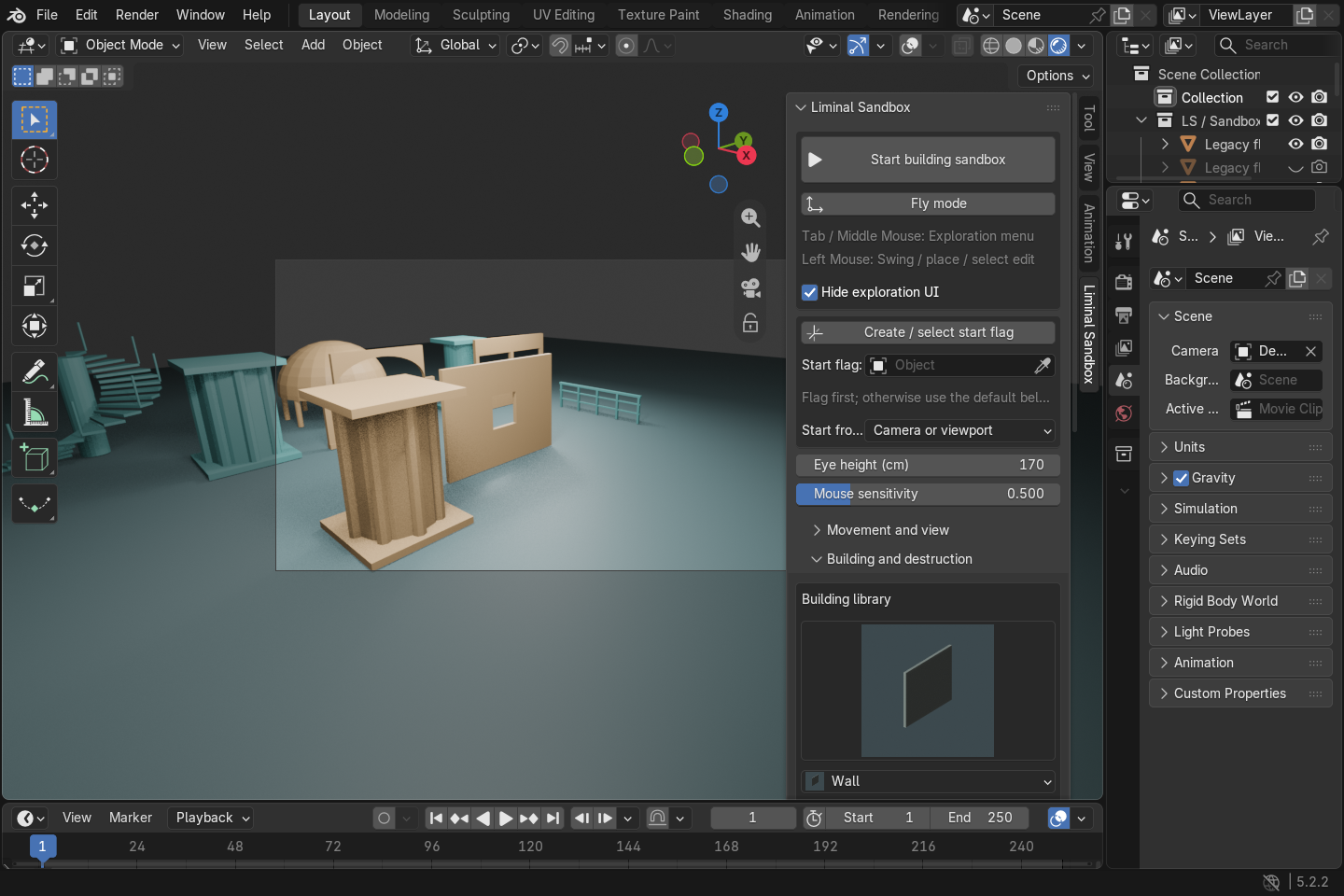
The Liminal Sandbox panel, with its building library and repair / restore actions.
Place building pieces
Choose a piece in Building library. During play, use Tab → Building library or [ / ].
Press Q to switch to building and aim at the destination. R rotates in 90-degree steps.
Confirm the orange preview and click to place. A red preview cannot be placed.
F1–F4 select wall, floor, stairs and roof. Hold the left button and aim at another grid slot for continuous placement.
Stairs can meet existing floors and walls: conflicting coplanar fragments are removed from the new stair surface. Duplicate stairs and player overlap remain blocked. Contact faces are recalculated after Sandbox edits and Undo; manually edited stair meshes are preserved. For other pieces, placement is rejected when surfaces overlap, including different types such as floor / corridor and wall / window wall. To place a new floor where a floor already exists, move the existing surface or use a different storey. Adjacent floor tiles may still meet.
Three-second wall placement. Actual Blender viewport frames with scripted actions.
Fourteen piece types
The four basic types are wall, floor, stairs and roof. Ten additional modules each have three variations: column, arch, door frame, window wall, corridor, ramp, spiral stairs, bridge, railing and dome.
V changes the next placement variation. Aim at an existing architectural module and press G to change its variation; wheel down resets it. Changes that trap the player are reverted, so step away before trying again.
Edit windows, doors & stairs
Aim at a Sandbox wall, floor, stairs or roof and press G to enter edit mode.
Hold the left button and drag over cells. Walls can become windows or doors, floors gain openings and roofs change slope.
Release to commit. Invalid combinations are not applied. On stairs, trace connected cells in ascending order.
Wheel down resets the edit. Backspace cancels the in-progress selection. Aim at a door from nearby and press E to open or close it.
Three-second window edit. Geometry and collision update together.
Destroy, undo & restore
Press 1 for the pickaxe and click to hit. Set Hits to destroy to choose the required hits. Built pieces are hidden; supported environment surfaces are cut by a grid tile. Small props may disappear as a whole. The shotgun on 2 targets Sandbox-built pieces.
During play, use Ctrl Z to undo and Ctrl Shift Z to redo. After exiting, Restore original world removes Sandbox building and restores the original objects' visibility. Play history belongs to the current session; restoration information for original objects is saved in the .blend.
Protected objects and objects shared by multiple scenes cannot be destroyed. Make a local object copy in Blender first if needed.
Repair older flickering pieces
Exit play with Esc.
Open Building and destruction → Repair overlapping pieces.
Recognizable generated pieces have overlapping faces cleaned. Generated pieces overlapping existing surfaces are hidden. Check the counts in the panel.
If a wanted piece becomes hidden, use Blender's Ctrl Z to undo the entire repair and adjust its placement first.
Manually edited geometry, UVs or face material assignments, shape keys, modifiers, vertex colors, additional attributes, weights and custom normals are skipped. This does not automatically delete overlaps within the original world or arbitrary hand-placed objects. Generated pieces hidden by repair remain as data.
Three-second repair of overlapping legacy columns. Undo restores the hidden column.
Grid, view & interaction
Setting
Practical use
Use generator grid
Read spacing, storey height and orientation stored on a Forge connected world. Assign the source explicitly if several worlds exist.
Grid and material source
The reference object for grid dimensions and building materials.
Grid size / floor height / origin
Manual spacing, height and reference point. Start with a 4 m grid and 3 m height.
Build reach
Maximum placement distance. Reduce it if distant slots are hard to aim at.
Eye height / mouse sensitivity
Eye height is 120–180 cm. Type a smaller sensitivity if necessary.
Collision collection
Restrict walking collision in a complex environment. Placement overlap checks still inspect visible surfaces.
Exploration quality
Choose lighter movement sampling or keep scene quality.
Shortcuts
Action
Default keys
Move / sprint / jump
WASD / Shift / Space
Crouch / slide
Ctrl (slide while running)
Fly / change speed
H / Shift + wheel
Toggle building / rotate
Q / R
Library / previous-next / variation
Tab / [ ] / V
Edit / reset / door
G / wheel down / E
Light / UI
L / Shift + H
Return to entrance / exit
Home / Esc
Customize keys under Shortcuts in Preferences or the sidebar, then click Save shortcut settings. Walk has separate shortcut settings. If keys are unavailable, use Add missing Sandbox shortcuts. This also restores deleted bindings; existing customized or disabled bindings are kept.
Use Forge & Walk
Create a world with Forge and start Sandbox in the same scene to build.
Exit with Esc, inspect your result and save it.
Start Walk mode in Liminal Walker. Your Sandbox walls and floors participate in exploration.
Use Walk for MP4 recording and camera memory. Sandbox does not include a recorder.
Two exploration sessions cannot run together. Exit one before starting the other. Restart exploration after changing environment geometry with another tool.
Troubleshooting & requirements
Cannot start: check Object Mode, visible floors and a start flag or camera above a floor. Move the entrance to an open area if it is cramped. A red preview indicates contact with the player or overlapping surfaces.
Slow: reduce rendering quality, shadows, volumes or scene complexity. Restrict collision to a simpler collection. The building limit is 1,500 pieces. Preparing a highly detailed original object for destruction may take time.
Requirements: Blender 4.5 or later. This update was checked on Windows Blender 4.5.0 / 5.2.2 LTS. Windows x64 uses the bundled acceleration; Python is used when the binary is unavailable. Navigation collision is not a dynamic physics simulation.
Exit with Esc before updating or disabling the add-on. Code: GPL-3.0-or-later, without warranty. Scene assets retain their own licenses.